Release Highlights – 13th Jul 2026
Capture Customer Responses in Custom Audience Manager Properties
Customer information collected through Conversation Flows is most valuable when it is stored in the right CRM fields. However, limited support for custom properties often requires additional manual mapping or external processes, making customer data management less efficient and increasing the risk of incomplete profiles.
Conversive now enables Conversation Flows to save customer responses directly to custom properties in Audience Manager CRM. By supporting both system-defined and custom properties, organizations can accurately capture customer information, simplify CRM configuration, and maintain more complete and personalized customer profiles.
What’s New
- Support for Custom CRM Properties: Save Conversation Flow responses directly to both system-defined and custom Audience Manager CRM properties.
- Flexible Field Mapping: Select the most relevant CRM property for each customer response to match your business requirements.
- Accurate Customer Profiles: Automatically populate the appropriate CRM fields with customer responses, improving data quality and consistency.
- Seamless CRM Integration: Eliminate manual data entry by automatically storing customer responses in the selected CRM properties.
How It Works
When configuring the Save Response to CRM action in a Conversation Flow, administrators can choose from both system-defined and custom Audience Manager CRM properties. During flow execution, customer responses are automatically mapped and stored in the selected CRM property, ensuring accurate and consistent customer data capture.
Steps to Configure
- Navigate to Integrations and configure the required field mappings for your Audience Manager integration.
- Open the required Conversation Flow.
- Add or edit the Save Response to CRM action.
- Select the appropriate system-defined or custom Audience Manager property.
- Save and activate the Conversation Flow.
Who Benefits
- Business Administrators: Configure CRM mappings that align with unique business data requirements.
- Customer Support Teams: Access richer, more complete customer profiles during every interaction.
- Marketing and CRM Teams: Improve customer segmentation and personalization with accurately captured data.
- Operations Teams: Reduce manual data entry while maintaining consistent and reliable CRM records.
Gain Complete Visibility into CRM Appointment Synchronization Activity
Accurate appointment synchronization is essential for maintaining consistent customer records across CRM systems. However, limited visibility into synchronization activities can make it difficult to identify failures, investigate issues, and track appointment updates throughout their lifecycle. These challenges often increase troubleshooting time and impact operational efficiency.
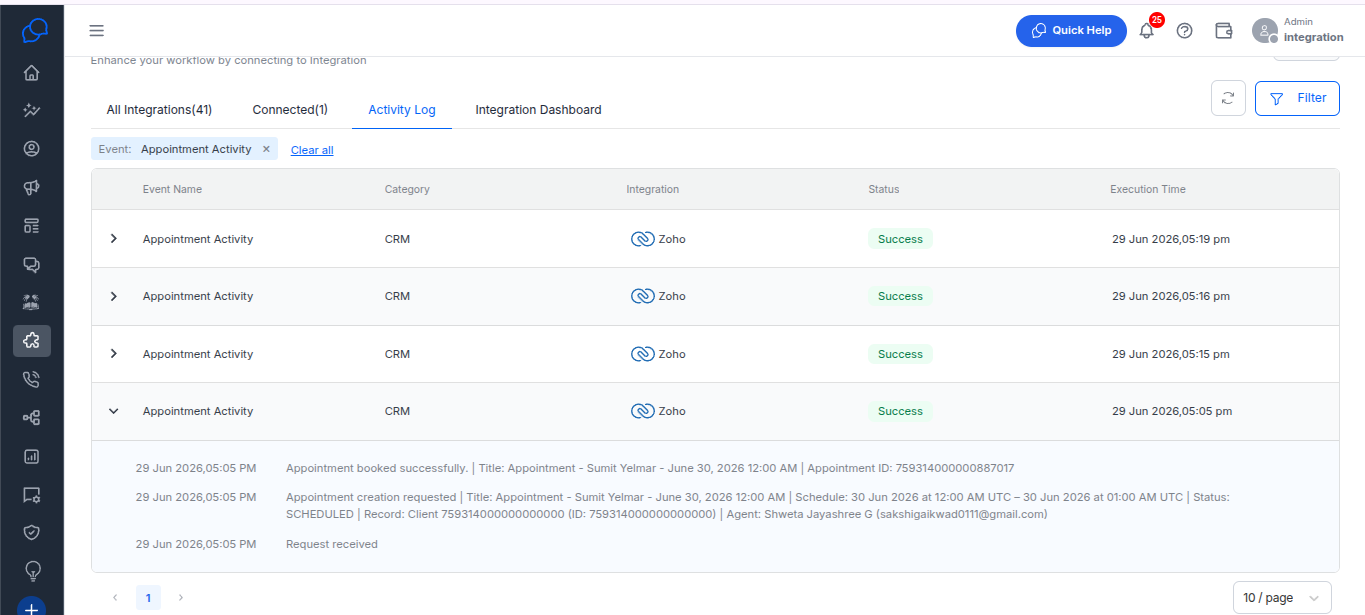
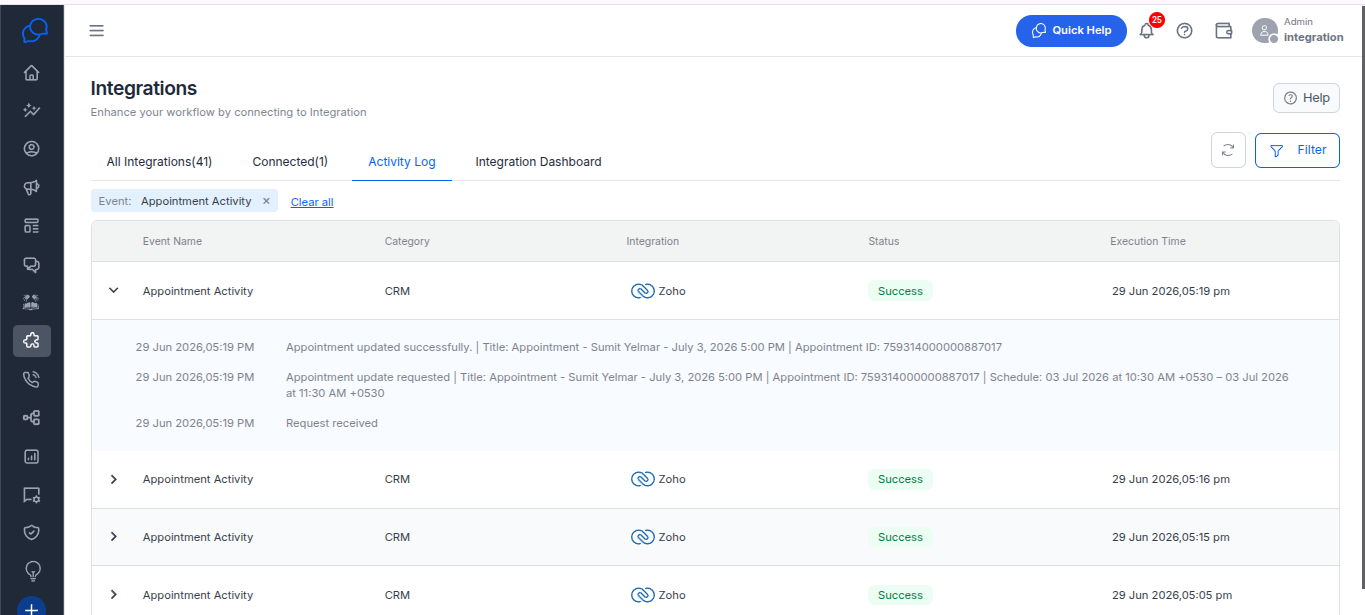
Conversive now enhances the Integration Activity Log with comprehensive appointment synchronization auditing. Expanded event tracking, richer metadata, and advanced filtering capabilities provide administrators with the visibility needed to monitor appointment activity, diagnose synchronization issues, and maintain reliable CRM integrations.
What’s New
- Comprehensive Appointment Event Tracking: Monitor appointment creation, updates, cancellations, and synchronization failures from a centralized activity log.
- Detailed Audit Information: View appointment IDs, CRM record IDs, synchronization details, appointment status, and error information for every activity.
- Enhanced Activity Log Filtering: Filter appointment events by event type to quickly locate and investigate synchronization activities.
- Improved Operational Visibility: Gain deeper insight into appointment synchronization across connected CRM systems for faster issue resolution and better governance.
How It Works
The Integration Activity Log now records every significant appointment synchronization event between Conversive and connected CRM platforms. Each audit record includes detailed metadata, allowing administrators to trace appointment lifecycle events, review synchronization status, identify failures, and investigate issues using enhanced event-type filters.
Steps to Configure
- Navigate to Integrations in Conversive.
- Open the Integration Activity Log.
- Use the Event Type filter to view appointment-related events.
- Select an activity record to review synchronization details, appointment status, CRM record information, and any associated errors.
- Use the audit information to investigate and resolve synchronization issues as needed.
Who Benefits
- CRM Administrators: Monitor appointment synchronization health and quickly resolve integration issues.
- Support Teams: Gain better visibility into appointment activities to assist customers more effectively.
- Operations Teams: Improve operational efficiency with comprehensive audit trails and faster troubleshooting.
- IT and Integration Teams: Maintain reliable CRM integrations with detailed event tracking, error diagnostics, and enhanced filtering capabilities.