
Release Highlights – 29th Jun 2026
Enhance Productivity through Agent Availability Management
Support agents often update their availability throughout the day to ensure accurate routing and balanced workloads. Yet switching away from active conversations to change status disrupts workflows, lowers productivity, and creates unnecessary context switching.
Conversive now lets agents manage their availability directly from the Global Header, making it easy to switch between Active and Away from anywhere in the platform without disrupting their workflow. This will enhance productivity by improving real-time visibility, operational efficiency, and customer support for faster, more consistent service delivery.
What’s New
- Update Availability from Anywhere: Change your availability directly from the Global Header user profile menu without interrupting your workflow.
- Instant Status Switching: Seamlessly switch between Active and Away without navigating to the Converse Desk.
- Real-Time Synchronization: Availability changes are reflected instantly across the platform, ensuring accurate agent status at all times.
- Centralized User Experience: Manage your availability through a single, unified control for a cleaner, more consistent, and intuitive experience.
How It Works
Agents can access their profile menu from the Global Header and select their preferred availability status. The selected status is applied immediately and reflected across Conversive in real time.
Steps to Configure
- Click your profile icon in the Global Header.
- Select Active or Away.
- Your availability is updated instantly across the application.
Who Benefits
- Support agents: Update availability without interrupting active conversations.
- Supervisors: Gain more accurate real-time visibility into agent availability.
- Operations teams: Benefit from a simpler, standardized workflow for status management.
Gain Complete Visibility into Automation Ownership and Changes
As automation libraries expand, tracking workflow ownership and recent modifications becomes increasingly challenging. Without clear visibility into who created or last updated an automation, troubleshooting, collaboration, and governance can become more complex and time-consuming. Limited audit visibility may also slow issue resolution, reduce operational efficiency, and make it harder to maintain accountability across teams.
Conversive now provides enhanced audit visibility for Automations, showing who created and last modified each workflow, improving ownership, troubleshooting, accountability, and team confidence across operations.
What’s New
- Automation Ownership Visibility: Instantly identify who created each automation for improved ownership and accountability.
- Latest Modification Details: View the user who last updated an automation to quickly understand recent changes.
- Comprehensive Audit Information: Ownership details are now displayed alongside existing modification history for greater traceability.
- Improved Lifecycle Visibility: Gain a complete view of automation ownership and change history to simplify governance, troubleshooting, and collaboration.
How It Works
Each automation now displays the users who created and last modified it alongside existing audit information. This enhanced visibility enables teams to quickly identify ownership, track recent changes, and manage automations more effectively throughout their lifecycle.
Steps to Configure
- Navigate to Automations.
- Open any existing automation.
- Save changes as needed.
- Review the auditing details to view Created By and Updated By information.
Who Benefits
- Administrators: Easily identify automation ownership.
- Operations teams: Improve accountability across shared automations.
- Support teams: Troubleshoot automation changes with greater confidence.
Strengthen OTP Security with Intelligent Resend Controls
Unrestricted OTP resend requests can raise messaging costs, disrupt user experience, and increase misuse risk.
Conversive now adds configurable resend limits and cooldown periods across supported OTP channels, helping organizations balance security and usability, reduce operational overhead, improve messaging efficiency, and deliver a more reliable verification experience for every user.
What’s New
- Configurable OTP Resend Limits: Users can resend an OTP up to three times for each verification request.
- Automatic Resend Protection: Additional OTP resend requests are temporarily blocked after the third attempt to help prevent misuse.
- Built-in Cooldown Period: A 30-minute cooldown is automatically enforced before another OTP can be requested.
- Consistent Verification Experience: Standardized resend controls are applied across all supported OTP verification channels for improved security and reliability.
How It Works
Users can resend an OTP up to three times per verification session. After the limit is reached, additional resend requests are blocked until the 30-minute cooldown period expires automatically.
Steps to Configure
No additional configuration is required.
- Start an OTP verification session.
- Use Resend OTP when needed (up to three attempts).
- After reaching the limit, wait 30 minutes before requesting another OTP.
Who Benefits
- End users: Experience a more consistent verification process.
- Administrators: Reduce unnecessary messaging costs.
- Security teams: Strengthen protection against OTP abuse and misuse.
Streamline Calls, SMS, and CRM Workflows with RingCentral Integration
Customer interactions often span voice calls, SMS, MMS, and CRM systems, making it difficult for agents to switch between multiple applications efficiently.
Conversive now integrates with RingCentral CTI, enabling teams to manage calls, messages, and customer records in Salesforce and Zoho CRM from a single, unified workspace for improved productivity and visibility.
What’s New
- Seamless RingCentral Authentication: Securely connect your RingCentral account directly from Conversive with a simple authentication process.
- One-Click Calling: Initiate voice calls instantly from Salesforce and Zoho CRM customer records.
- Intelligent Caller Identification: View customer details automatically through real-time screen pops for incoming calls.
- Automatic Call Logging: Capture and record call activities automatically to maintain accurate customer interaction history.
- Unified SMS and MMS Management: Send and receive SMS and MMS messages in Conversive Desk using RingCentral Sender IDs.
- Missed Call Tracking: Monitor missed call events to enable timely follow-ups and improve customer engagement.
- Cross-CRM Compatibility: Enjoy a consistent experience across both Salesforce and Zoho CRM environments.
How It Works
After connecting a RingCentral account, agents can make and receive calls, manage SMS and MMS conversations, view customer information during incoming calls, and automatically log call activities—all within the unified Conversive experience integrated with Salesforce and Zoho CRM.
Steps to Configure
- Navigate to Settings → Integrations.
- Select RingCentral CTI Integration.
- Authenticate your RingCentral account.
- Configure the required Sender IDs.
- Complete setup and assign access to users.
- Start managing calls, SMS, and MMS directly from Conversive.
Who Benefits
- Support teams: Manage customer conversations from one workspace.
- Sales teams: Place calls and capture activities without manual logging.
- Administrators: Support both Salesforce and Zoho CRM using a single integration.
- Customer service managers: Improve visibility into voice and messaging interactions.
Gain Complete Visibility into CRM Integration Activity
CRM integrations are vital for seamless data synchronization and daily operations, but limited audit visibility can hinder troubleshooting and monitoring.
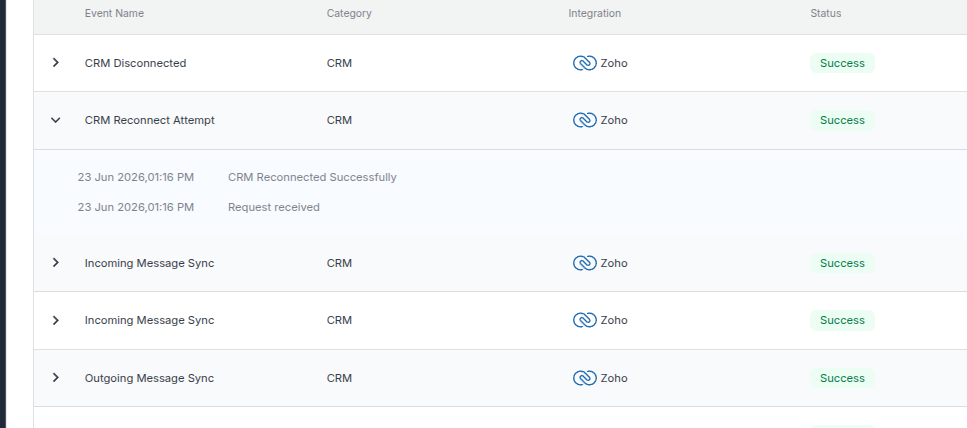
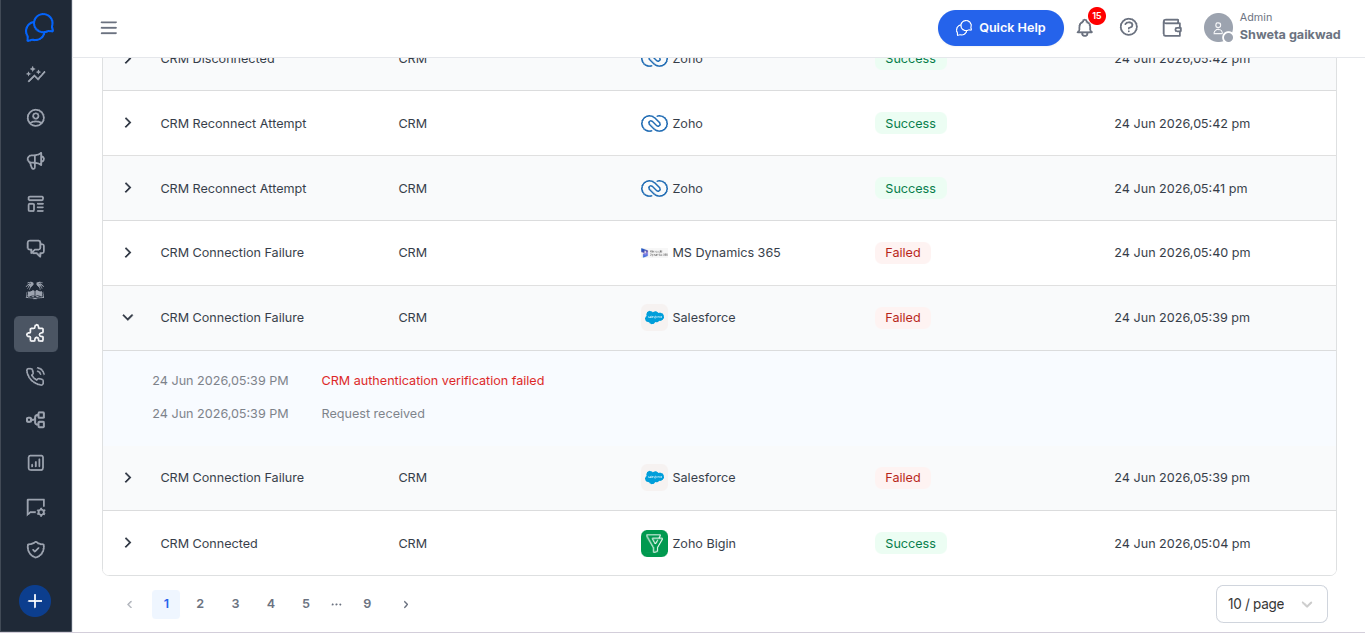
Conversive solves this with enhanced CRM integration audit logs, offering expanded event tracking, richer metadata, and advanced filtering to simplify issue diagnosis, improve visibility, and strengthen governance across connected systems.
What’s New
- Expanded Audit Event Tracking: Capture additional audit events across the CRM integration connection lifecycle for improved visibility.
- Comprehensive Connection Insights: View detailed information for connection, disconnection, reconnection, and failed connection events.
- Richer Audit Metadata: Access enhanced synchronization details and error information to simplify troubleshooting and root cause analysis.
- Advanced Event Filtering: Use enhanced Event Type filters to quickly locate, investigate, and analyze CRM integration activities.
How It Works
The Integration Audit Log now records additional CRM integration events and provides richer details for every audit entry, enabling teams to monitor integration health, accelerate troubleshooting, and investigate issues more efficiently.
Steps to Configure
- Navigate to Integrations → Audit Log.
- Review CRM connection and appointment events.
- Filter by Event Type to locate specific activities.
- Open audit records to view detailed metadata, timestamps, user actions, and error information.
Who Benefits
- System administrators: Monitor CRM integration health more effectively.
- IT teams: Troubleshoot connection issues faster.
- Compliance teams: Gain improved audit visibility and reporting.
Simplify Audience Manager Setup with an Enhanced Configuration Experience
Configuring integrations should be straightforward, but unnecessary settings, generic field mappings, and complex workflows can slow setup and increase administrative effort.
Conversive simplifies Audience Manager configuration with a streamlined interface, intelligent defaults, and context-aware options, helping teams complete setup faster, improve usability, and create a more efficient onboarding experience overall.
What’s New
- Streamlined Configuration Experience: Configure Audience Manager using a simplified interface with only relevant settings.
- Intelligent Default Settings: Leverage preconfigured default values to accelerate setup and reduce manual configuration.
- Smarter Field Mapping: Automatically map fields using data from your connected Audience Manager account for greater accuracy.
- Consent Synchronization Support: Keep customer consent preferences synchronized across connected systems.
- Centralized Configuration Management: Manage all Audience Manager settings from a single, unified configuration page for easier administration.
How It Works
The enhanced configuration experience automatically displays only the settings and field mappings relevant to your Audience Manager account, reducing setup time, improving configuration accuracy, and simplifying ongoing integration management.
Steps to Configure
- Navigate to Settings → Integrations → Audience Manager.
- Review the simplified configuration options.
- Configure field mappings using your connected account fields.
- Save your changes to activate the updated configuration.
Who Benefits
- Administrators: Complete integrations faster with fewer configuration steps.
- Marketing teams: Benefit from improved audience and consent synchronization.
- Implementation teams: Reduce setup errors with account-specific field mapping.
- Operations teams: Manage integrations more efficiently from a centralized experience.