
Configuring and Managing Notification Usecase
Steps to Create Notification Usecase Automation
Prerequisites: Ensure that your CRM is connected to Conversive through integration. or you ensure that you are using audience manager as a data source and you are using a Conversive-related automated use case.
-
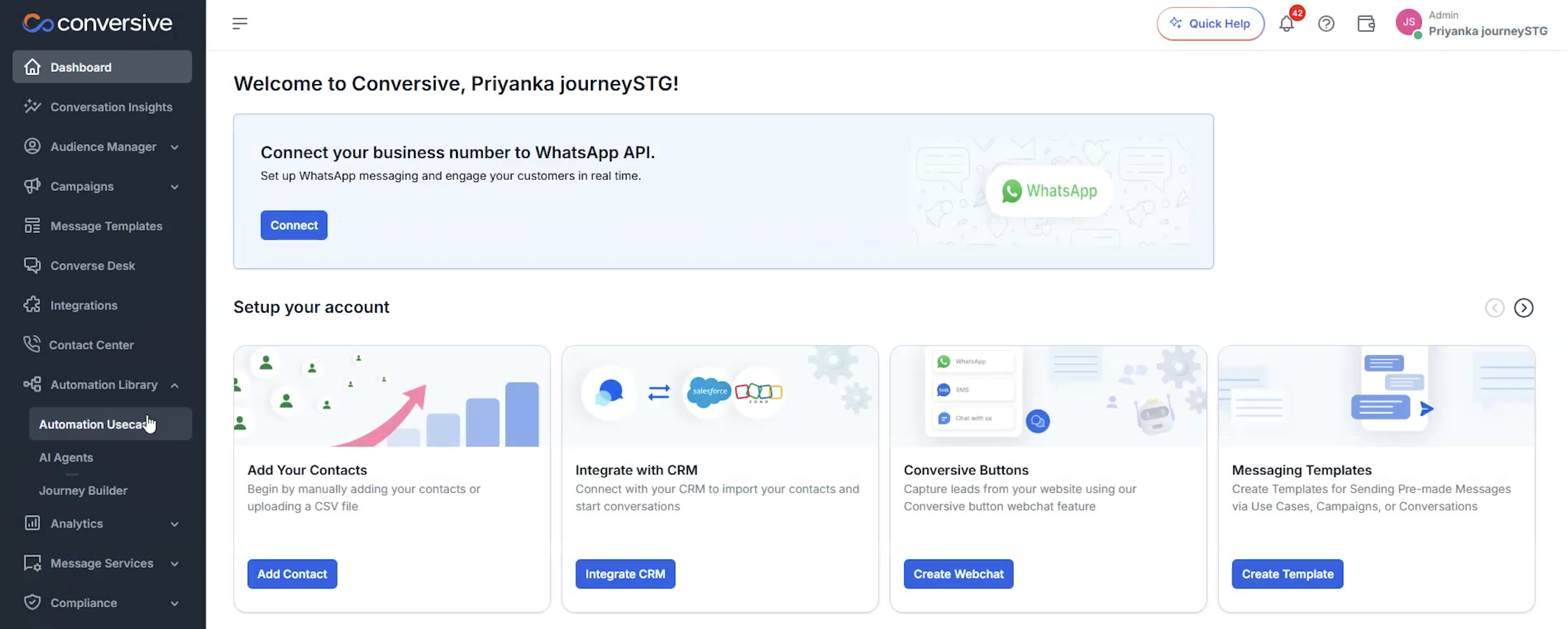
In the navigation bar, click on Automation Use Case.
-
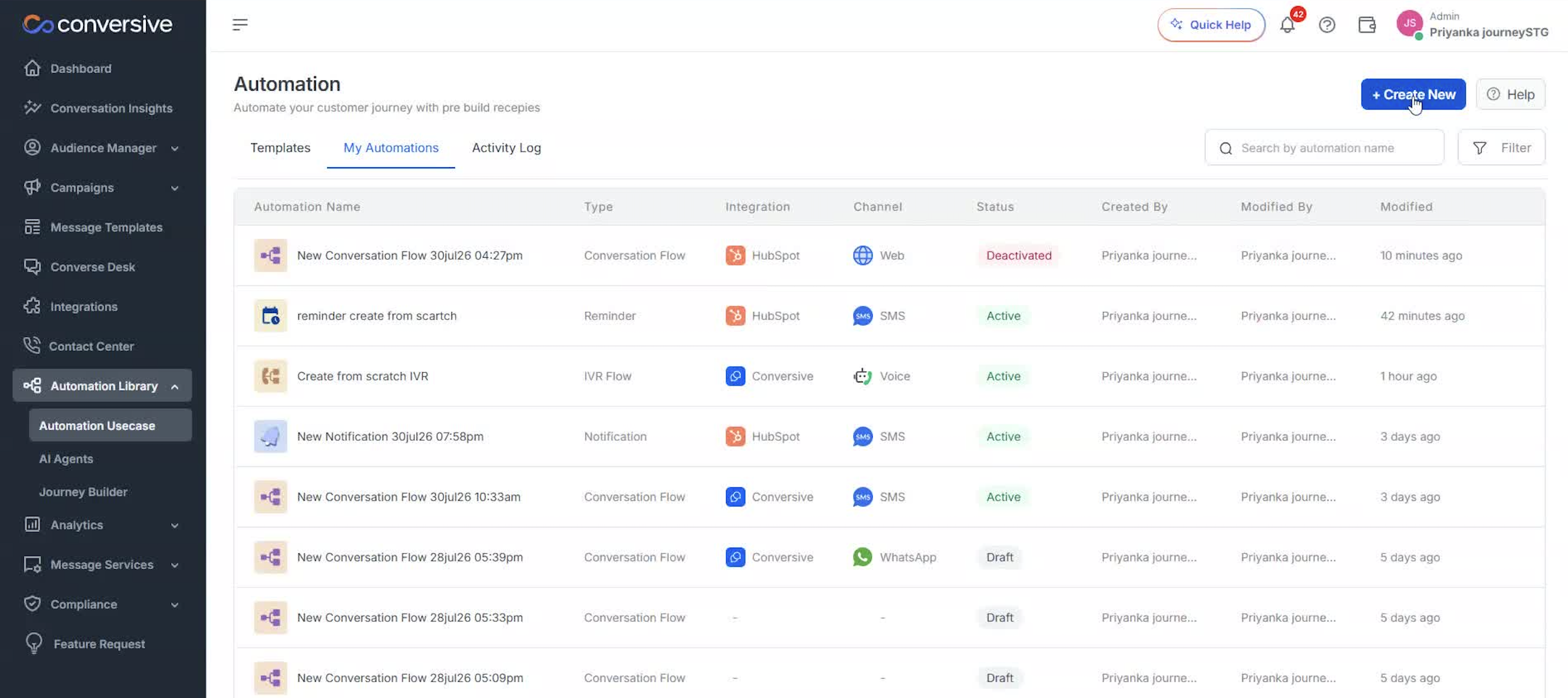
Click the Create New button on the Automation page.
-
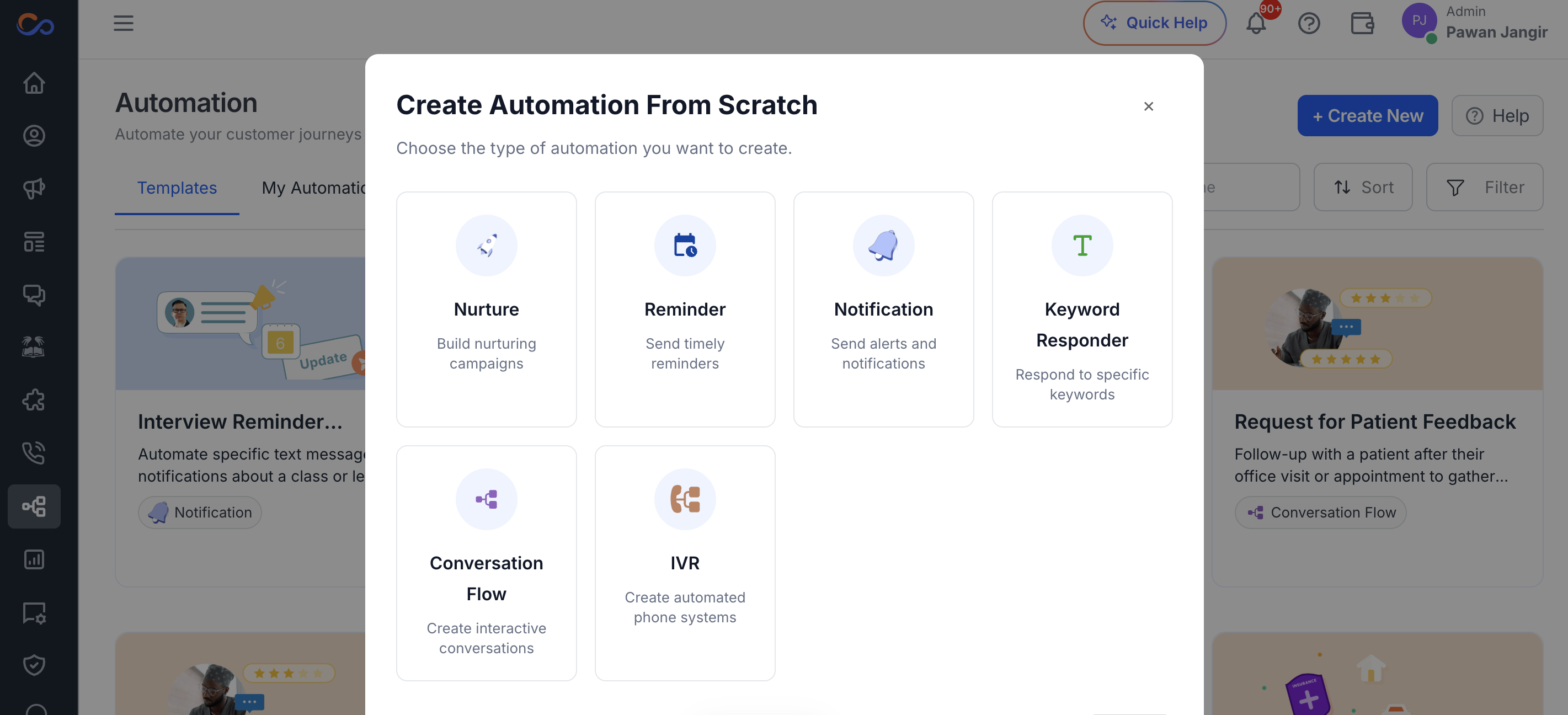
In the modal, select Notification.
-
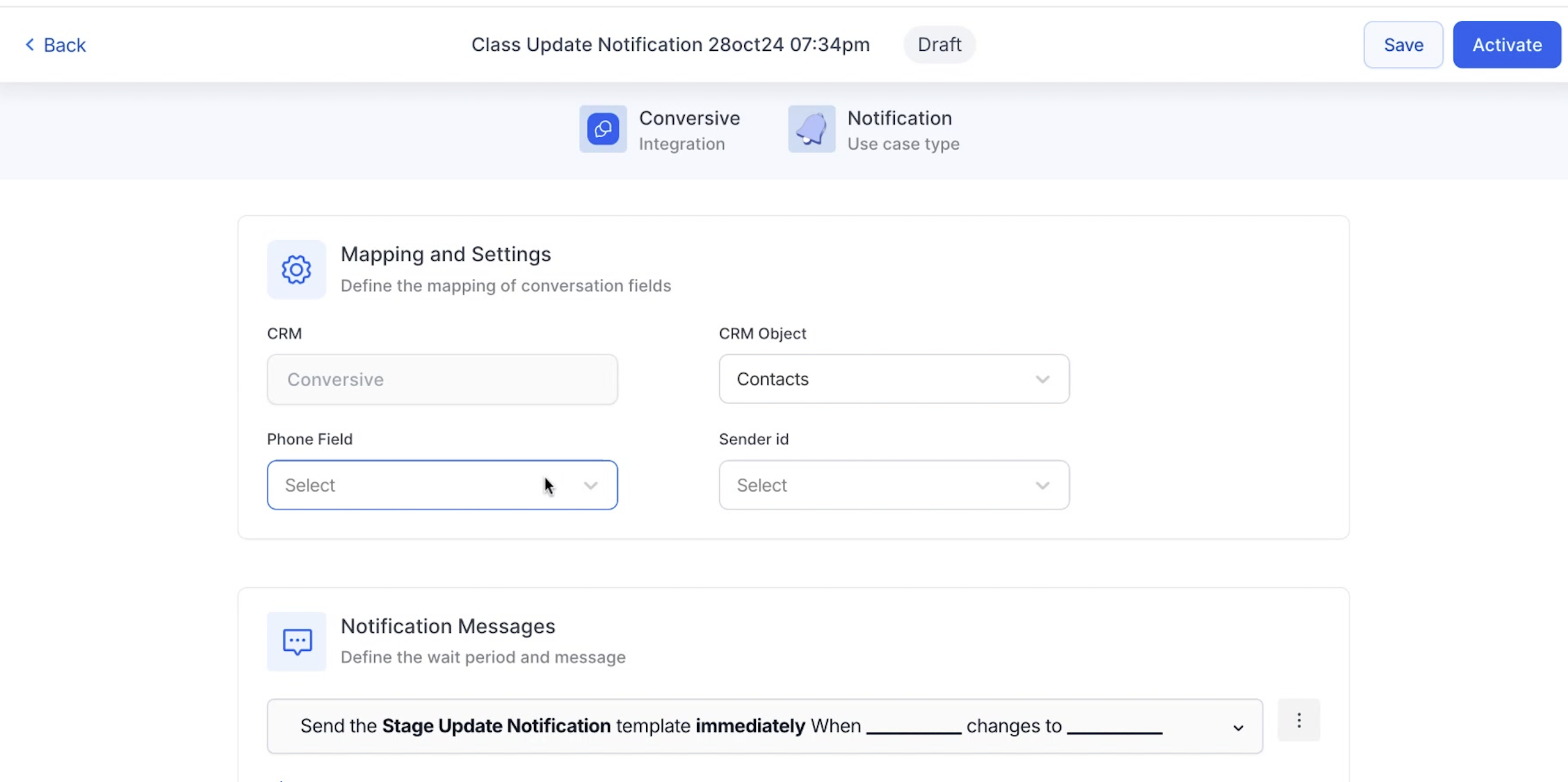
Select the CRM, channel, and sender ID.
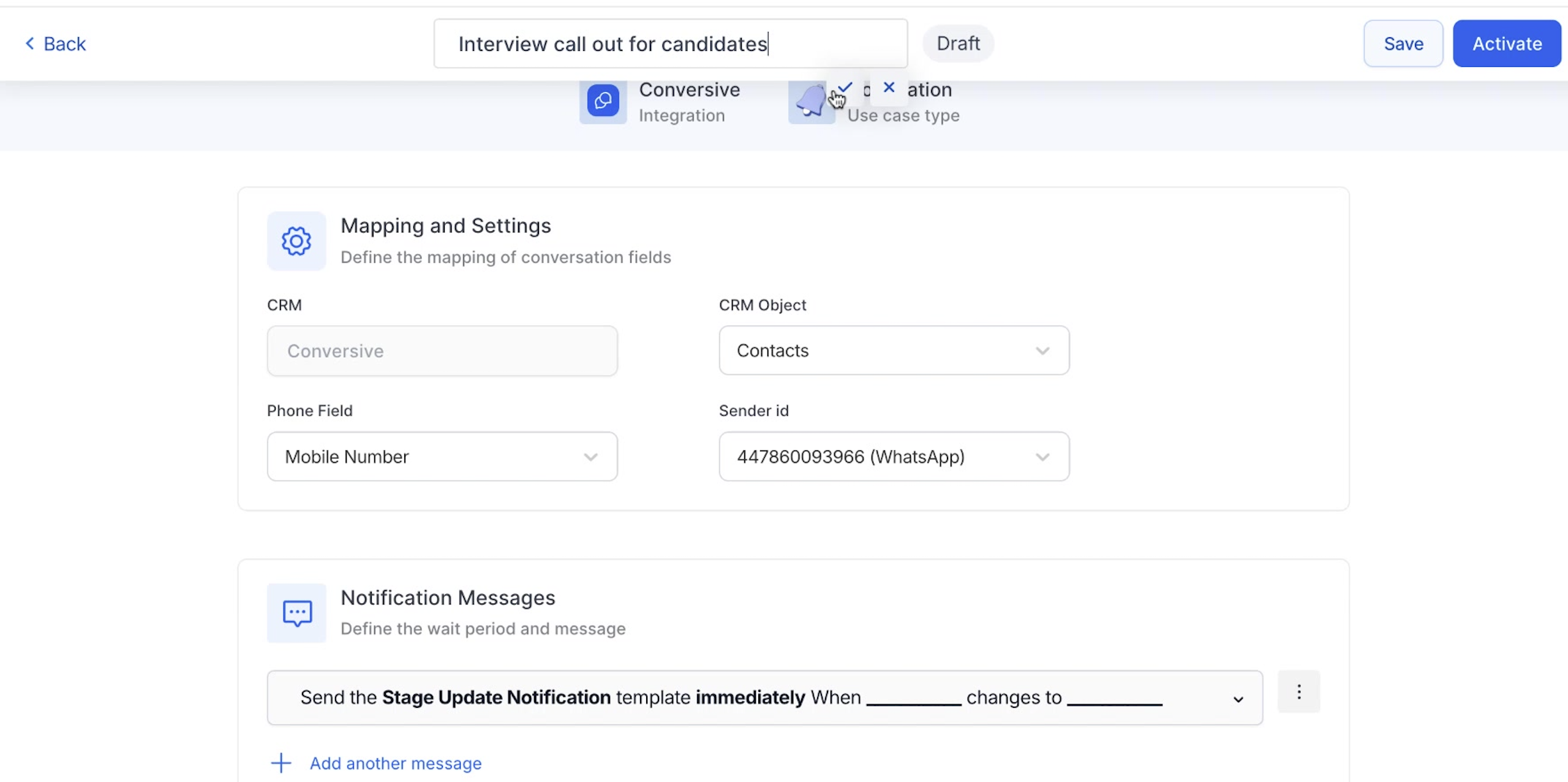
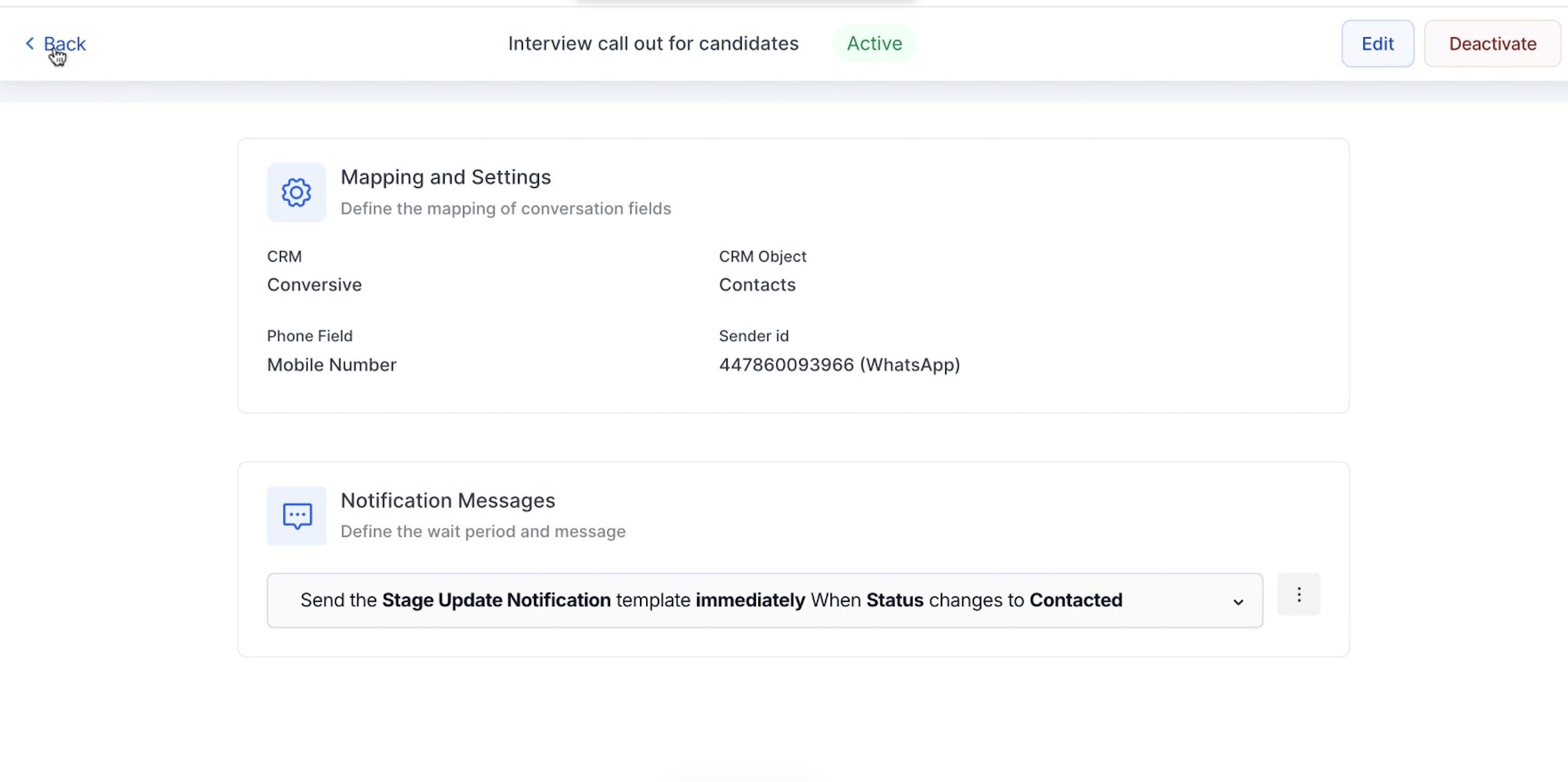
- Setting up Mappings and Settings CRM Object:** Choose the relevant CRM Object to map your message template for personalization.
- Phone Field: Select the corresponding phone field for the CRM Object (e.g., Mobile Number from the HubSpot Contact Object).
- Sender ID: Choose the Sender ID for sending automation messages.
-
Rename the Notification message at the top of the page for example ‘Interview call out for candidates’.
-
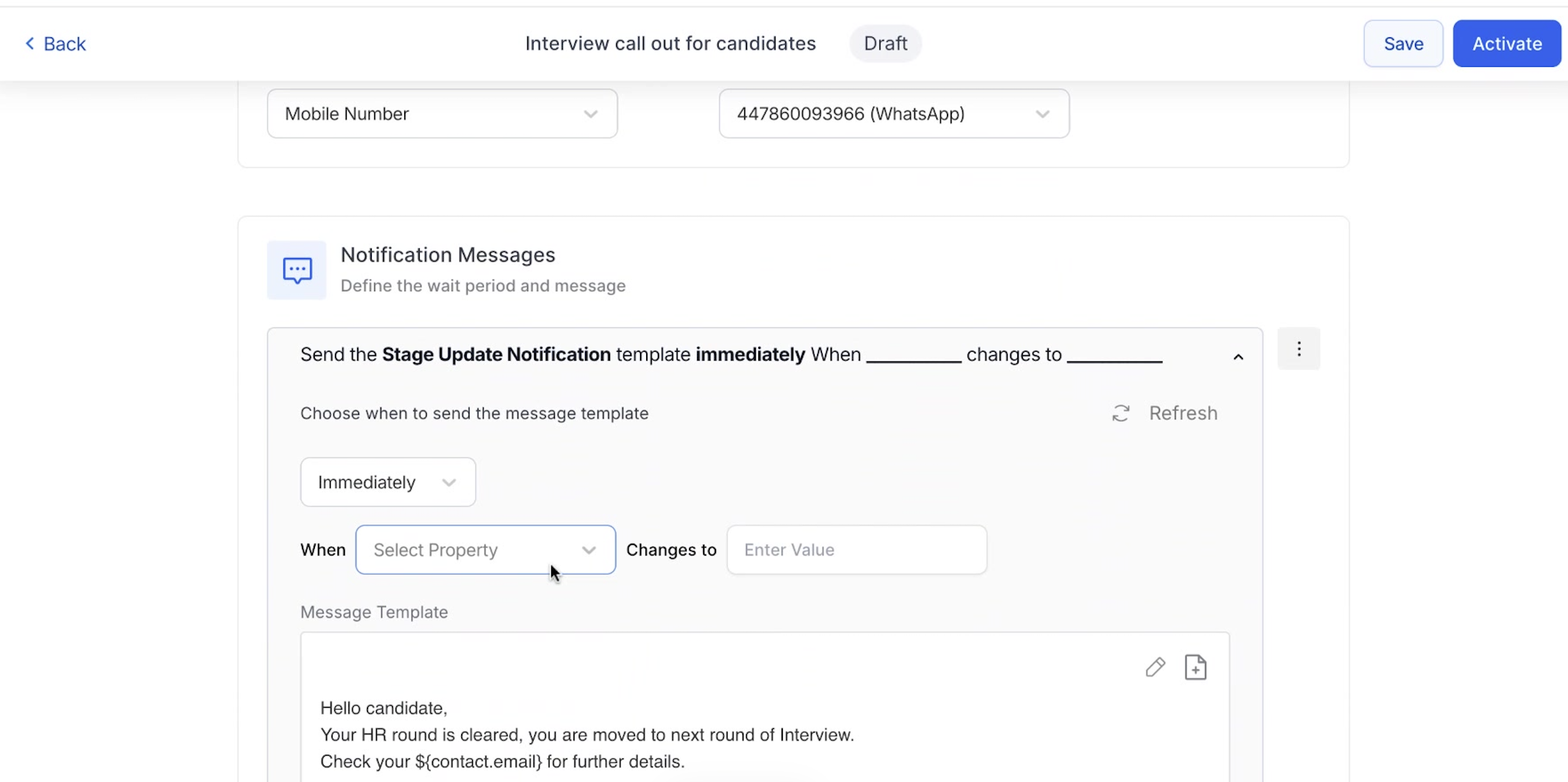
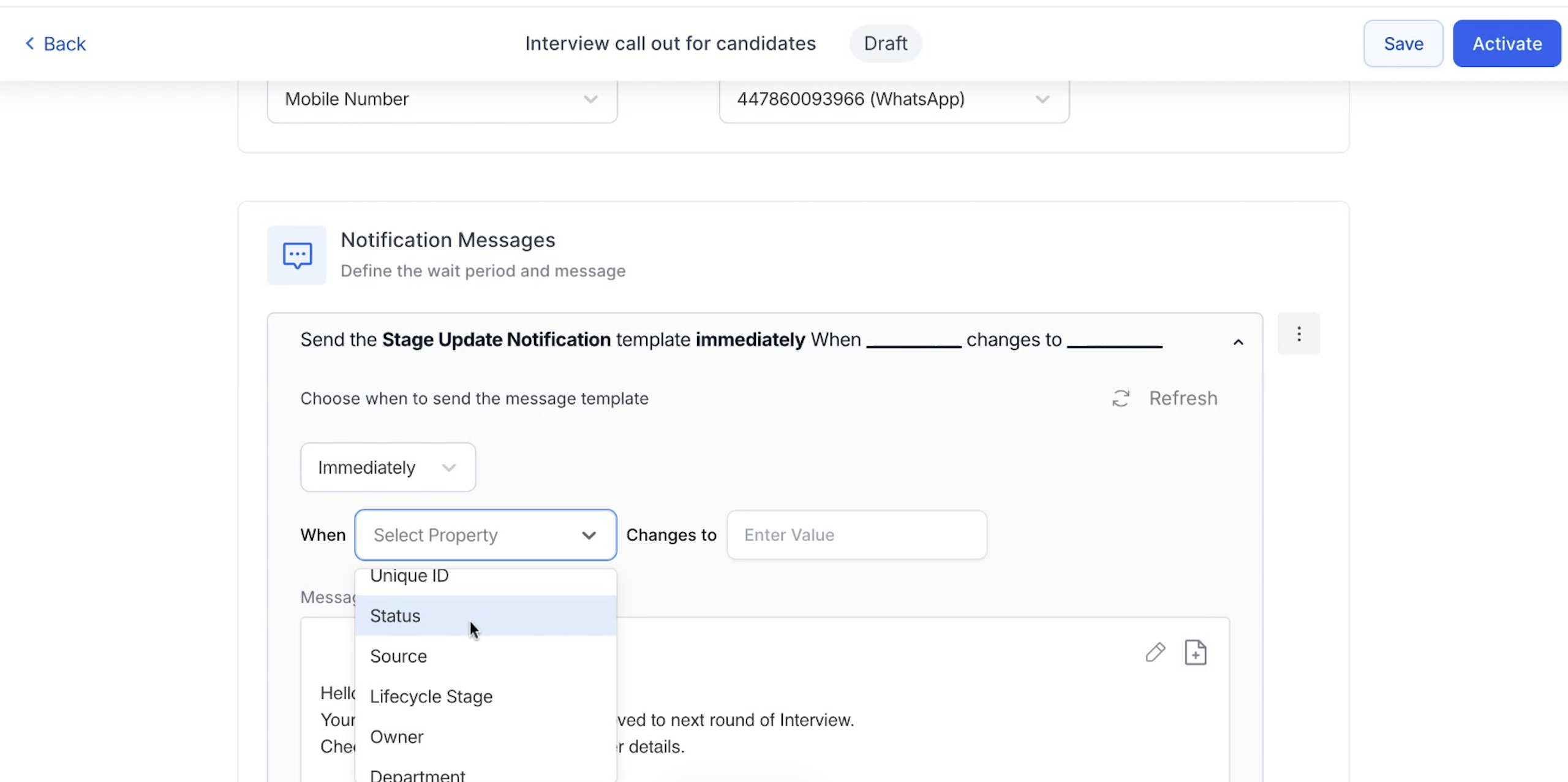
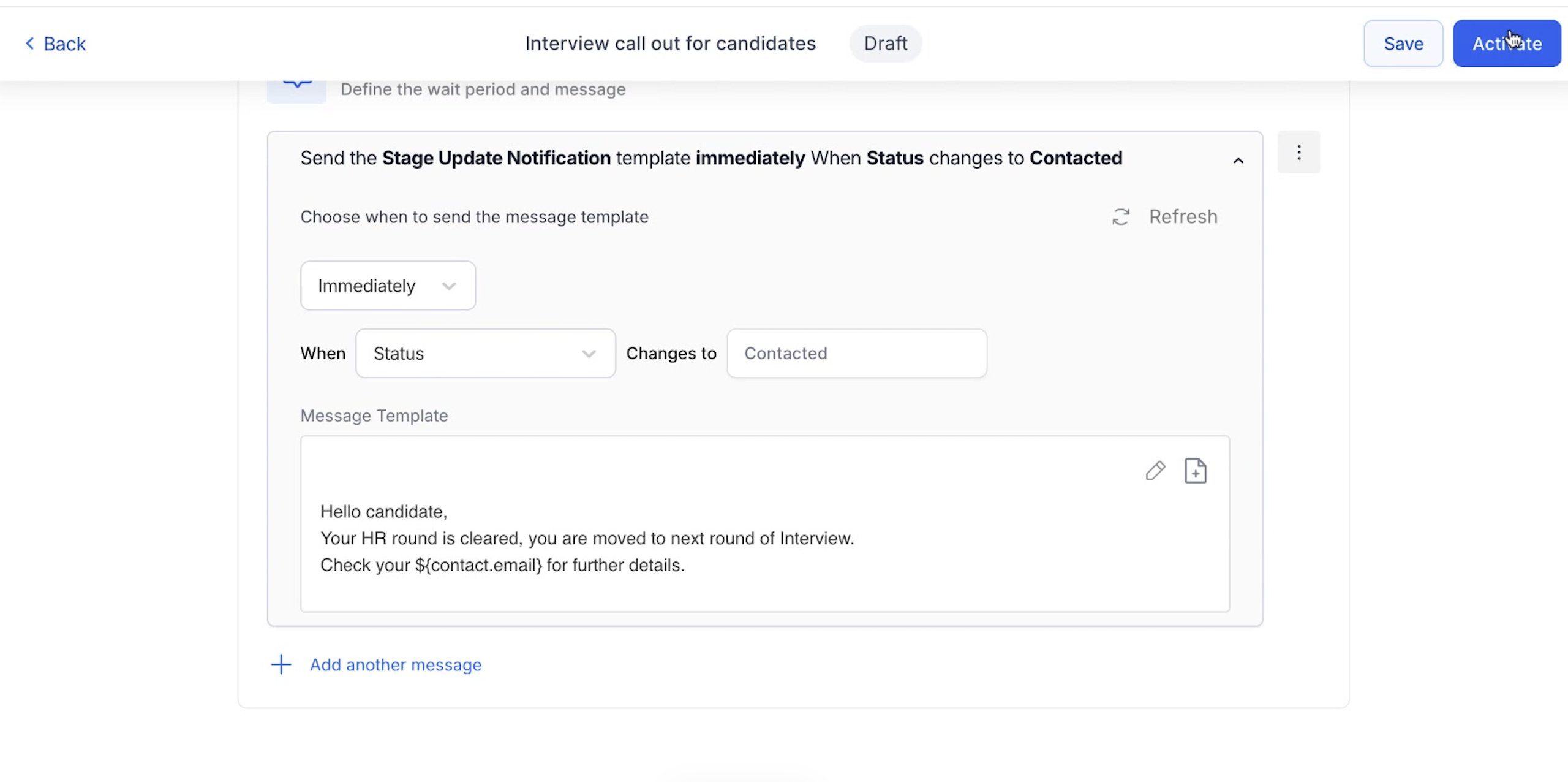
Edit the template as per your Notifications.
-
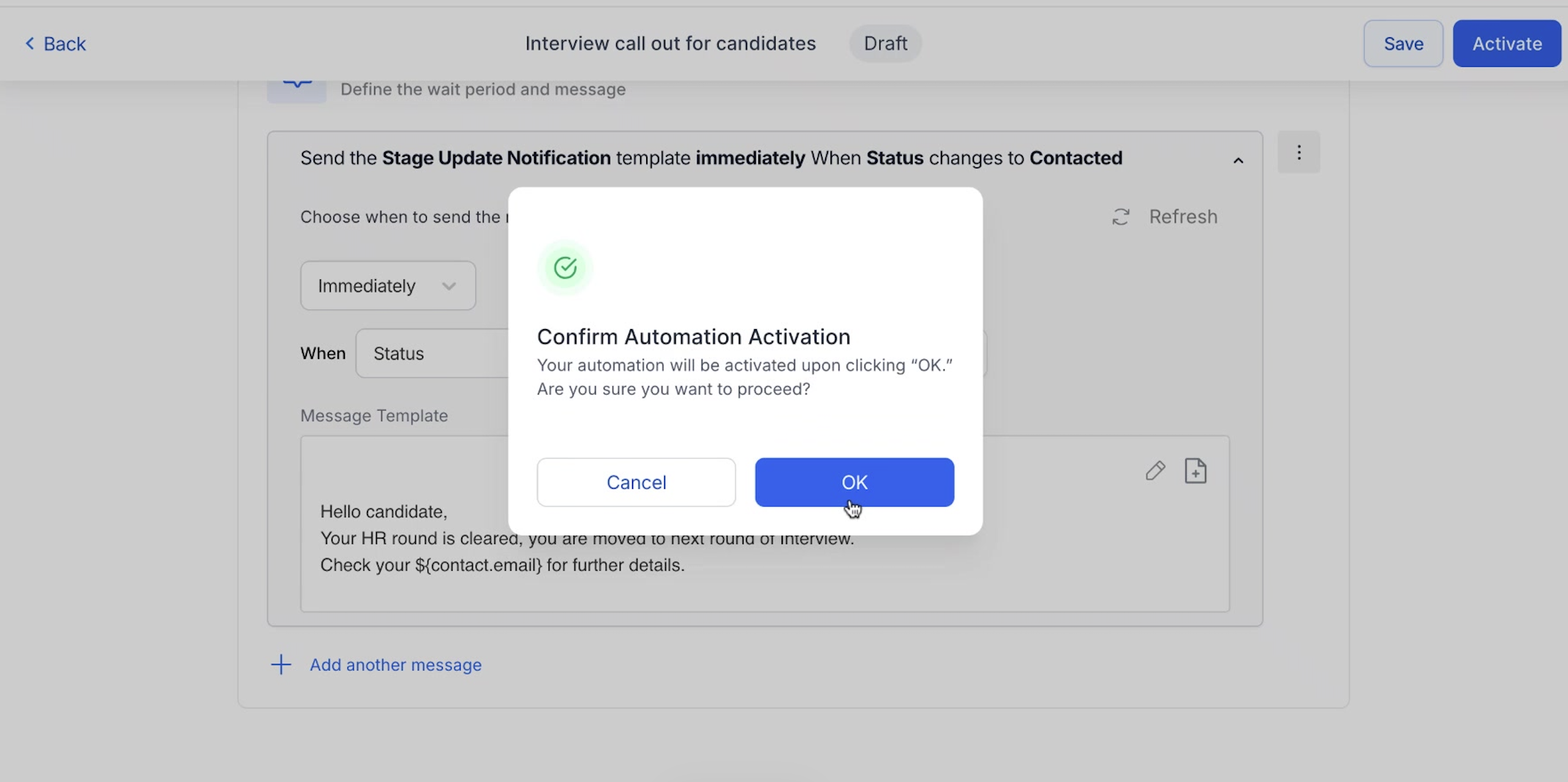
After Editing the message, Click on Activate button at the top.
-
Confirm the Automation Activation by clicking OK.
-
Automation is successfully executed. Click on Back to go to Automation.
-
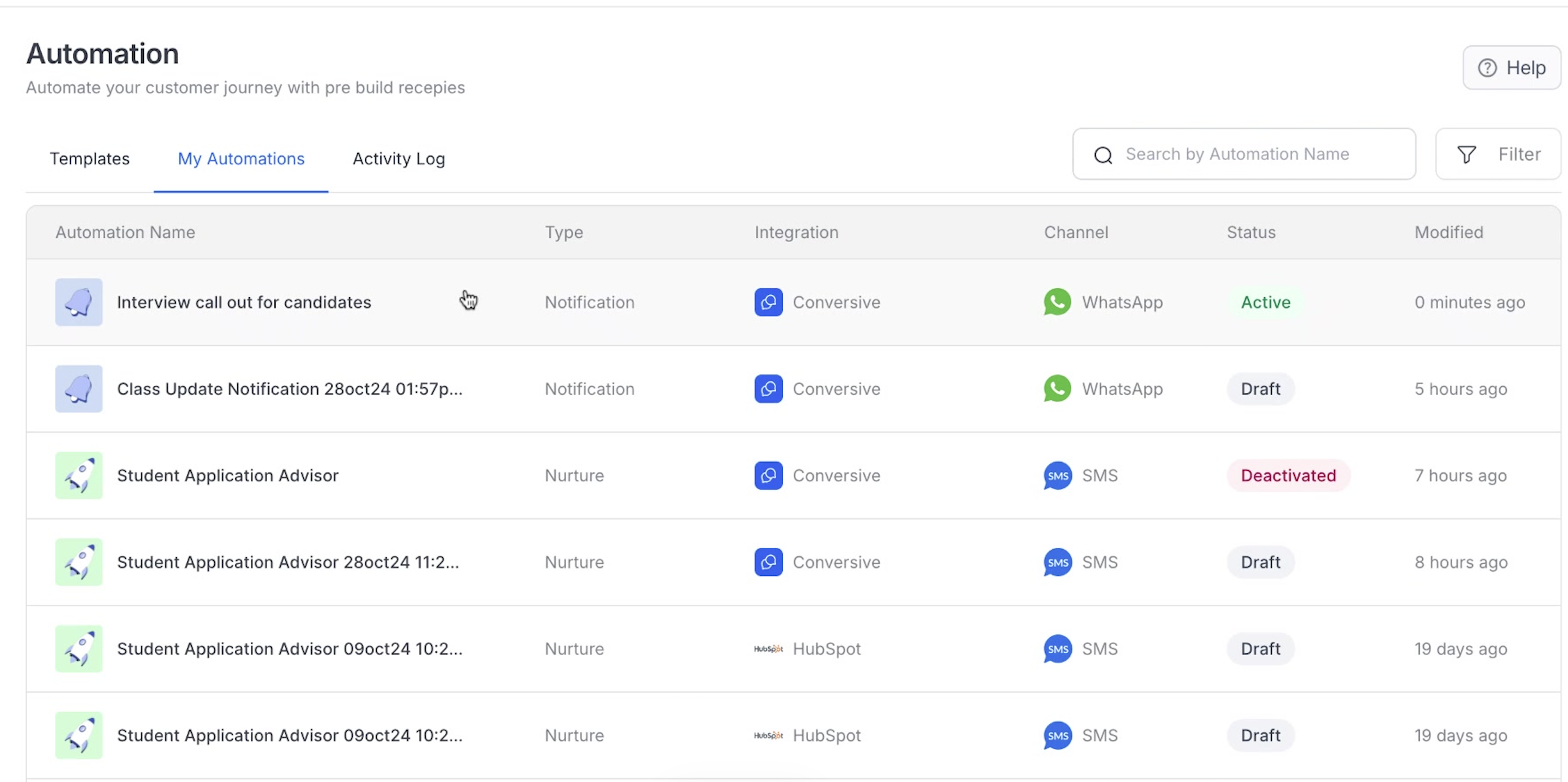
Click on My Automations and Check the Automation is Active.
Key Concepts:
- Notification Usecase: This refers to a series of automated messages designed to deliver specific information or updates to users.
- CRM Object: Represents data stored in your CRM system, like contacts or leads.
- Phone Field: Specifies which phone number field in the CRM object will be used for messaging.
- Sender ID: This is the identifier recipients will see as the sender of the messages.
By following these steps, you can successfully activate a Notification use case in Conversive.