
Configuring and Managing IVR Usecase
Use the IVR usecase to automatically route and respond to incoming calls with an interactive voice response flow.
Step-by-Step Guide
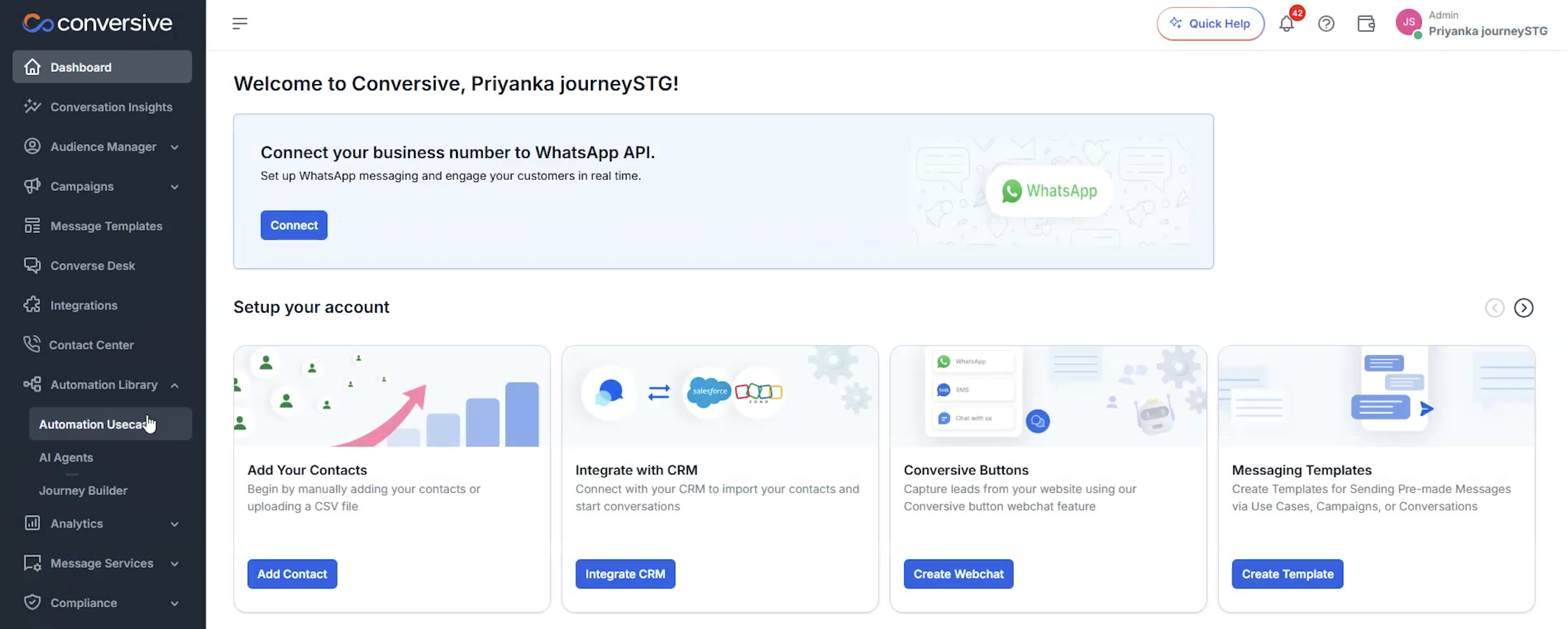
- In the navigation bar, click on Automation Use Case.
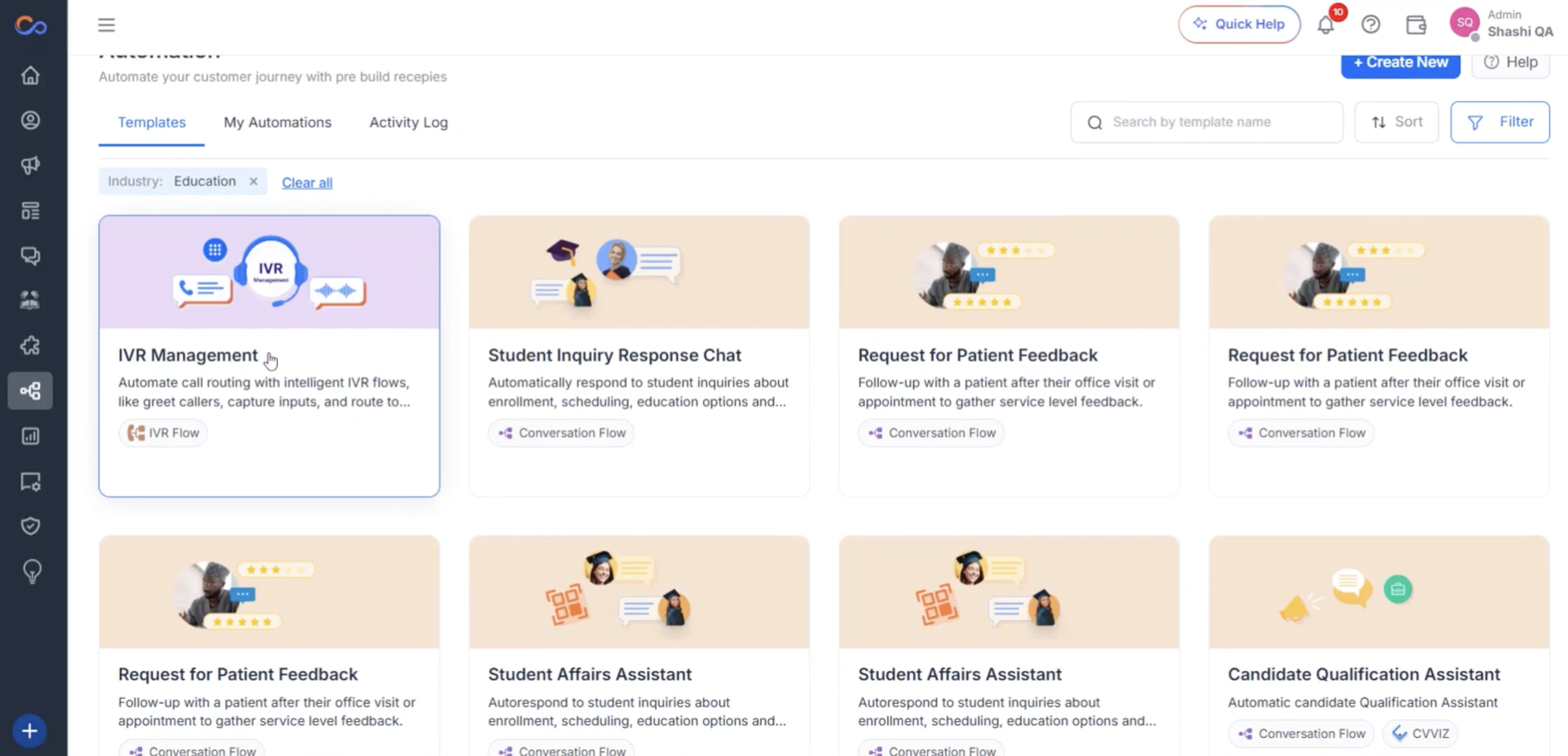
- Select the IVR use case from the list.
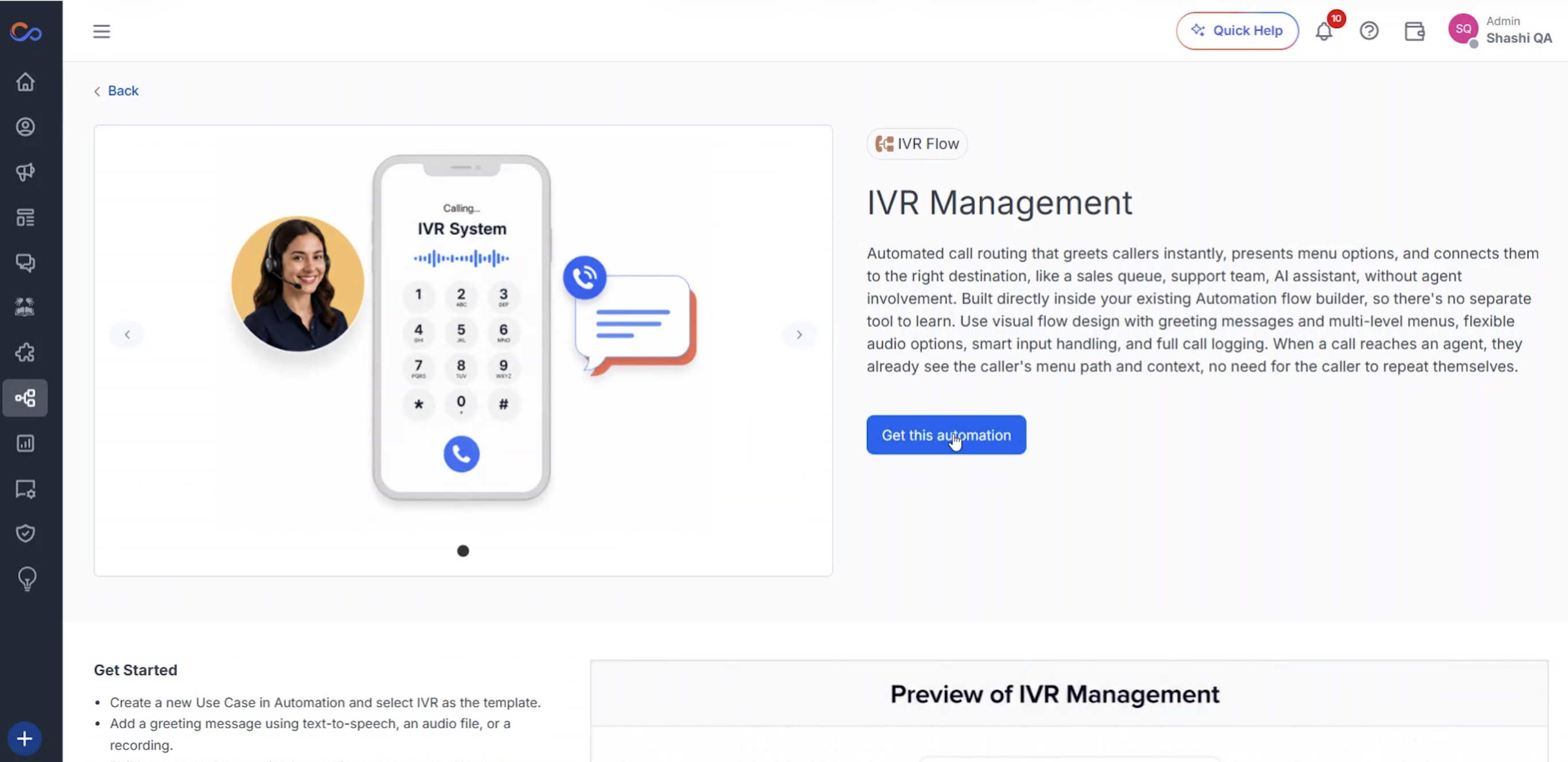
- Click on “Get this automation” to access the IVR use case template.
- Enter the IVR use case name and click “Save”.
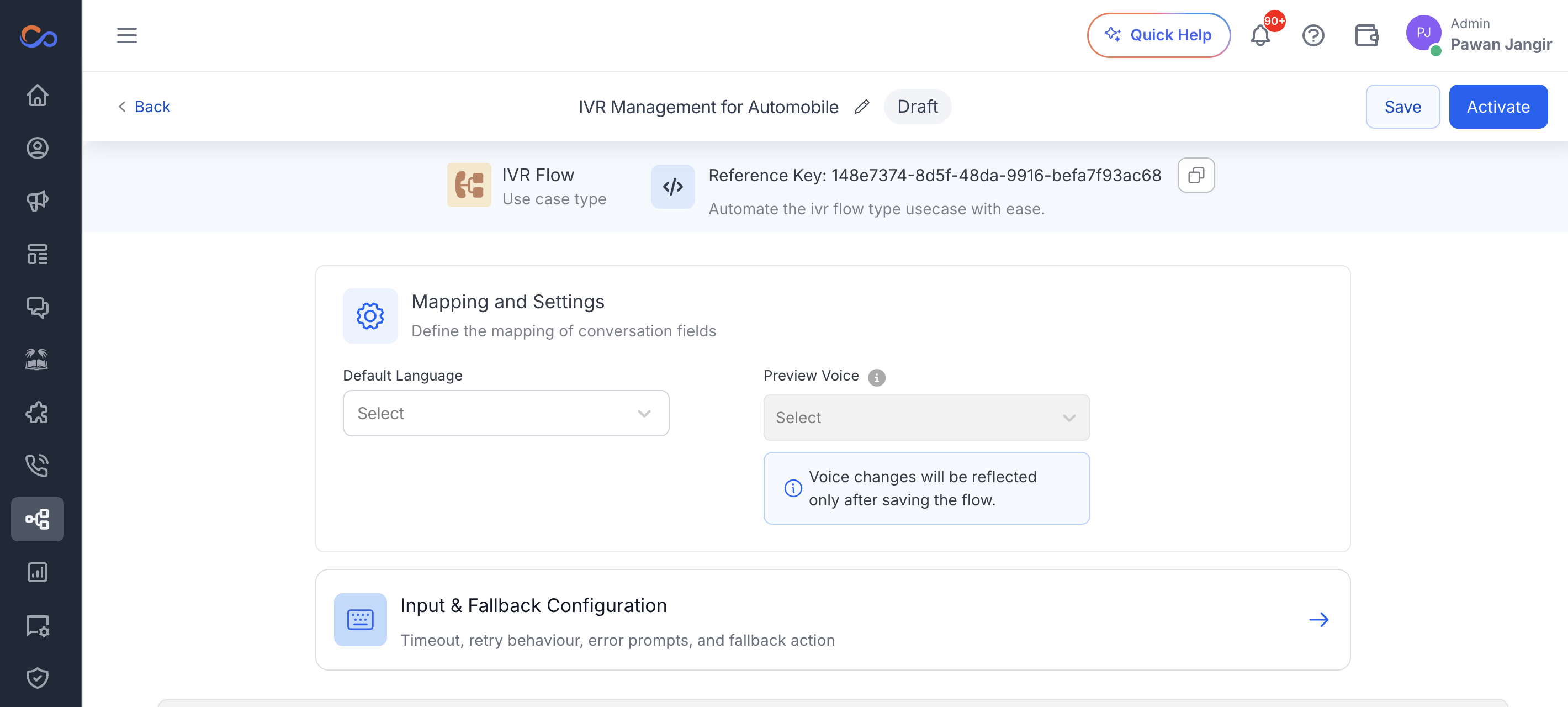
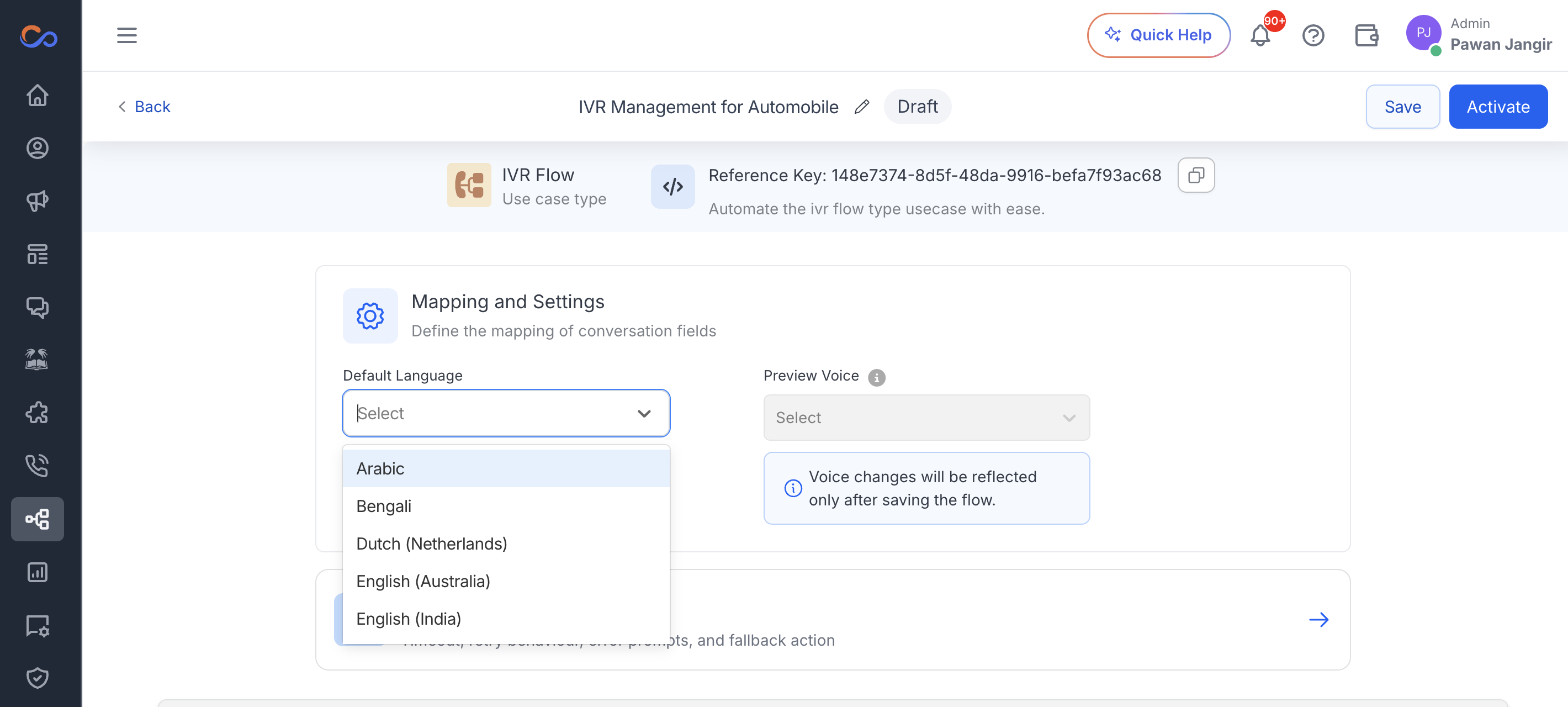
- Select the Default language from the selection list.
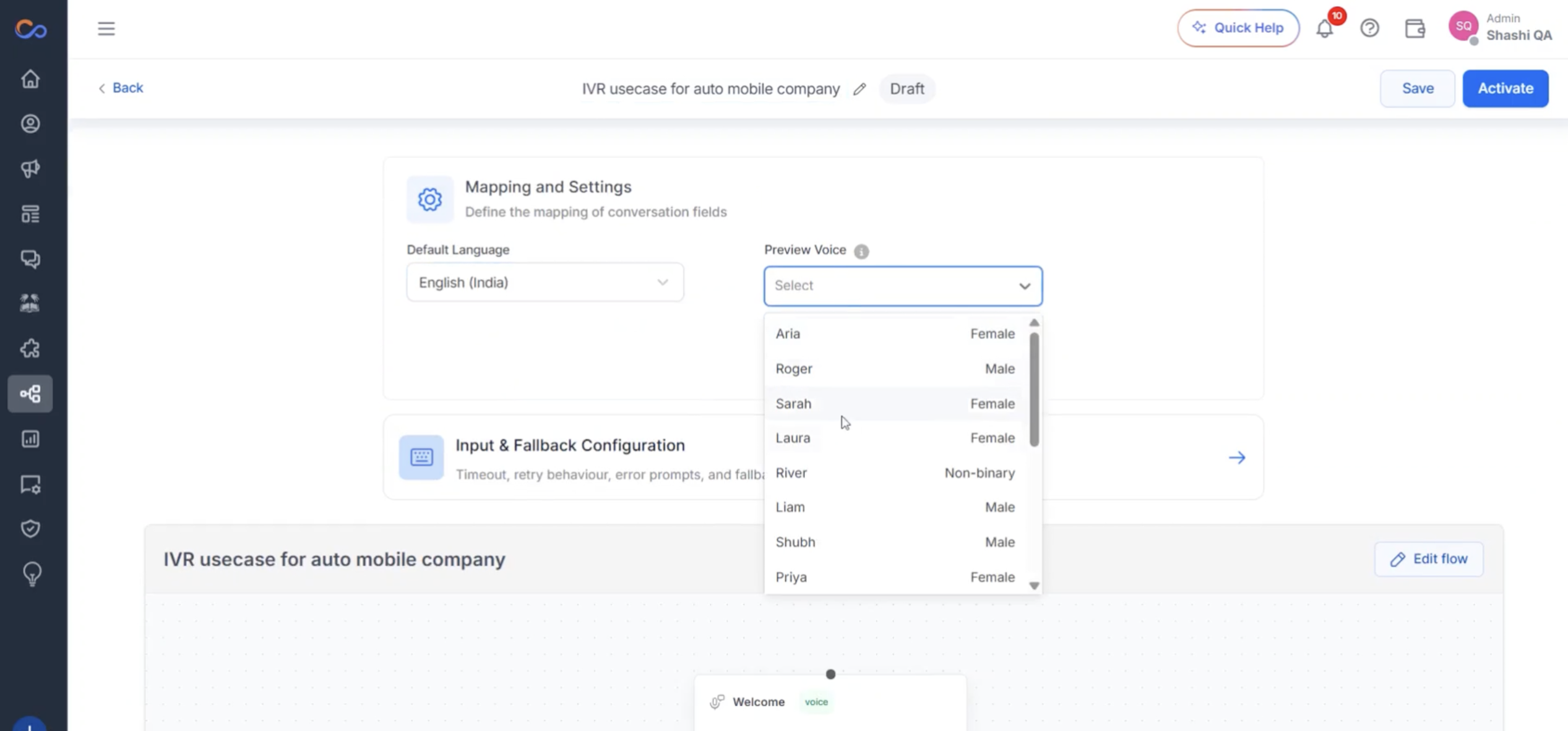
- Preview and select the required voice.
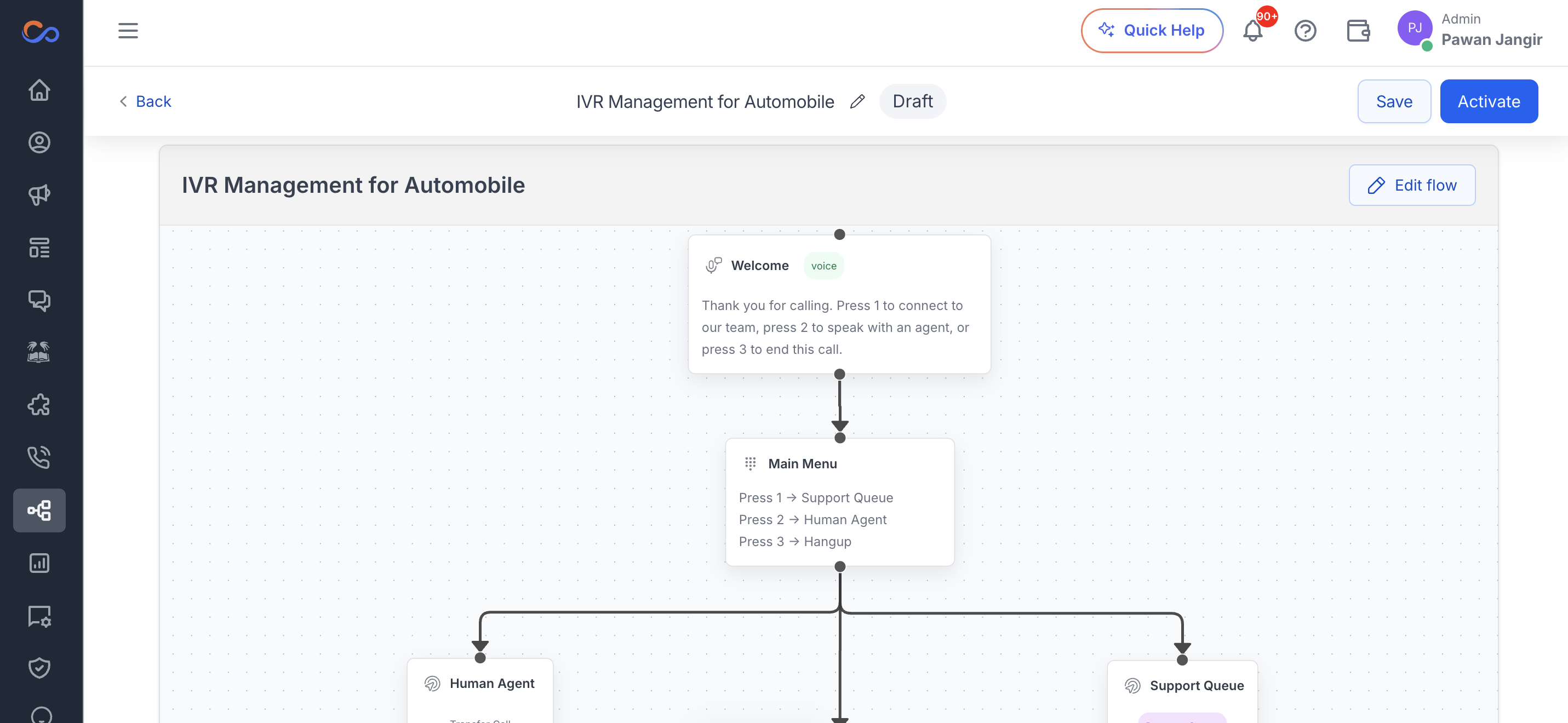
- The IVR flow is created by default. You can configure it as per your requirements.
- Click “Clear” to remove the default flow if needed.
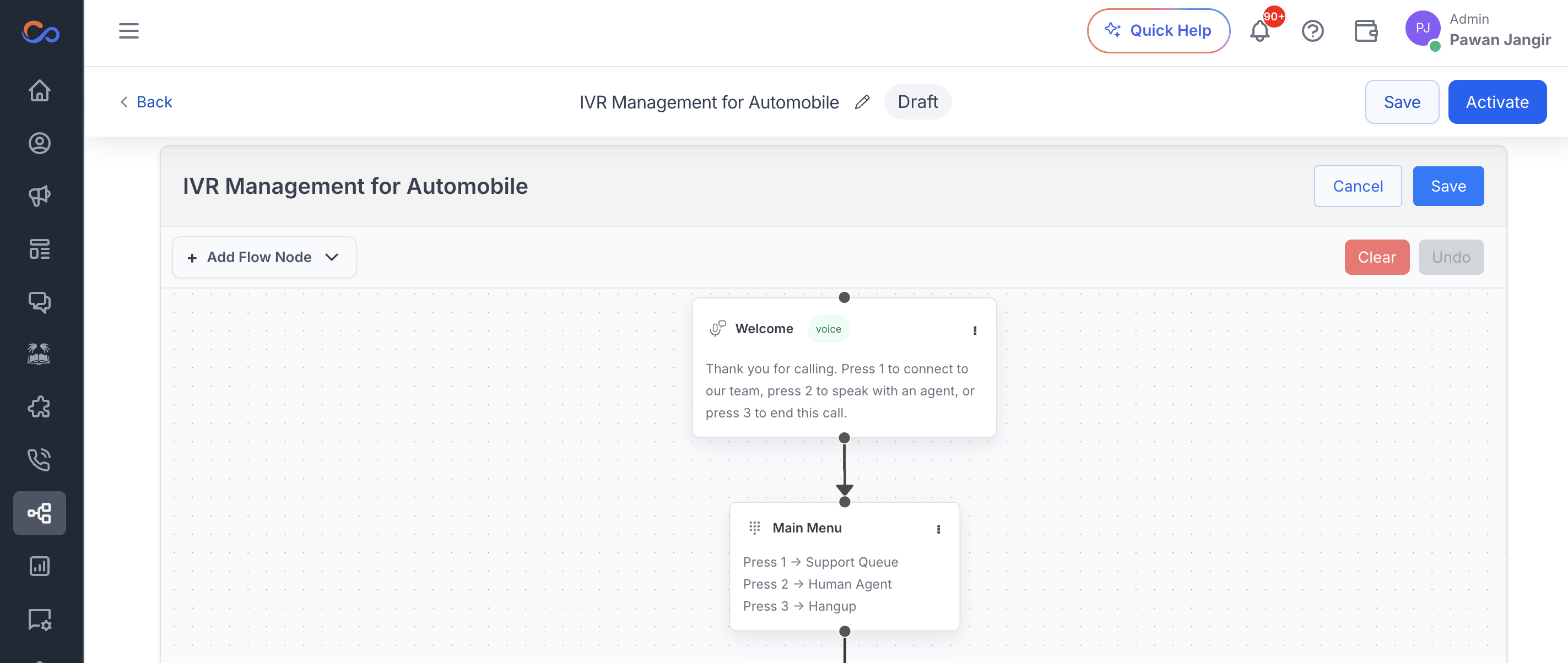
- Add a voice node with IVR content in the welcome message and add the IVR main node and Click on Save.
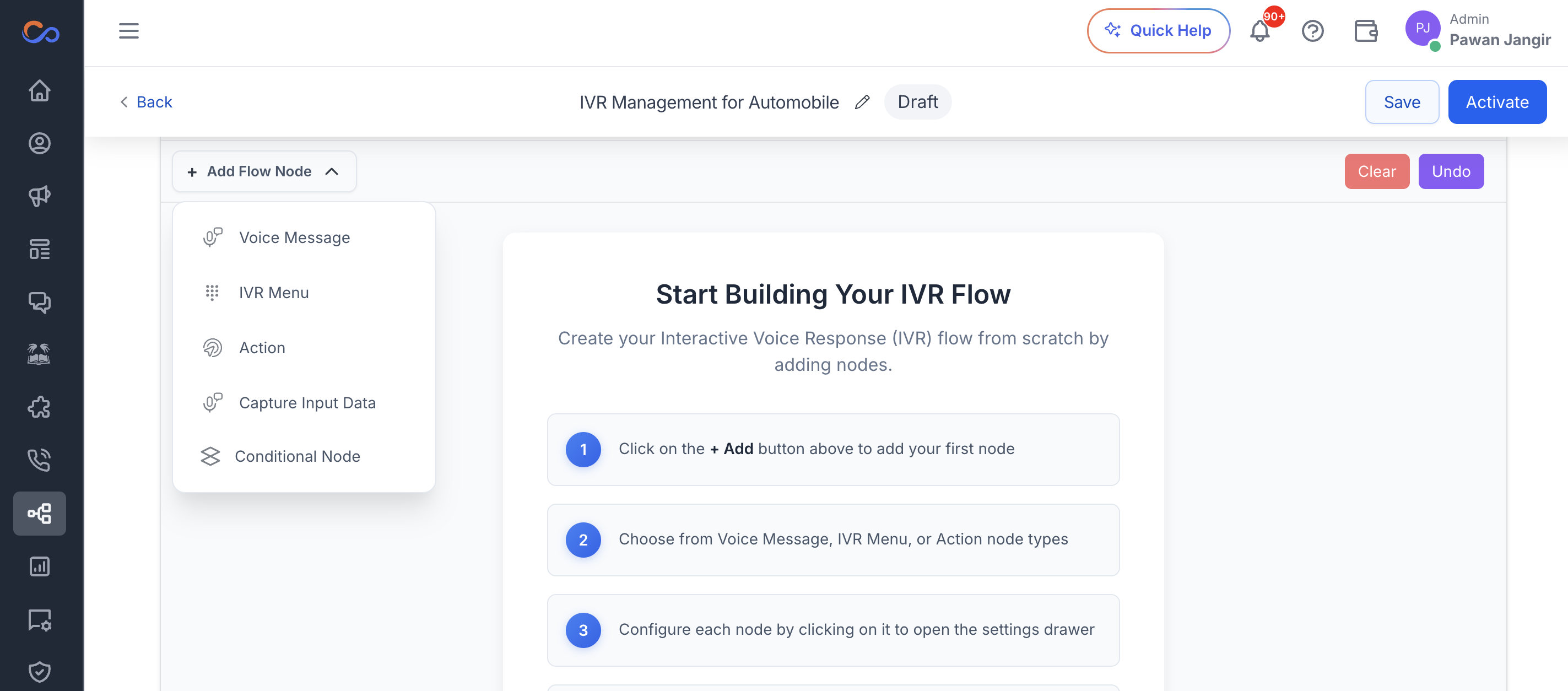
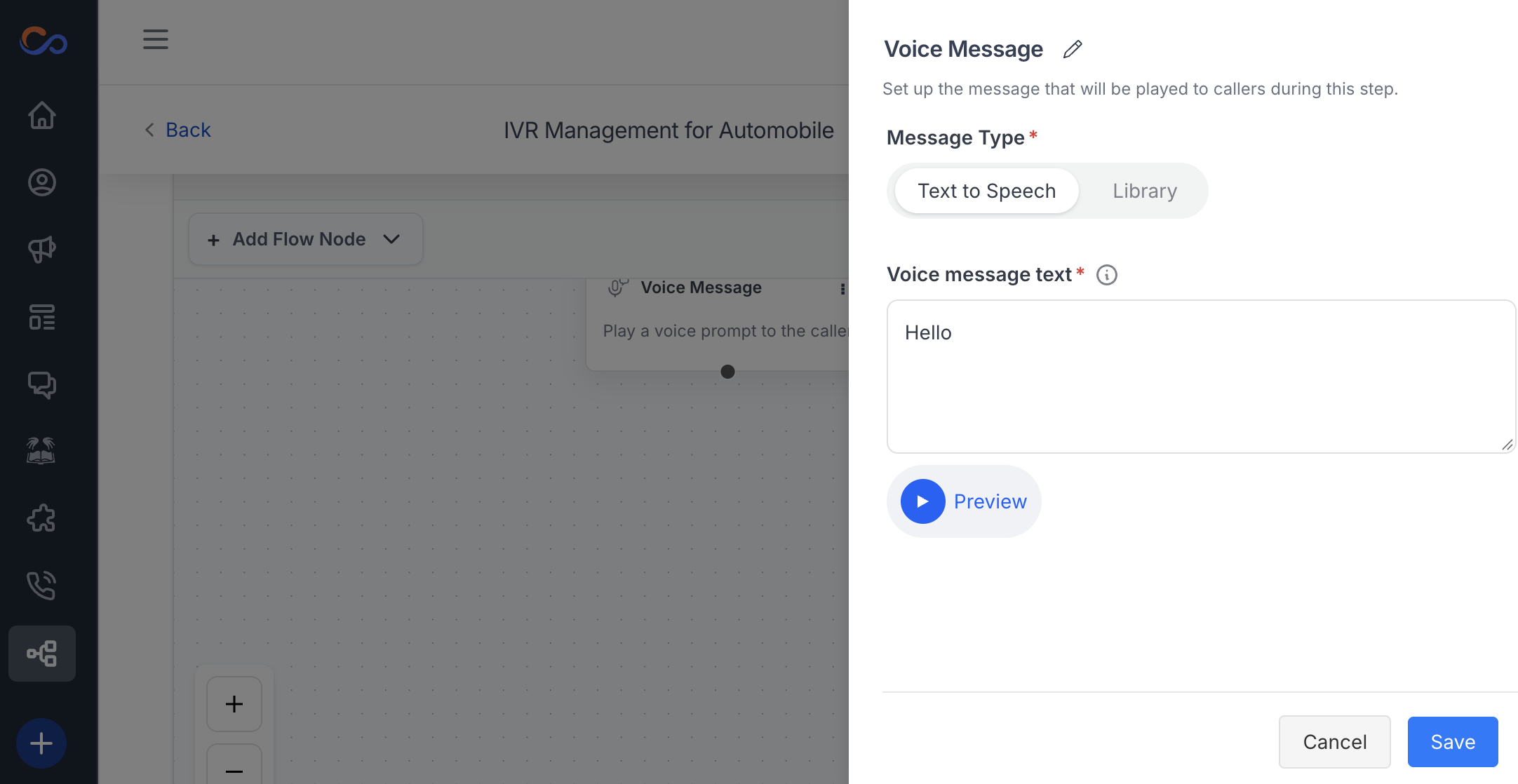
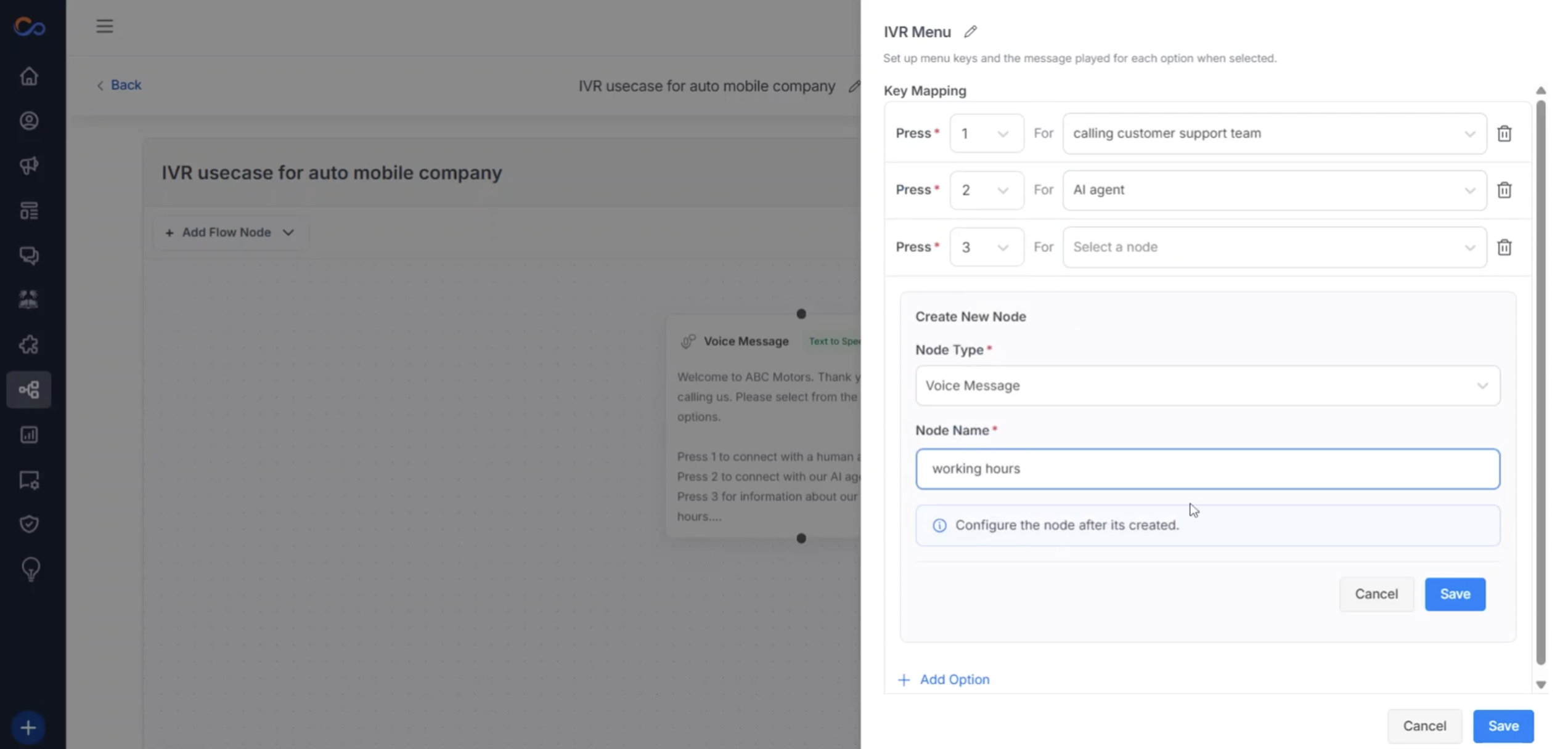
- Create additional nodes such as action nodes for calling queue, AI agent, and voice node for working hours, and hang up action.
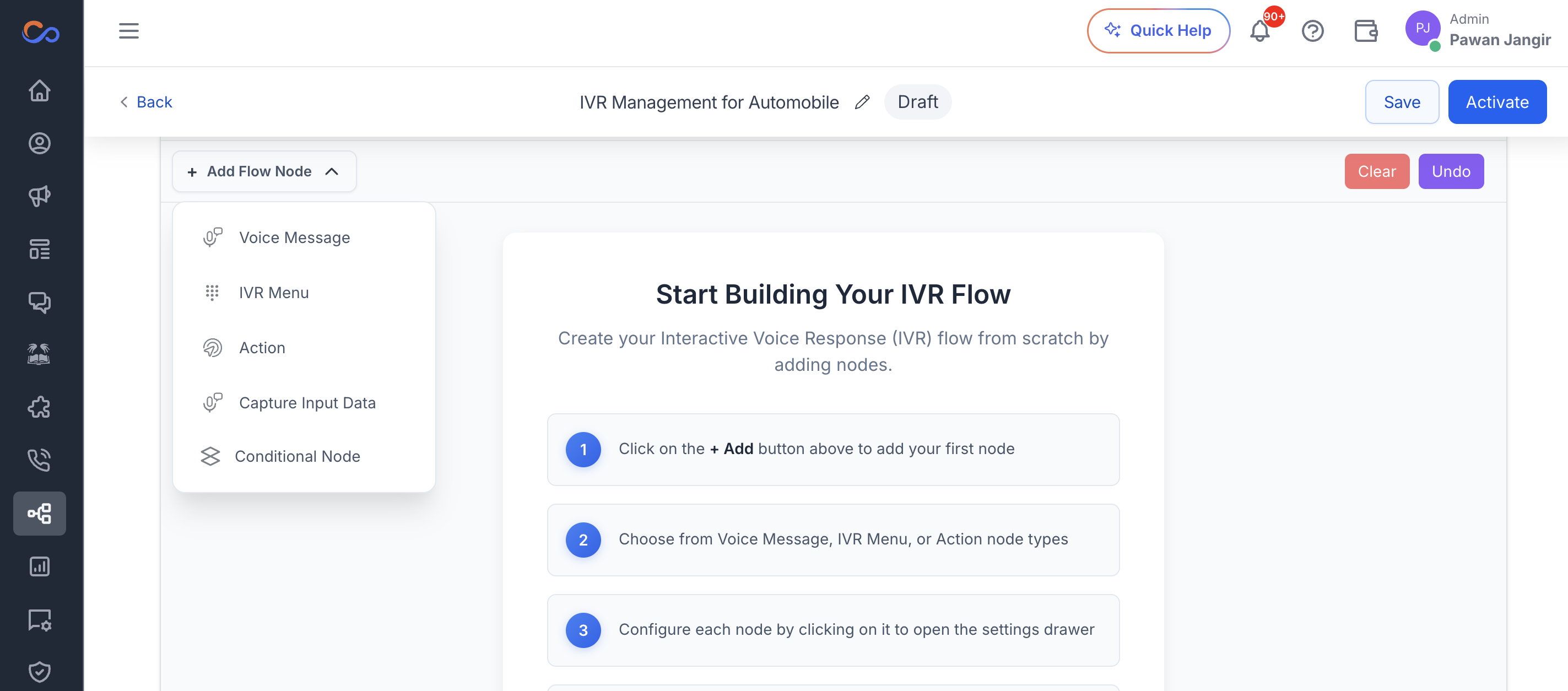
- Arrange and connect the nodes, such as the IVR main and voice message nodes.
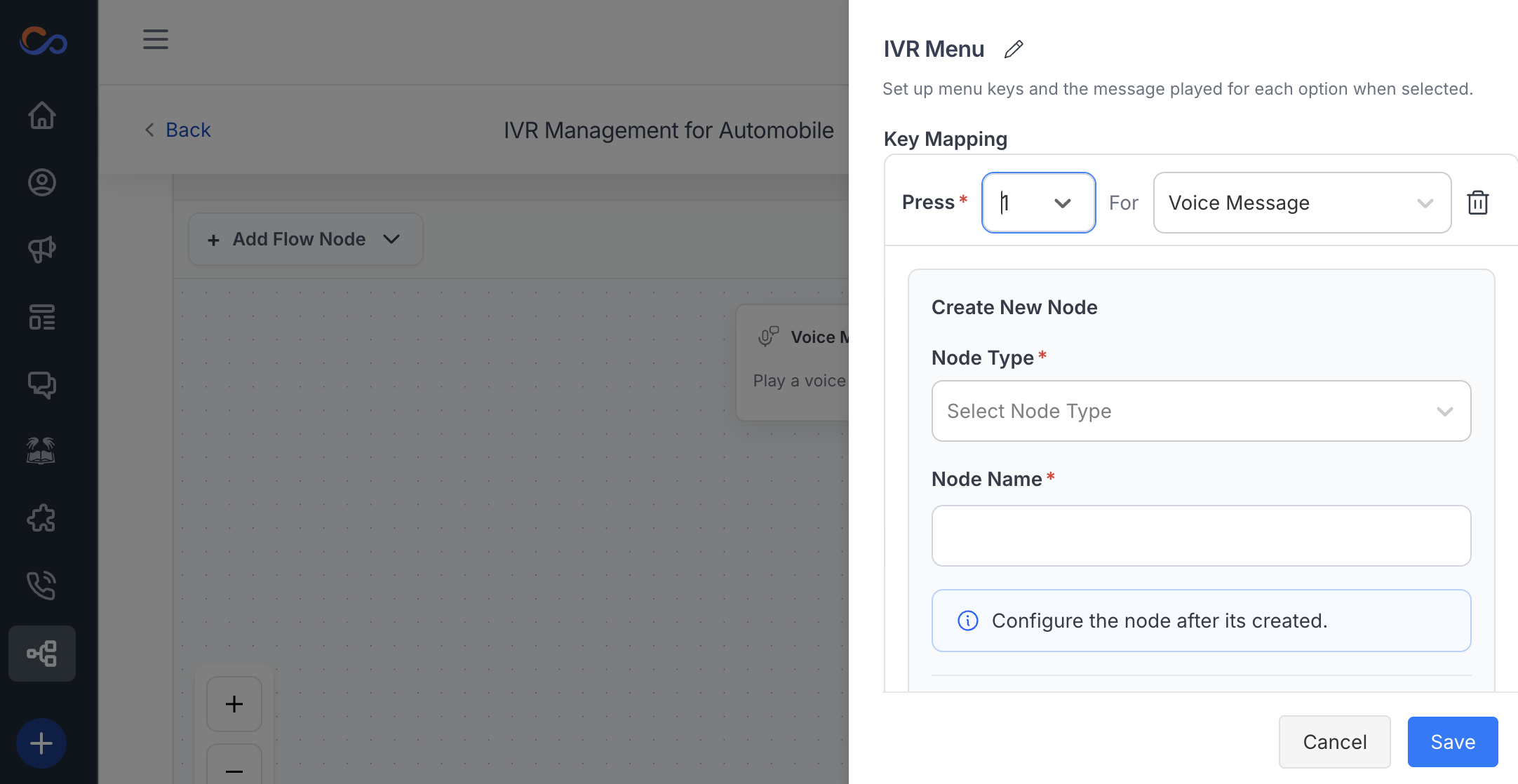
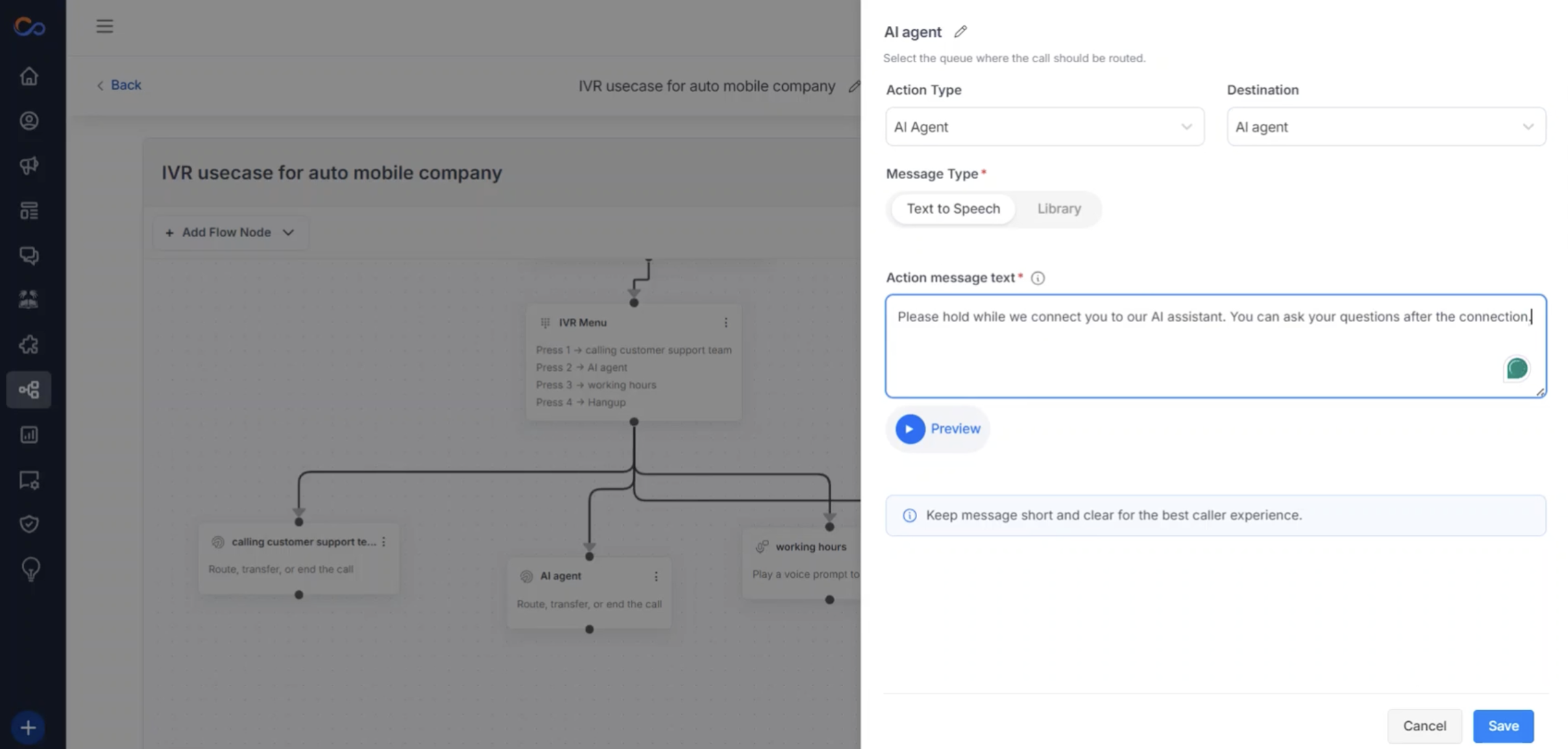
- Configure the required action type from the node, such as go to queue, agent, AI agent, and disconnect.
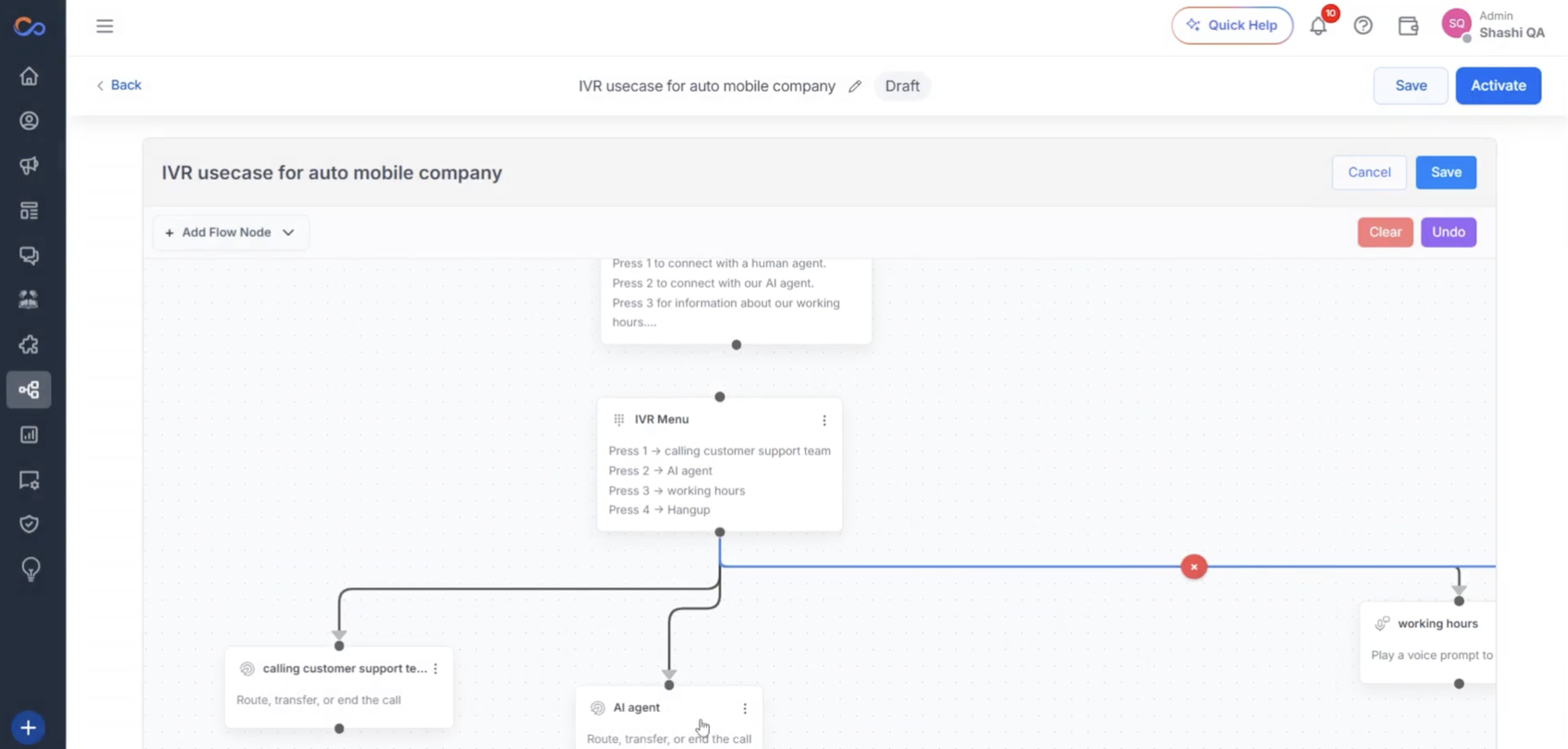
- Add a message text to be spoken before connecting to the AI agent and preview the text-to-speech message.
- We need to configure Input and Fallback for this menu. For that, Click on Input and Fallback Configuration.
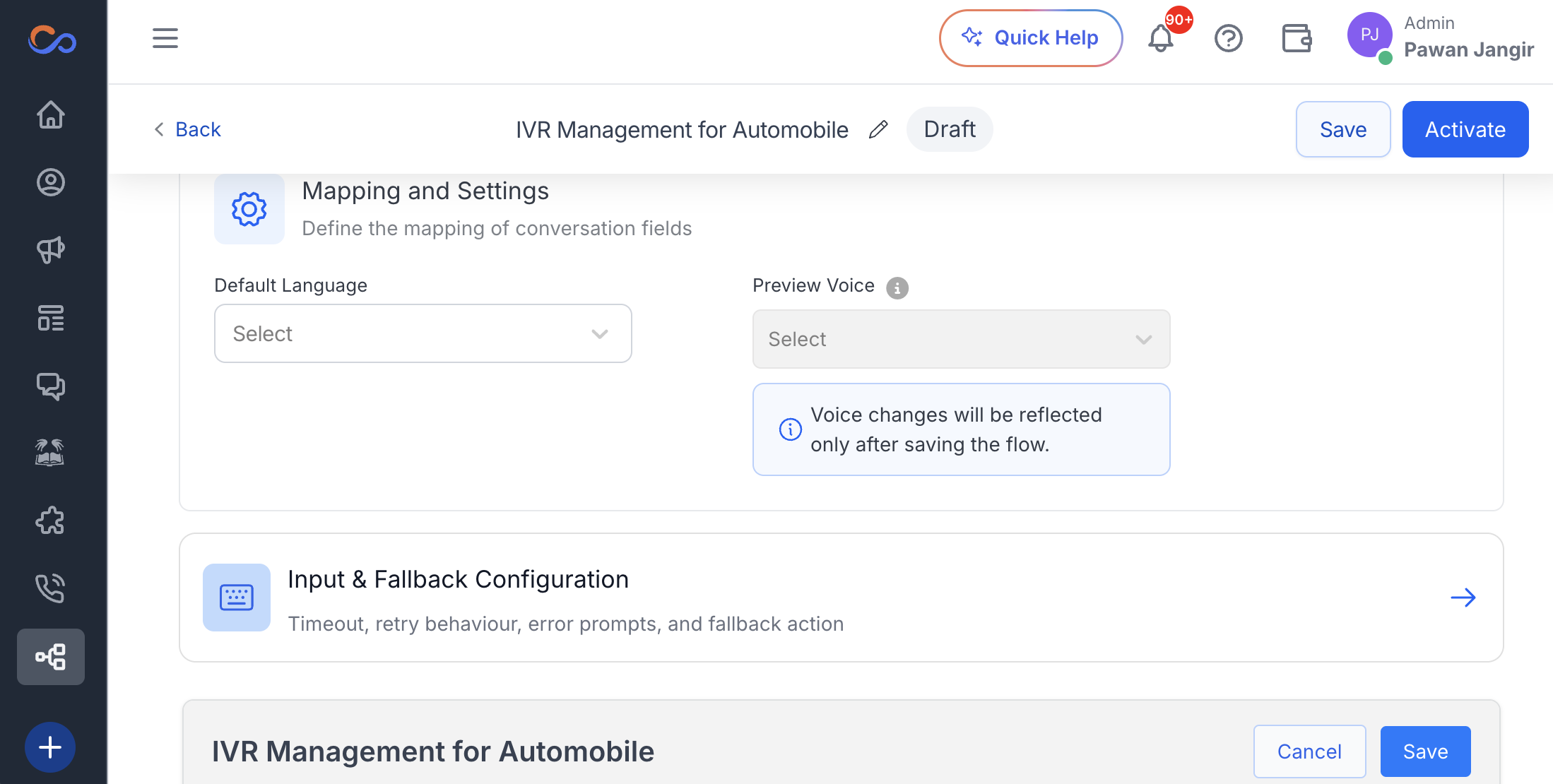
- Select the input timeout and retry limit.
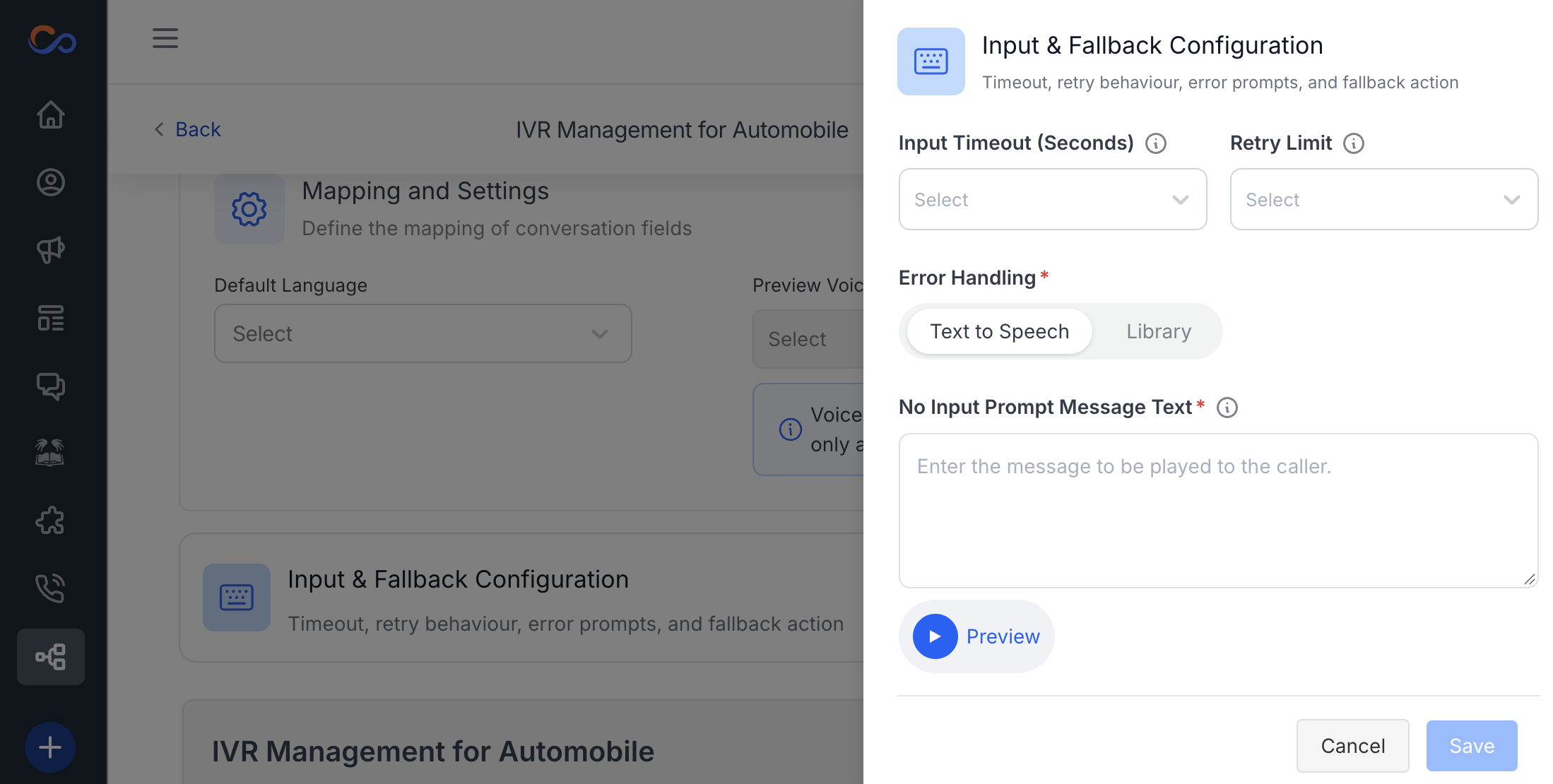
- Add prompts for no input and invalid input when retry attempts are exhausted.
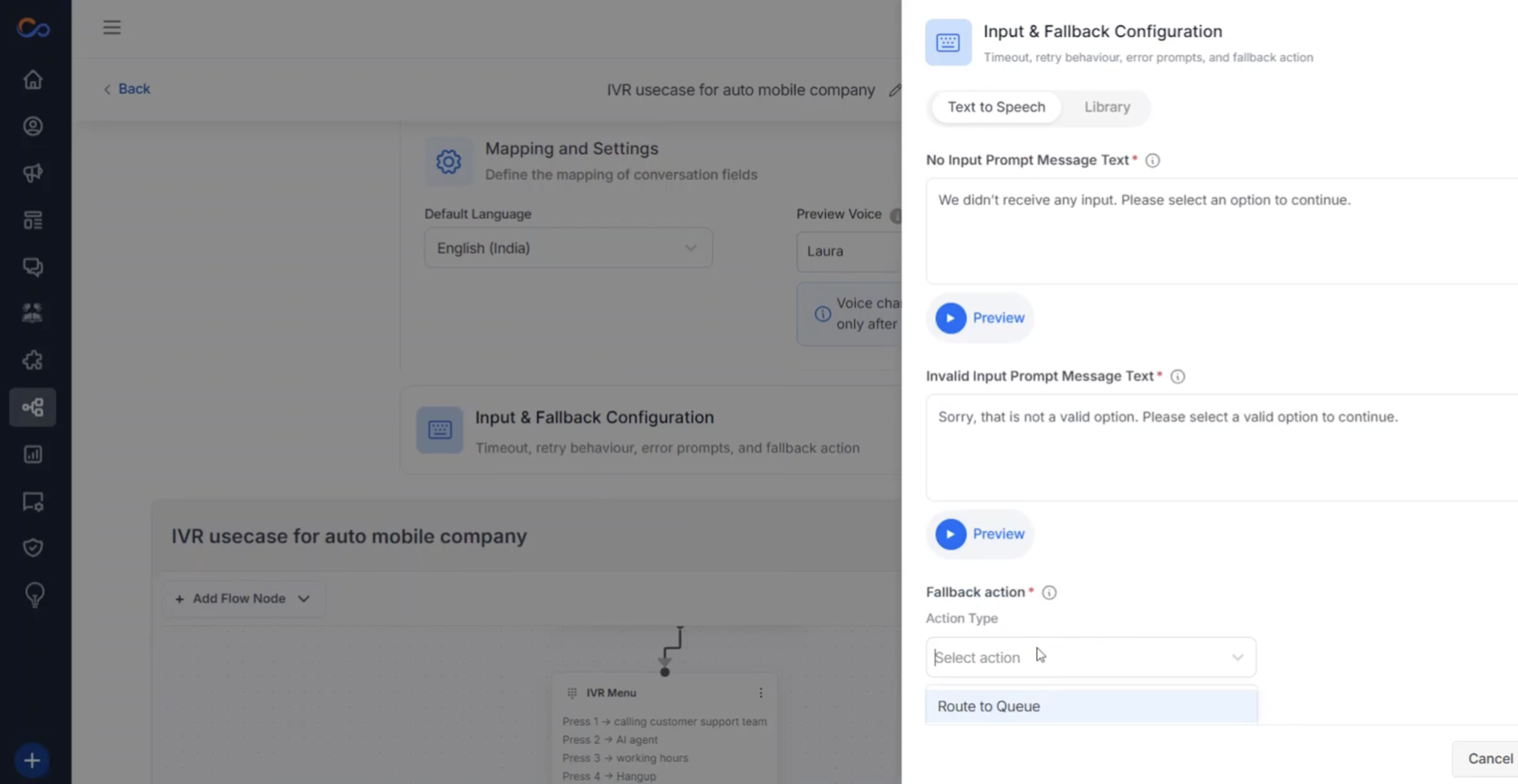
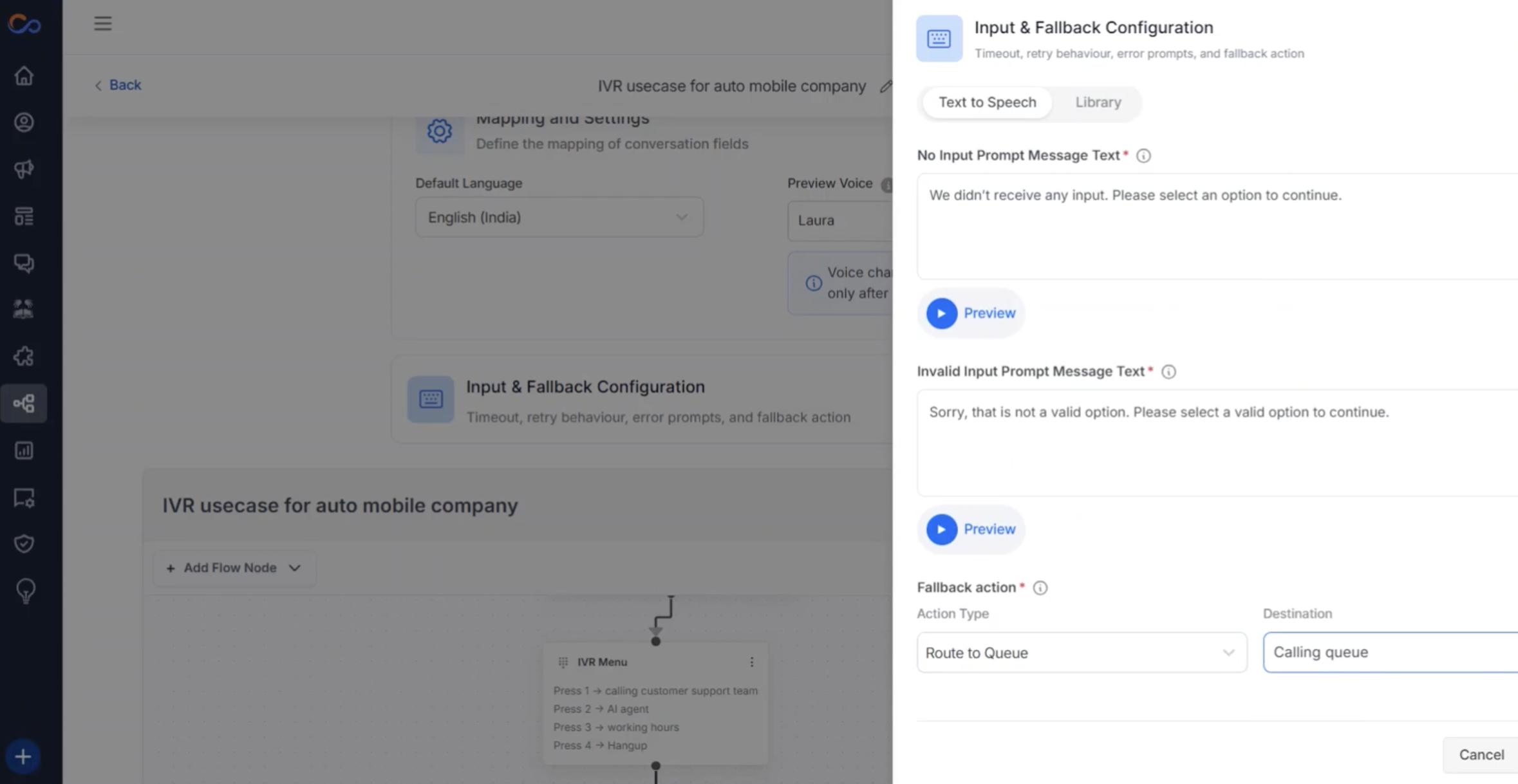
- Configure the fallback action type, such as routing to a calling queue.
- Once the use case is created and activated, configure the route from the sender ID.
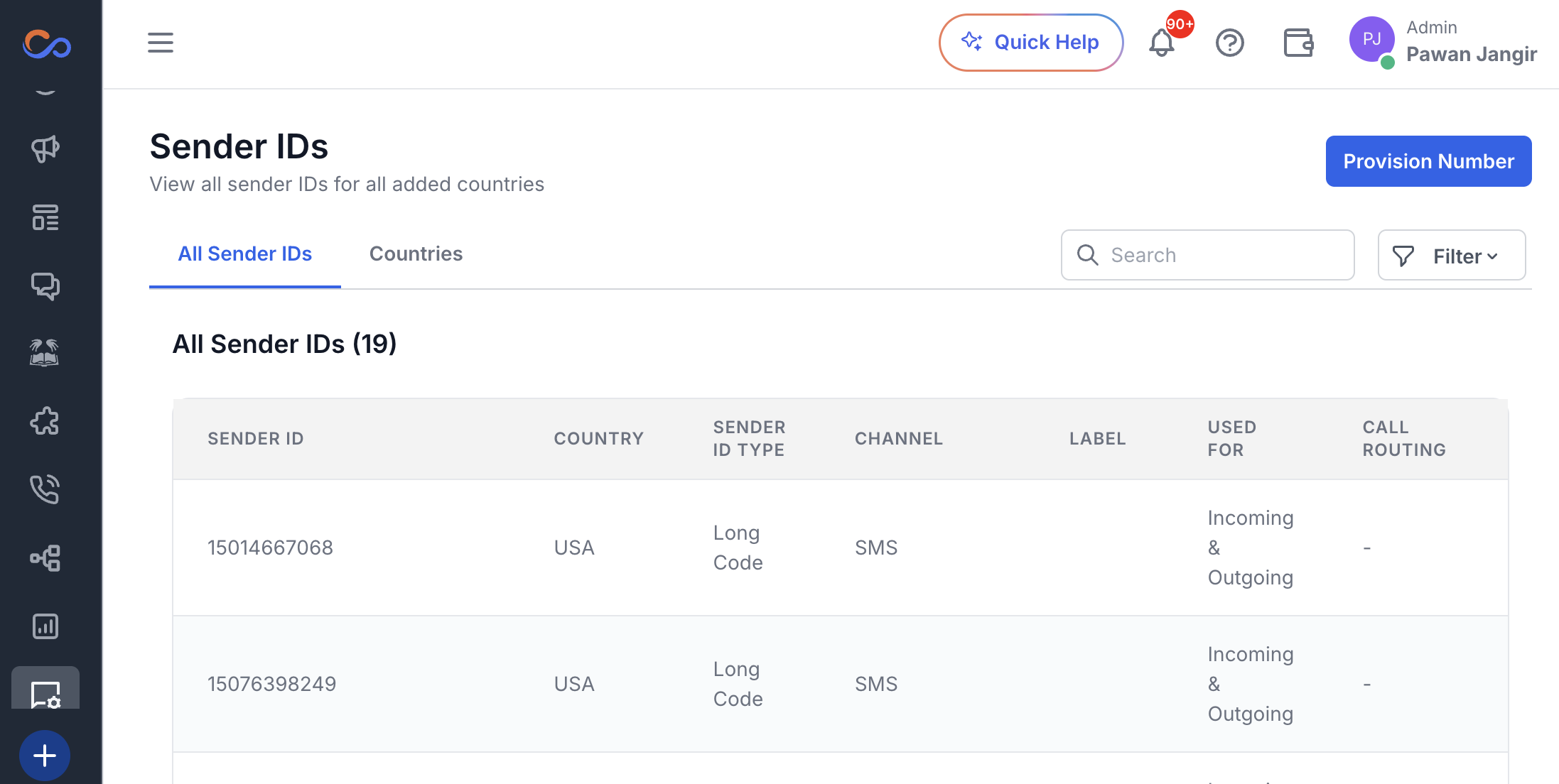
- Click on the inbound call routing option for the voice sender ID.
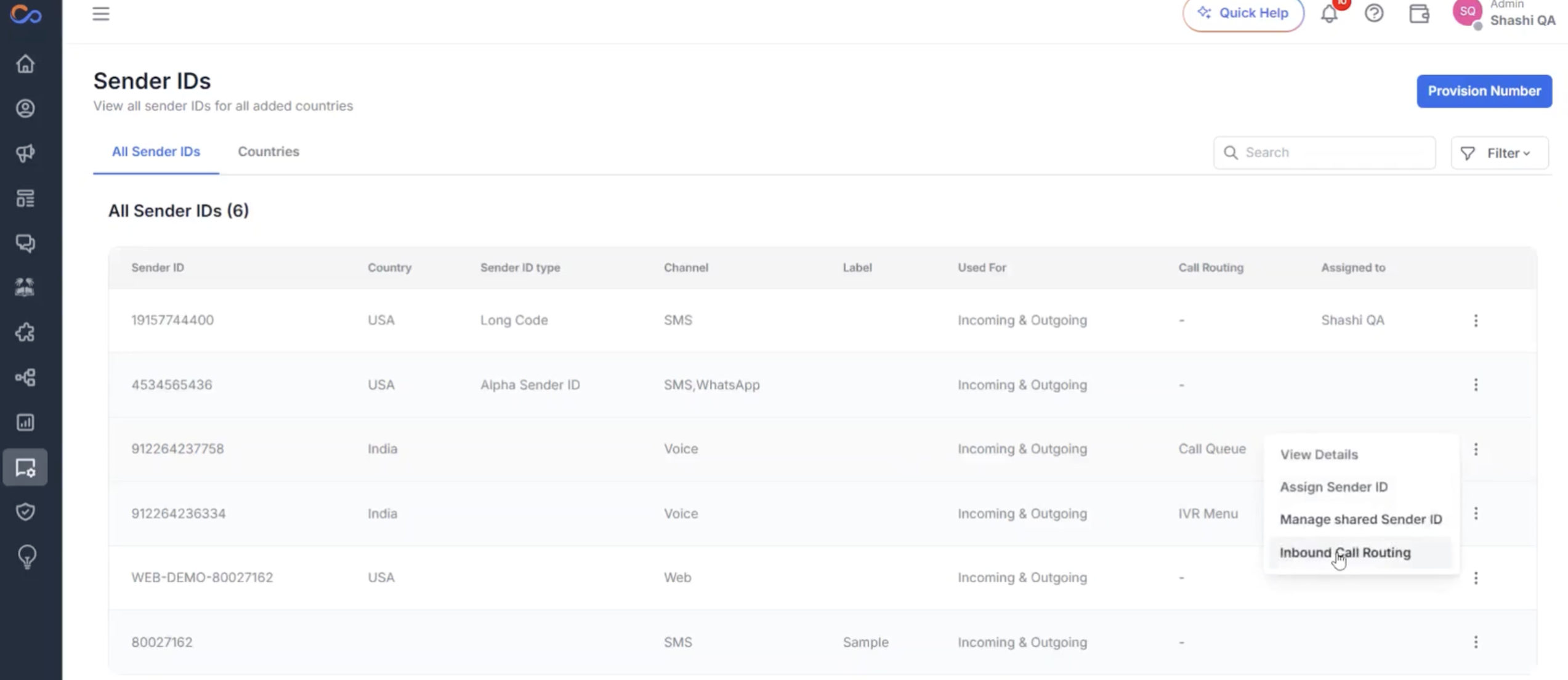
- Select the active IVR use case from the dropdown and click “Save”.
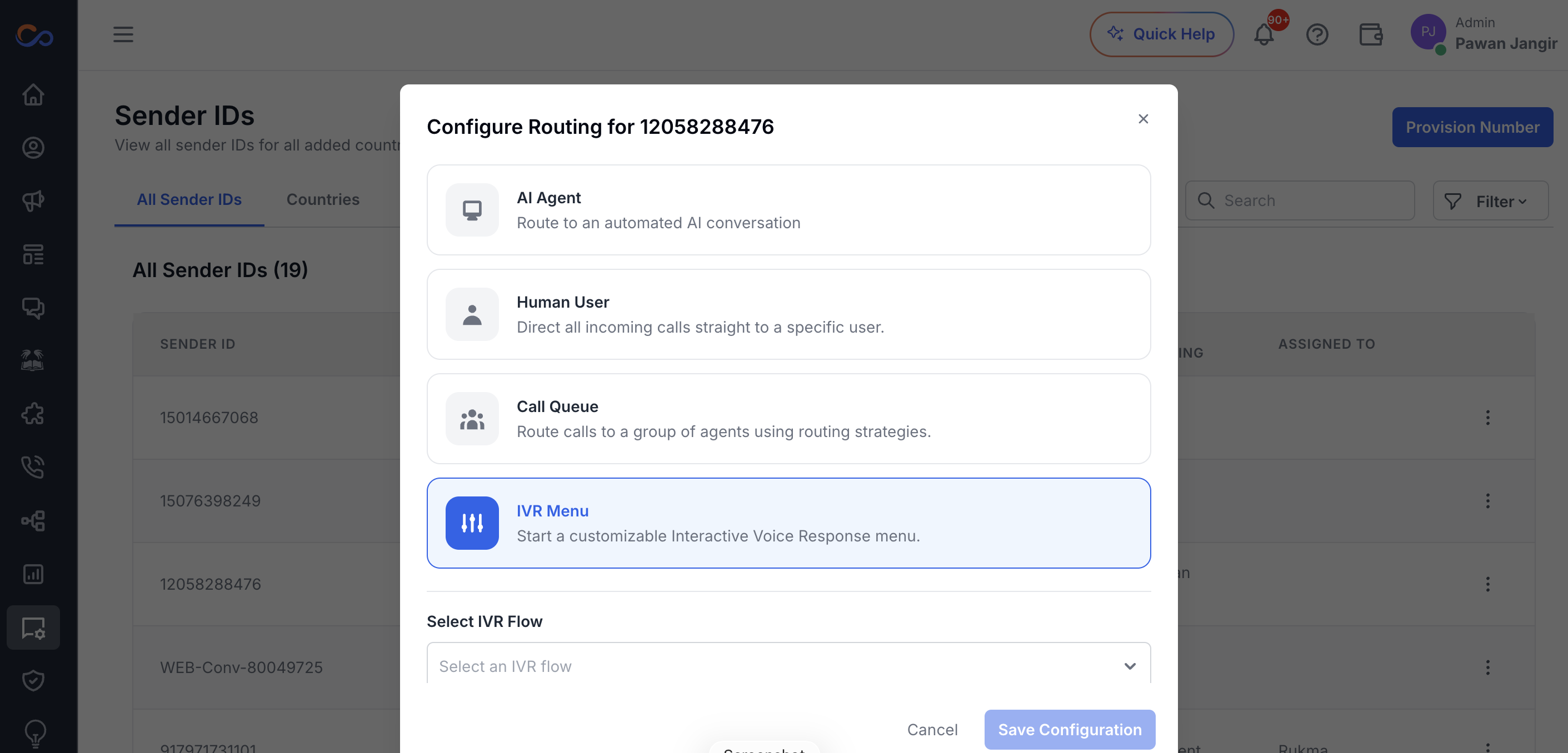
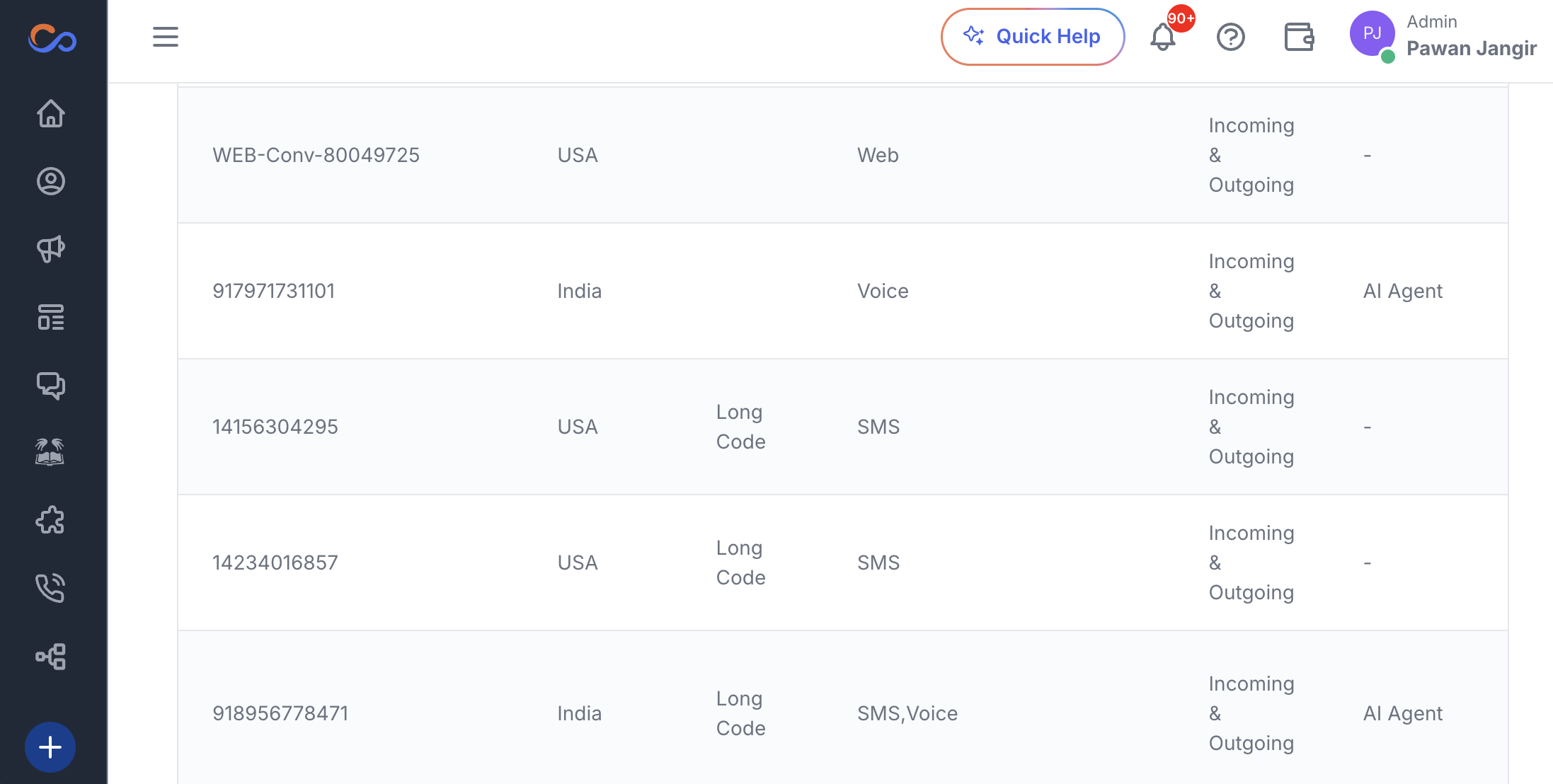
- Incoming calls received for the sender ID will be routed to the configured IVR use case.
- Once a call is received, view the activity log in the Use Case tab.
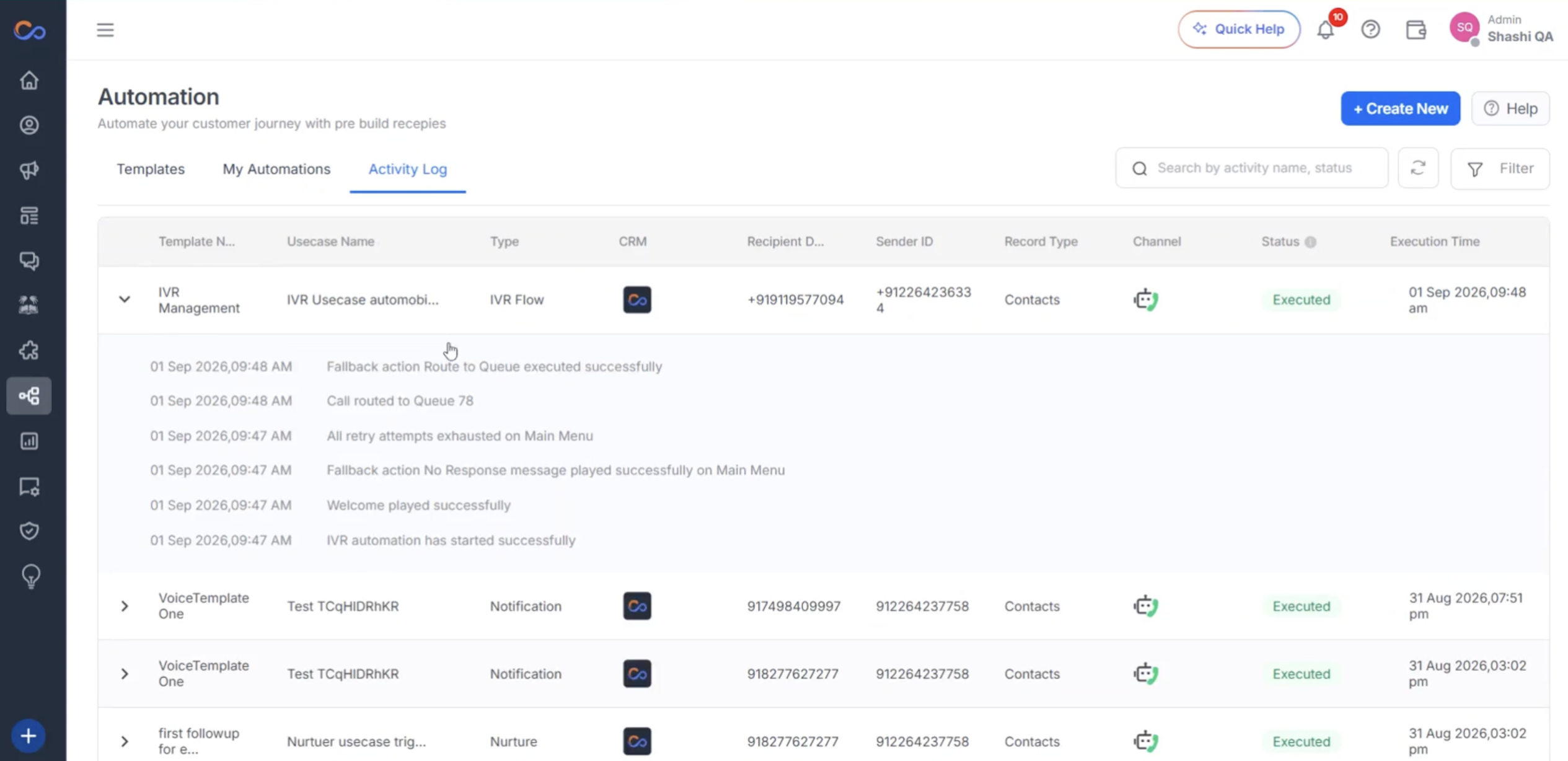
- Check the IVR trigger activity and details in the conversation history.
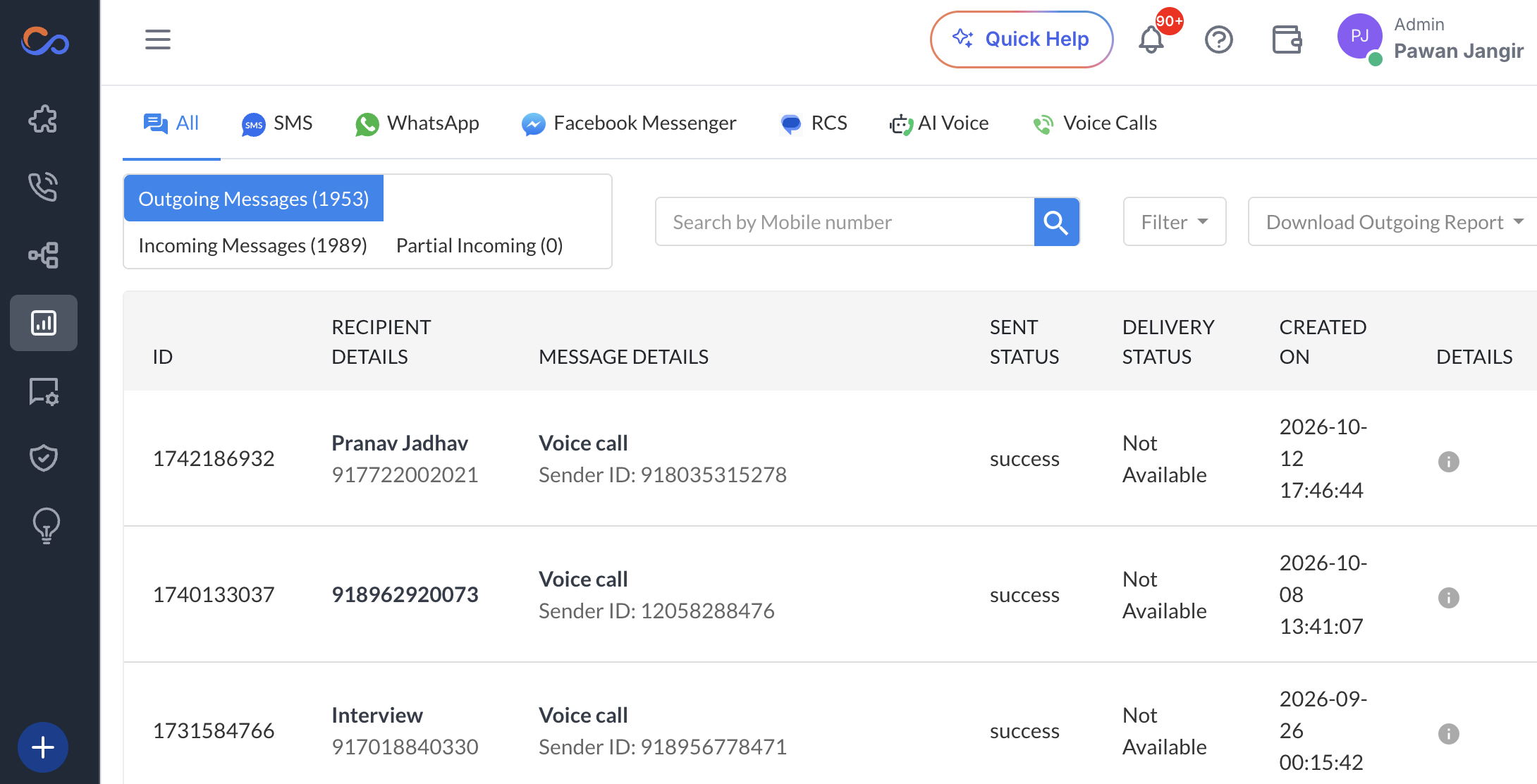
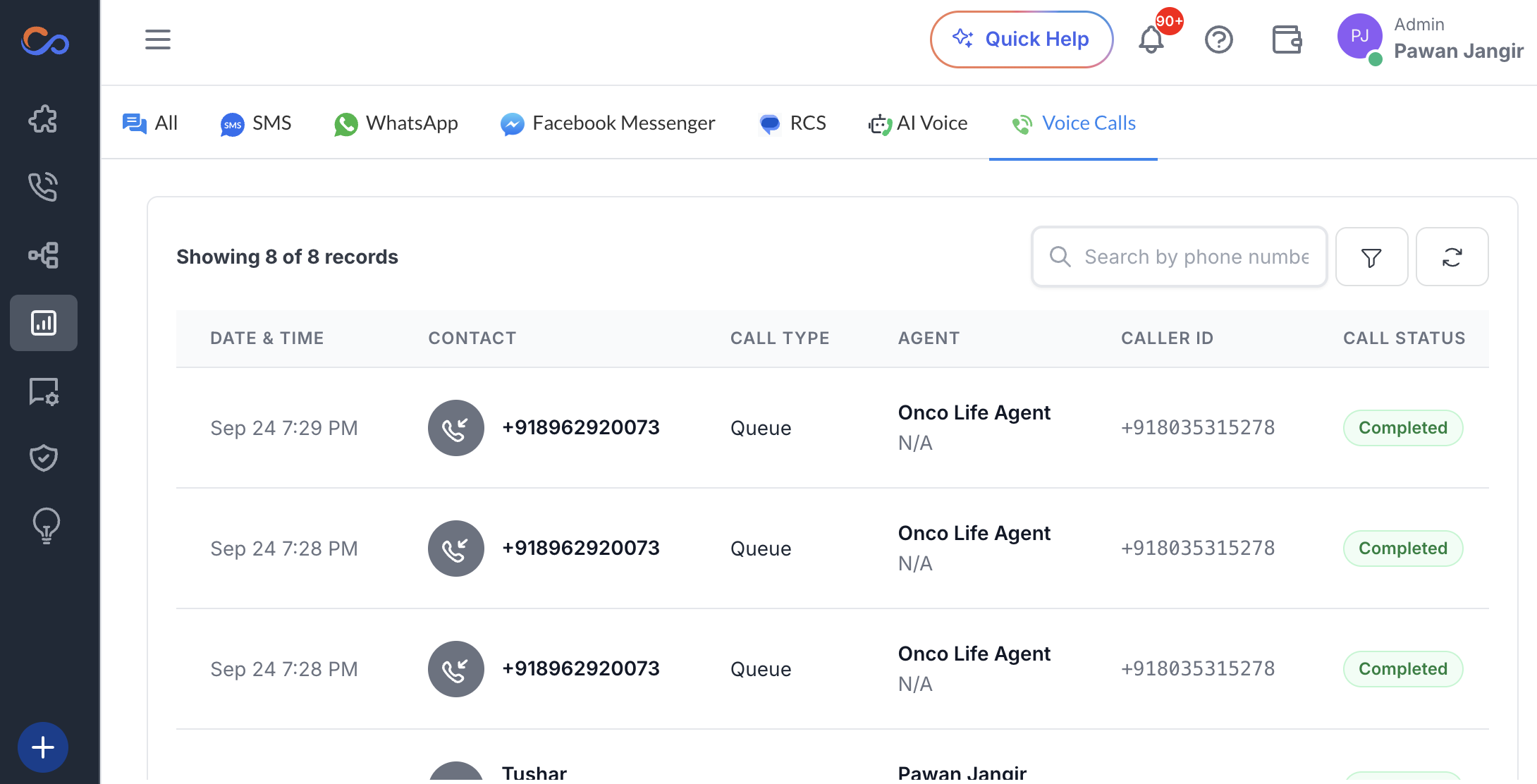
- Under the Voice Call tab, view call details, including call type as IVR and call status as completed.
Thank you for following this guide to configure your IVR use case.