Automate Conversations in Jobber with Usecase Automation
Automation and Activity Log
-
In the sidebar, click on Requests under the Clients section.
-
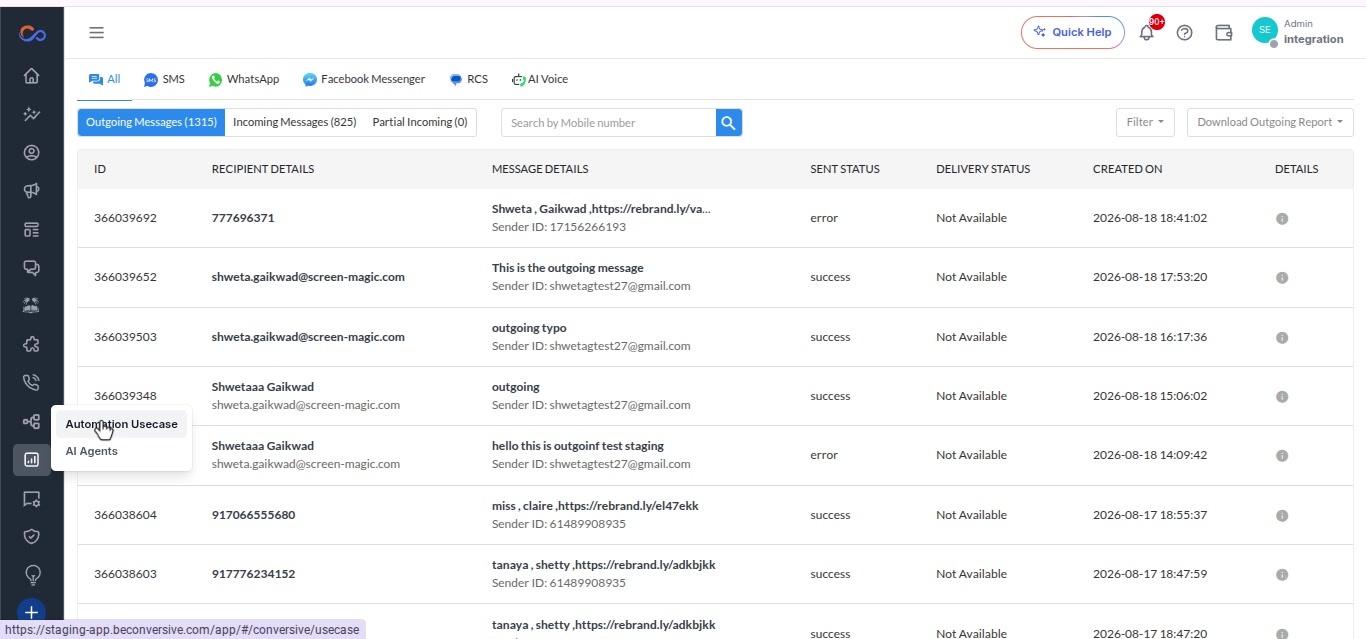
In the navigation bar, click on Automation Use Case.
-
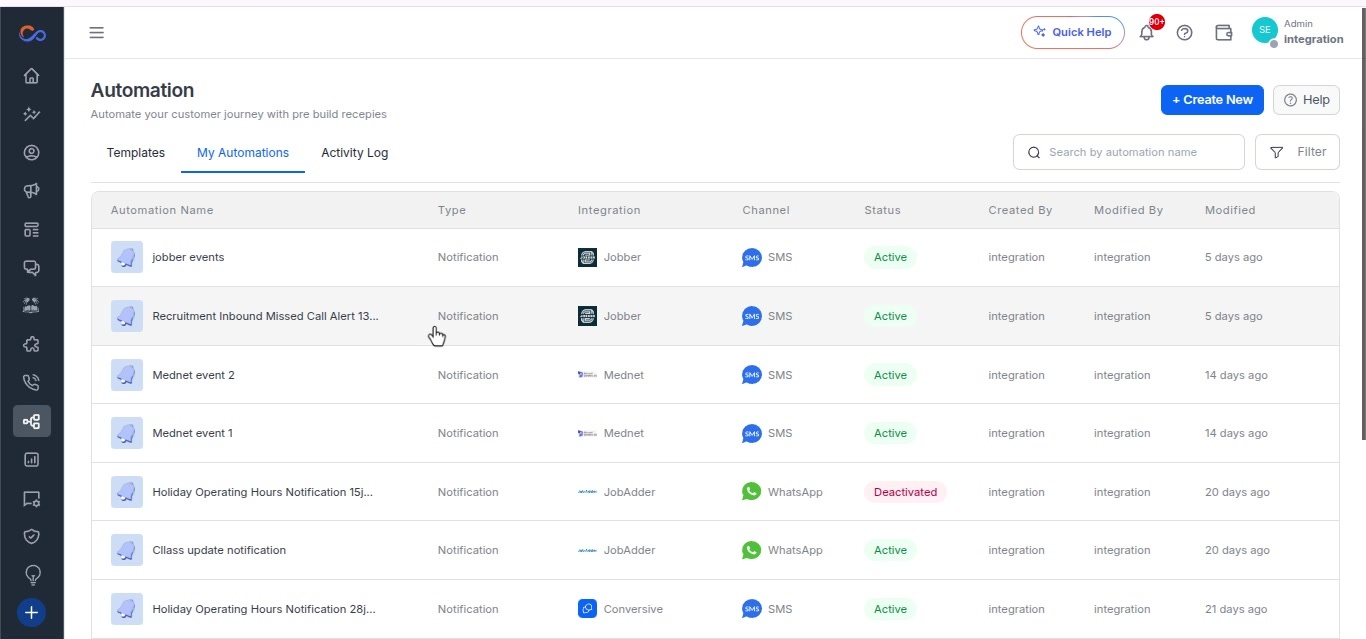
Select the checkbox next to Jobber Events in the My Automations tab.
-
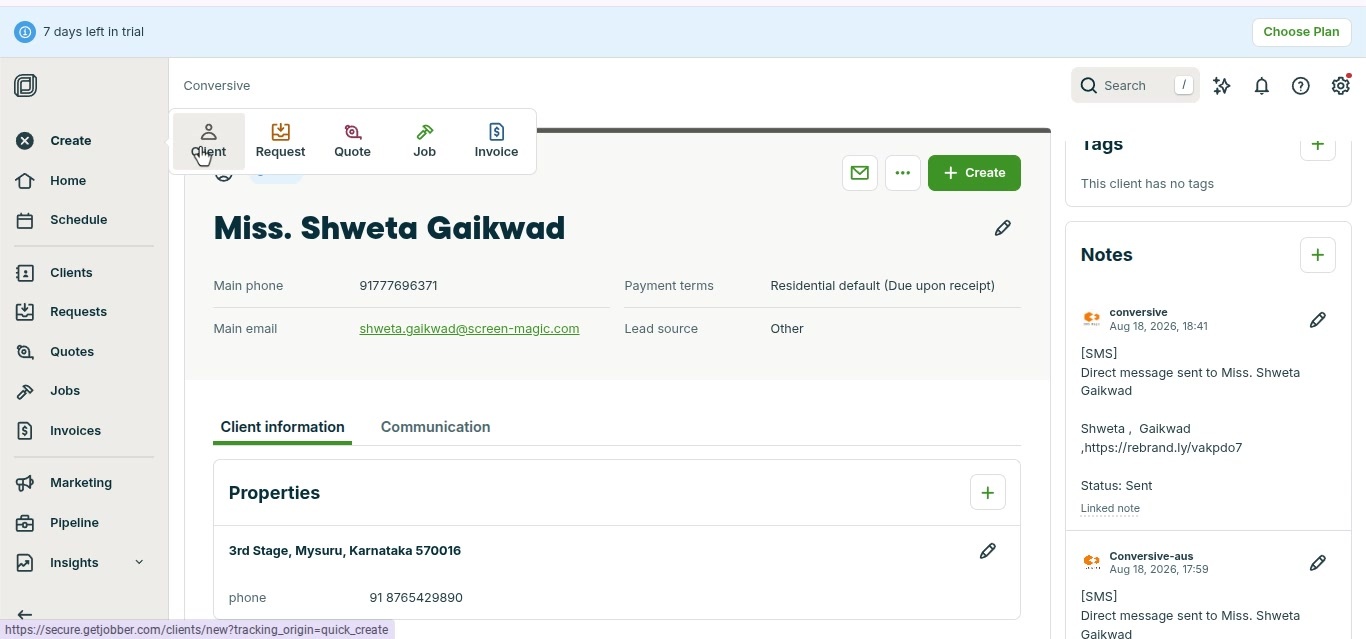
Click on the Create button in the navigation bar.
-
Select Client from the drop-down menu.
-
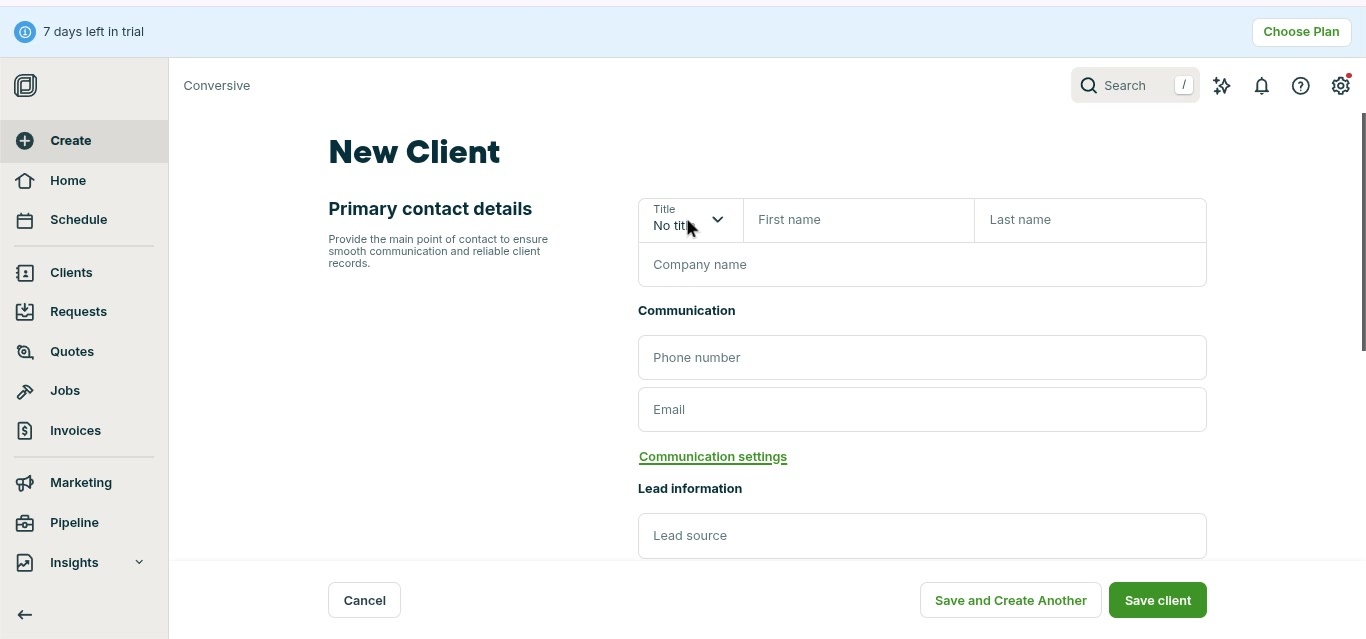
In the New Client form:
- Click the drop-down to select a title.
- Enter the first name.
- Enter the last name.
- Input the phone number in the Communications section.
- Toggle the switch to enable receiving messages.
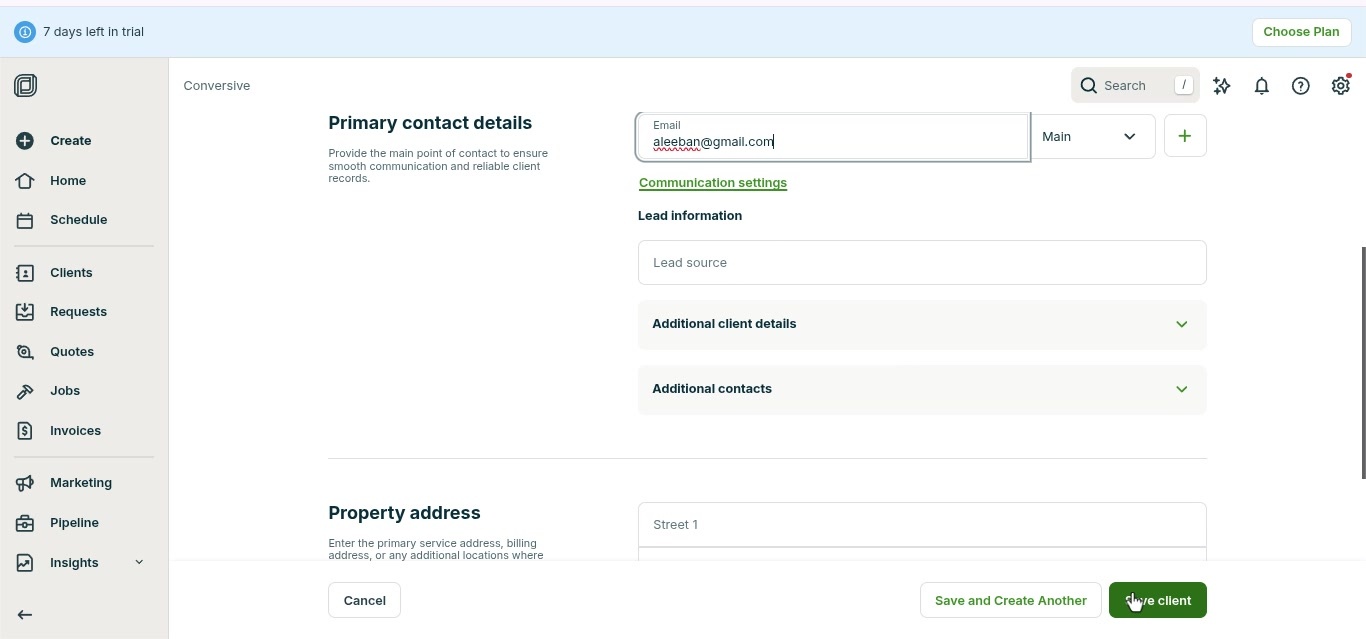
- Click the Save Client button to save the details.
-
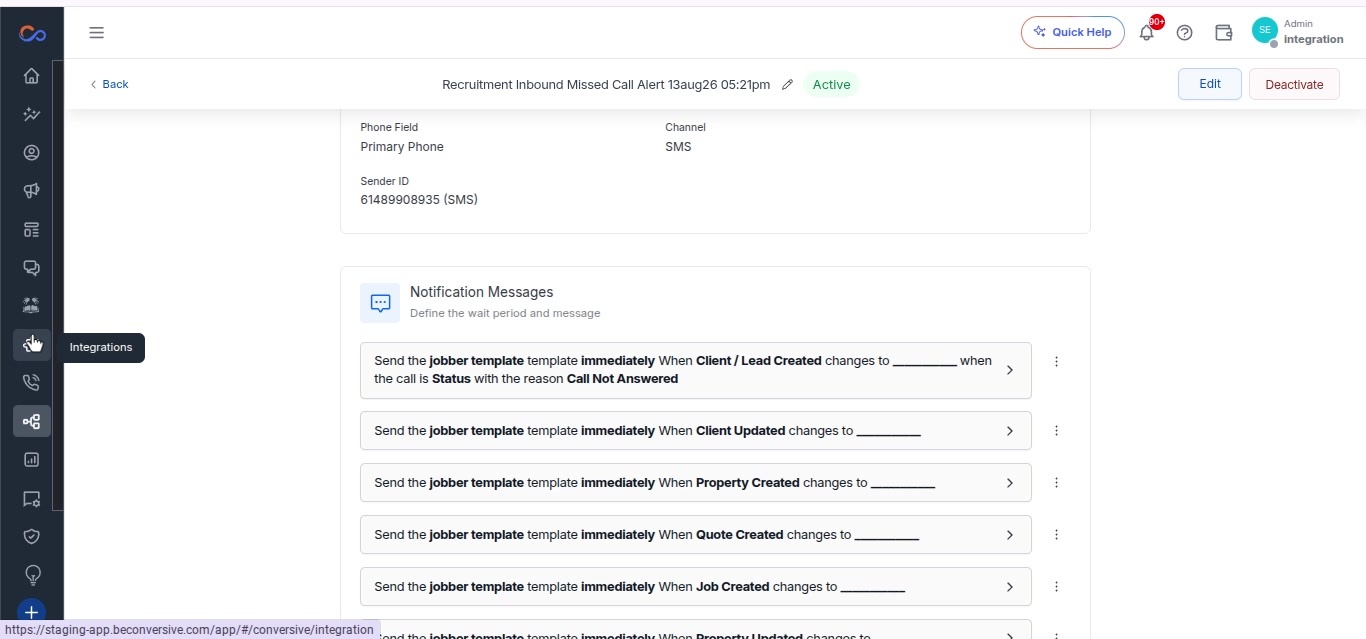
Navigate to the Integrations section in the sidebar.
-
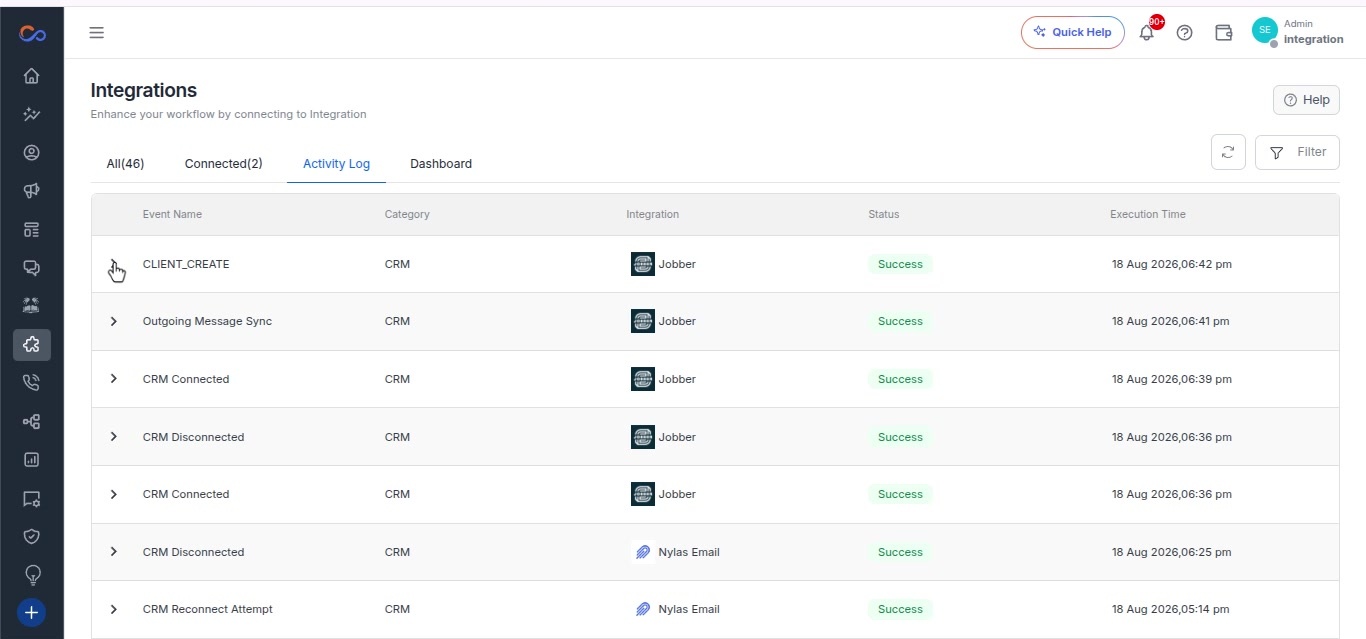
Click on the Activity Log tab in the Integration section.
-
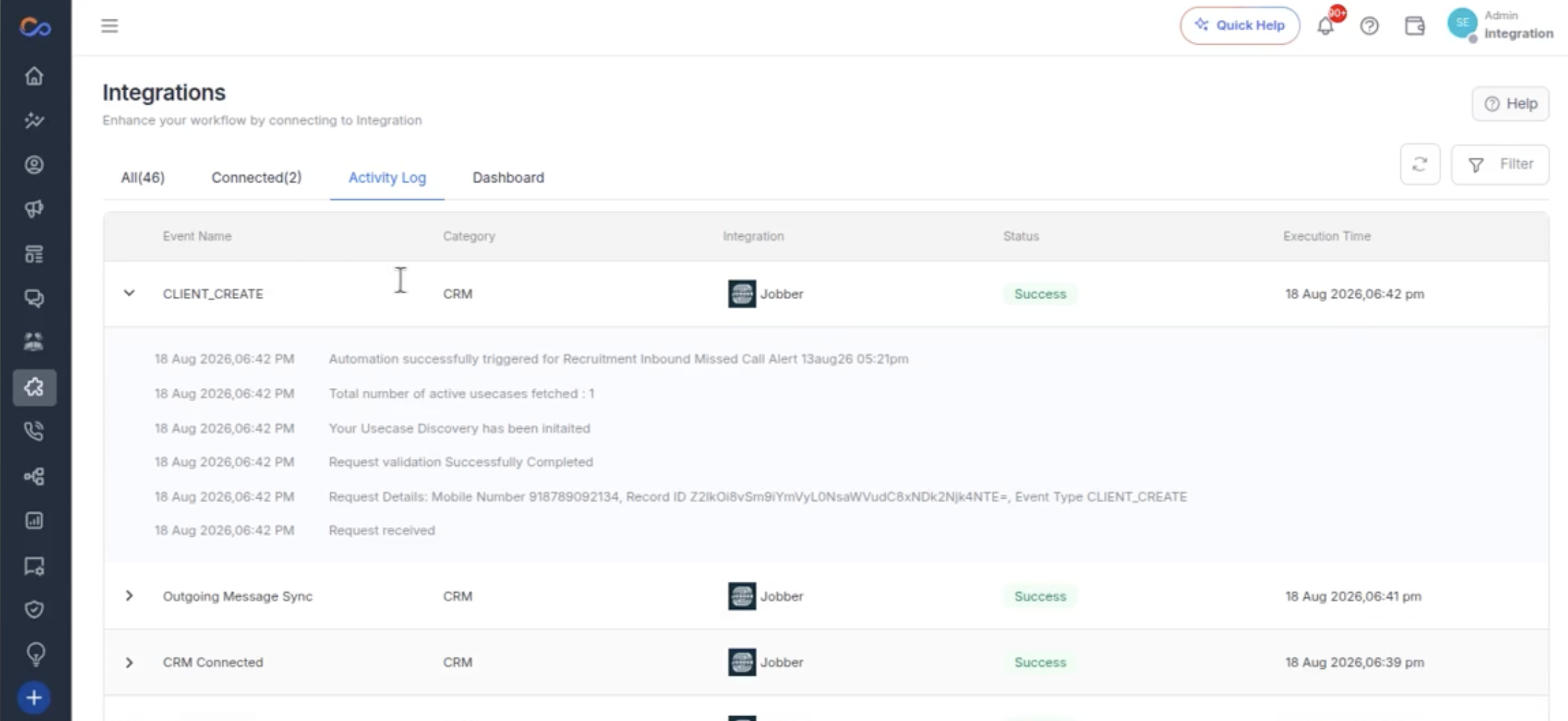
Expand the CRM-Connected event in the Activity Log.
-
View the details of the CRM-Connected event.
-
Click the Refresh button in the Activity Log section.
-
Select the Client-Underscore Create event in the Activity Log.
-
In the navigation bar, click on Automation Use Case.
-
Click the Back button to return to the previous page.
-
Open the menu by clicking the hamburger icon in the navigation bar.
-
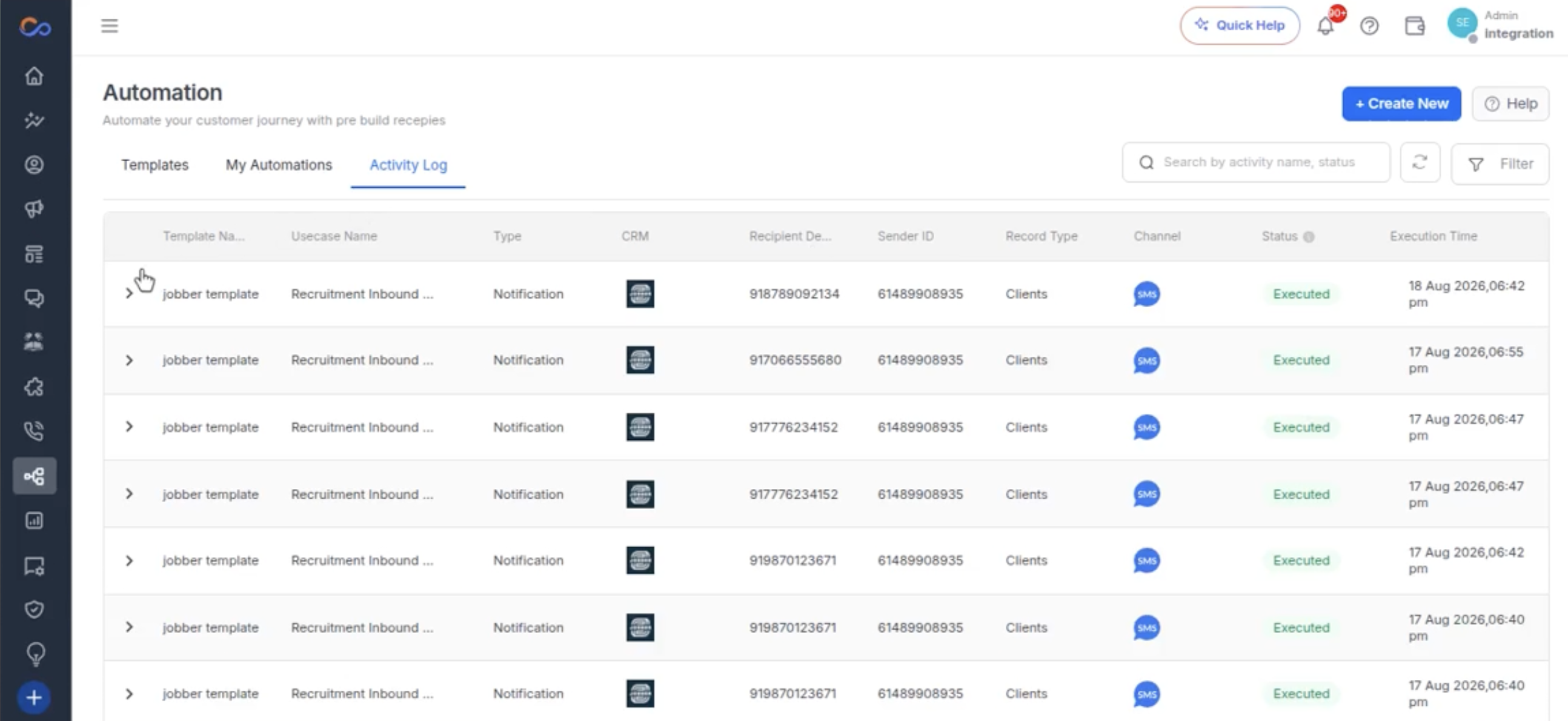
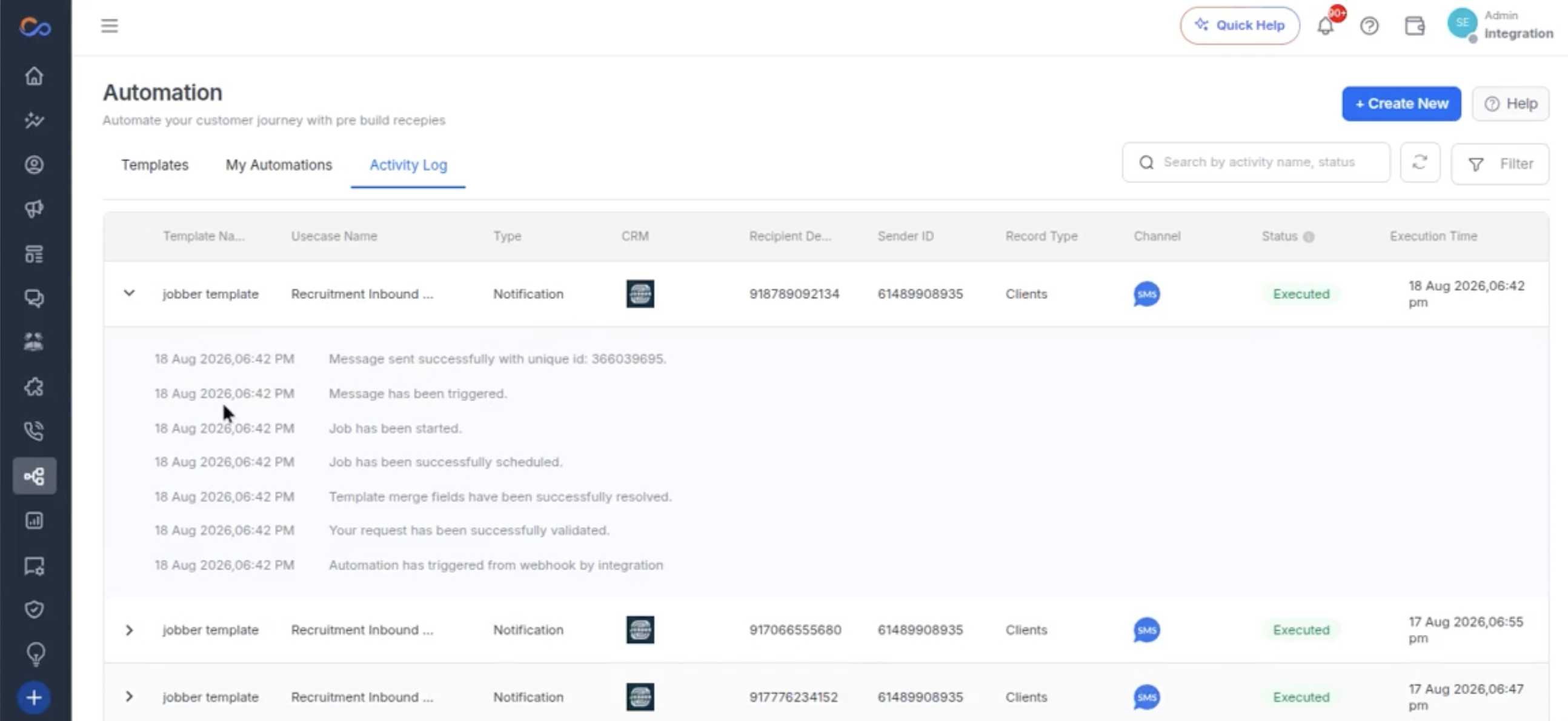
Select the Jobber template from the list in the Activity Log tab.
-
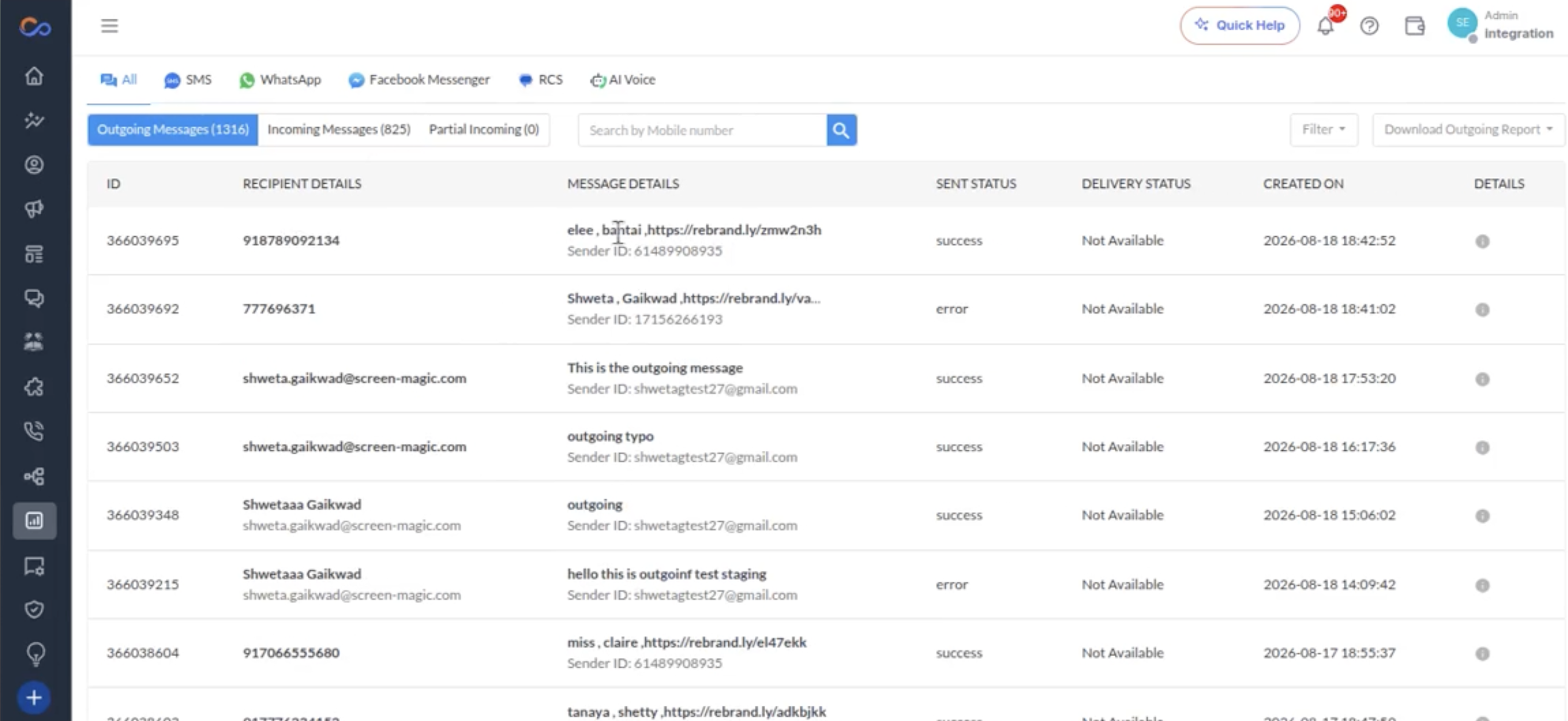
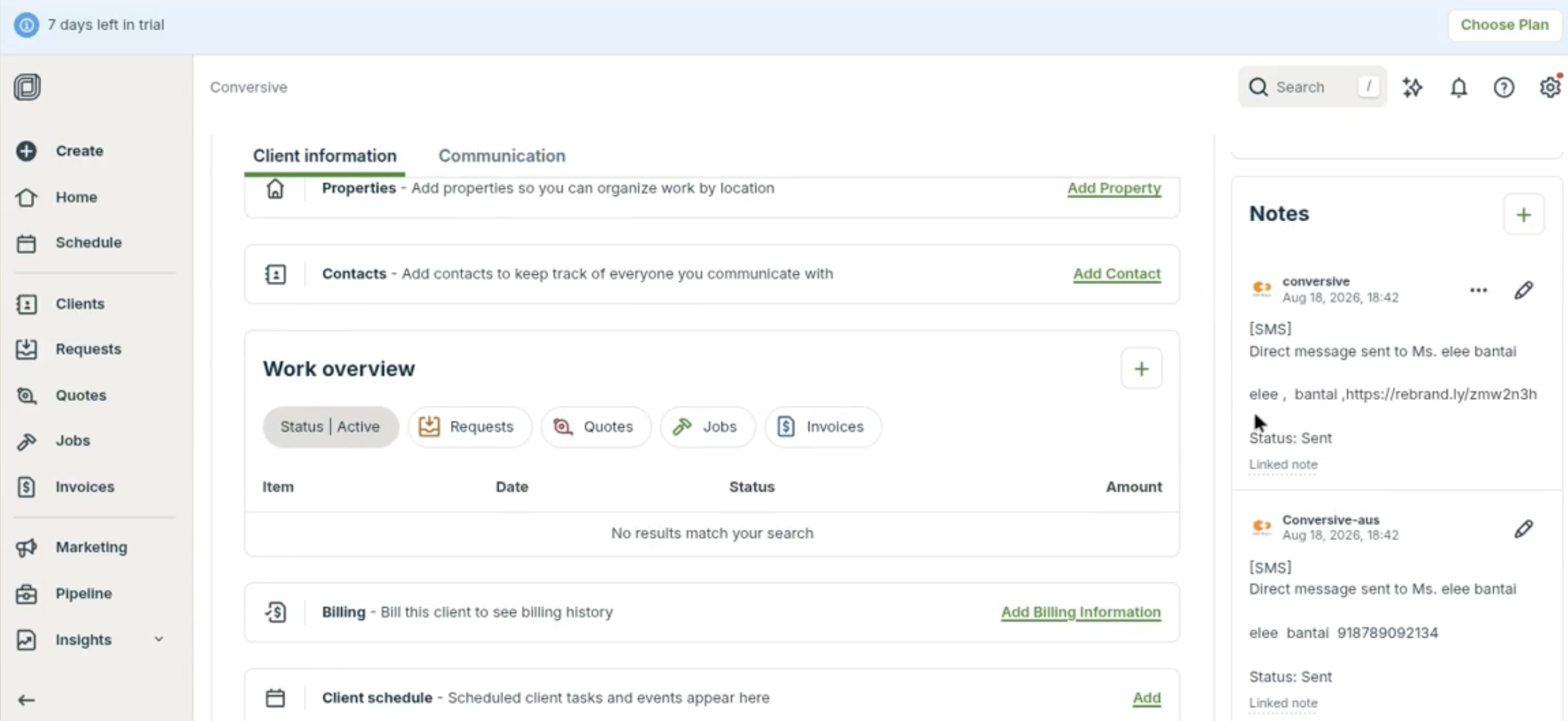
In the navigation bar, click on Conversation History.
-
In the tabbed menu, select Incoming Messages & Outgoing messages.