
Automate Your conversations with MS Dynamics 365
How to Automate Conversations with Usecase Automation for MS Dynamics 365?
Enhance communication efficiency with our Usecase Automation feature. Activate tailored nurture messages, ensure timely notifications for contacts, and reduce no-shows with automated reminders. Streamline your processes and boost engagement effortlessly.
View Usecase Template: Explore a curated list of automation use cases designed to enhance your business operations. Each template offers a unique solution to common business challenges, enabling efficient scaling and optimized resource management.
Navigate to the ‘Usecase Template’ section in the dashboard. Browse through the list to identify use cases that align with your business needs.
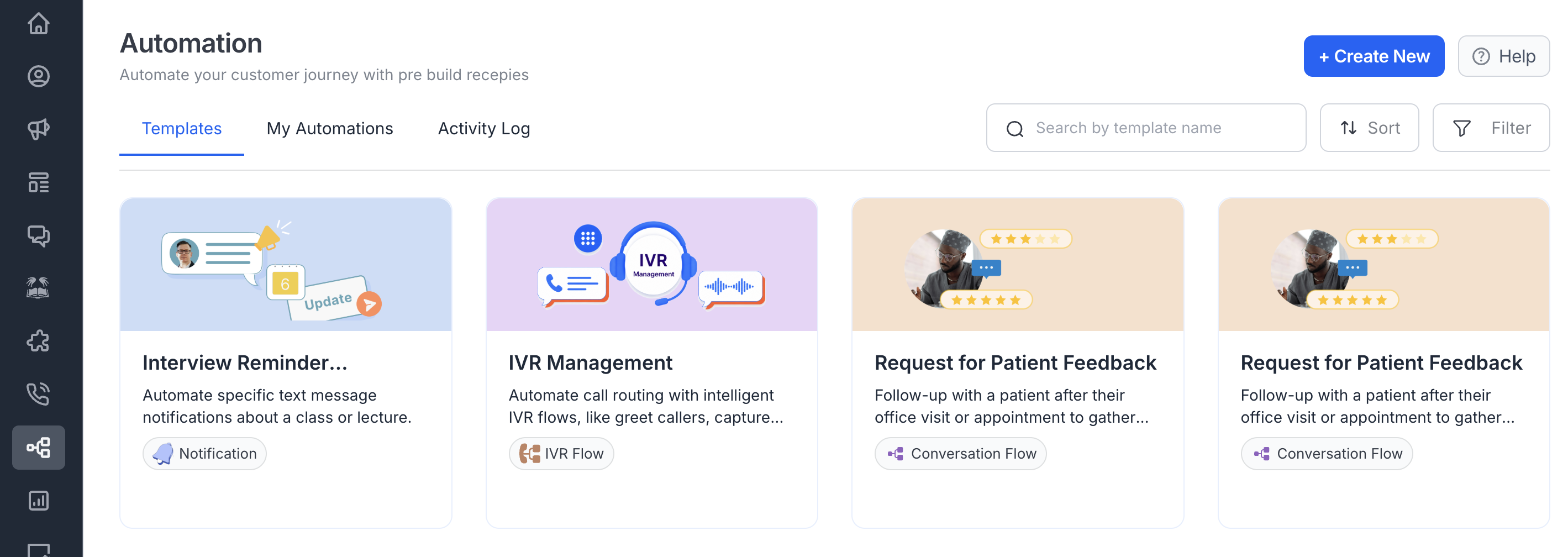
Usecase Preview: Get an in-depth look at the specific functionalities and benefits of each usecase before integration. This preview helps ensure that the usecase aligns with your business objectives, demonstrating potential impacts and efficiency gains.
How to manage and edit flows in MS Dynamics 365 Power Automate?
Step 1: Click on All Integrations in the navigation bar and confirm that MS Dynamics is connected.
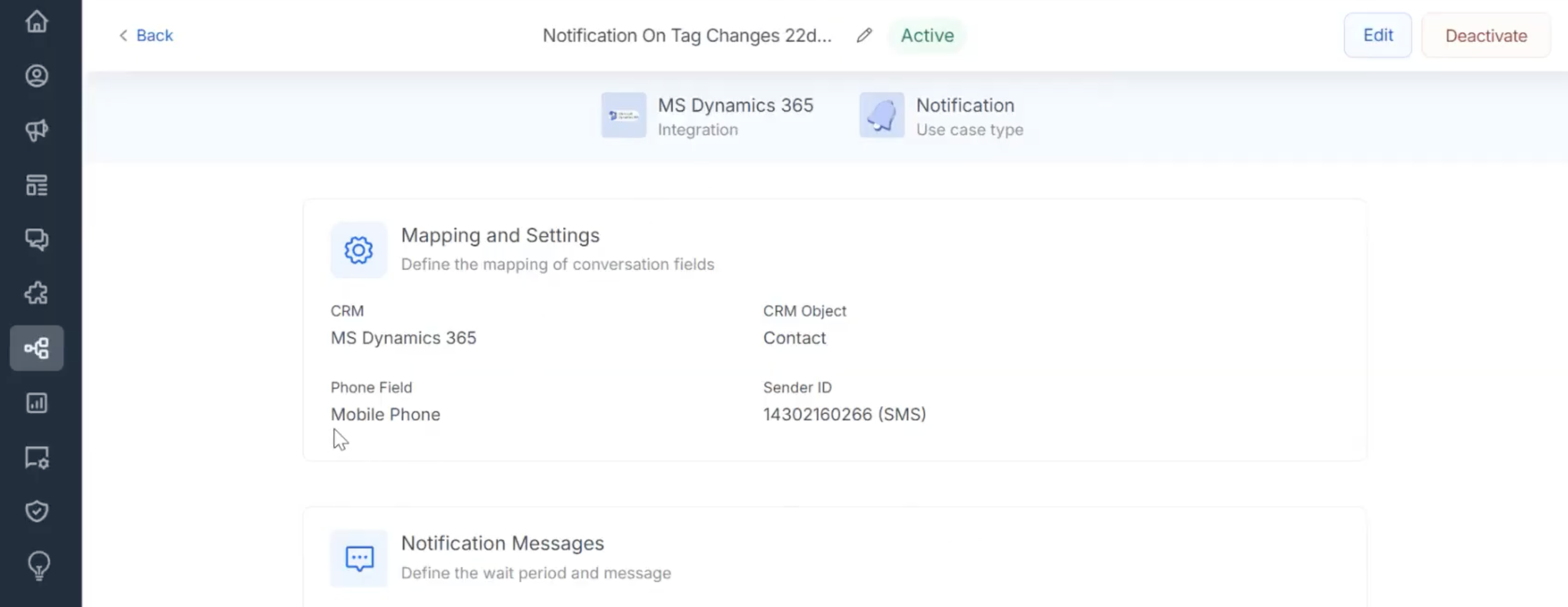
Step 2: In the navigation bar, select My Automations and enable the use case for MS Dynamics.
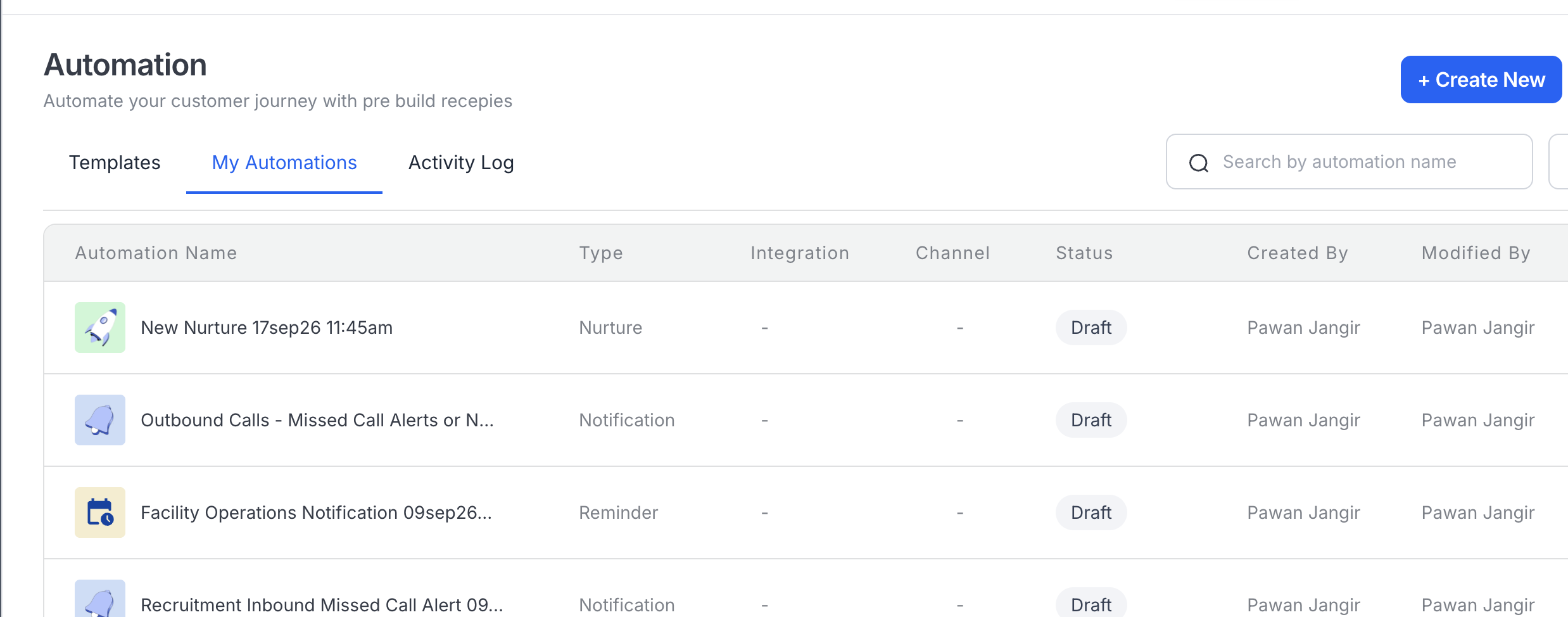
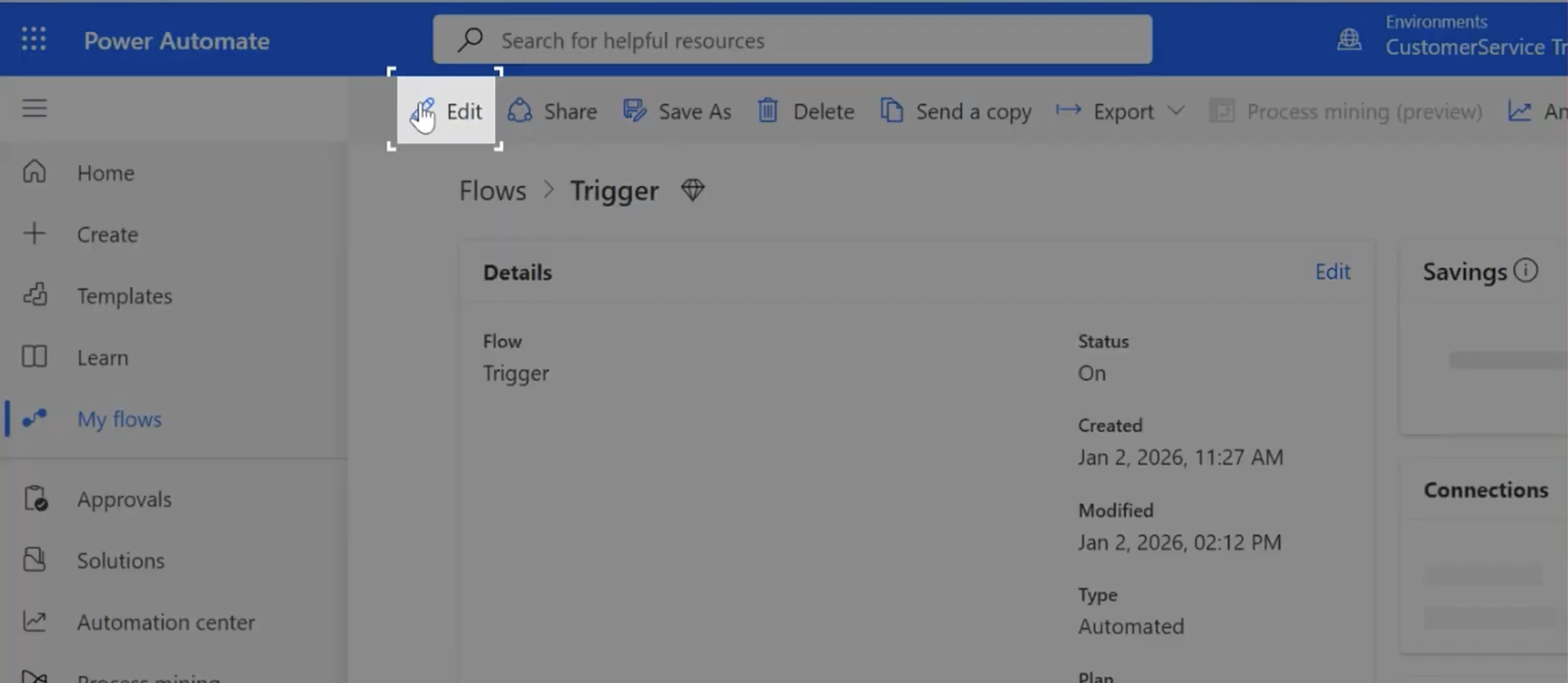
Step 3: In the Power Automate dashboard, click on the existing created flow named Trigger.
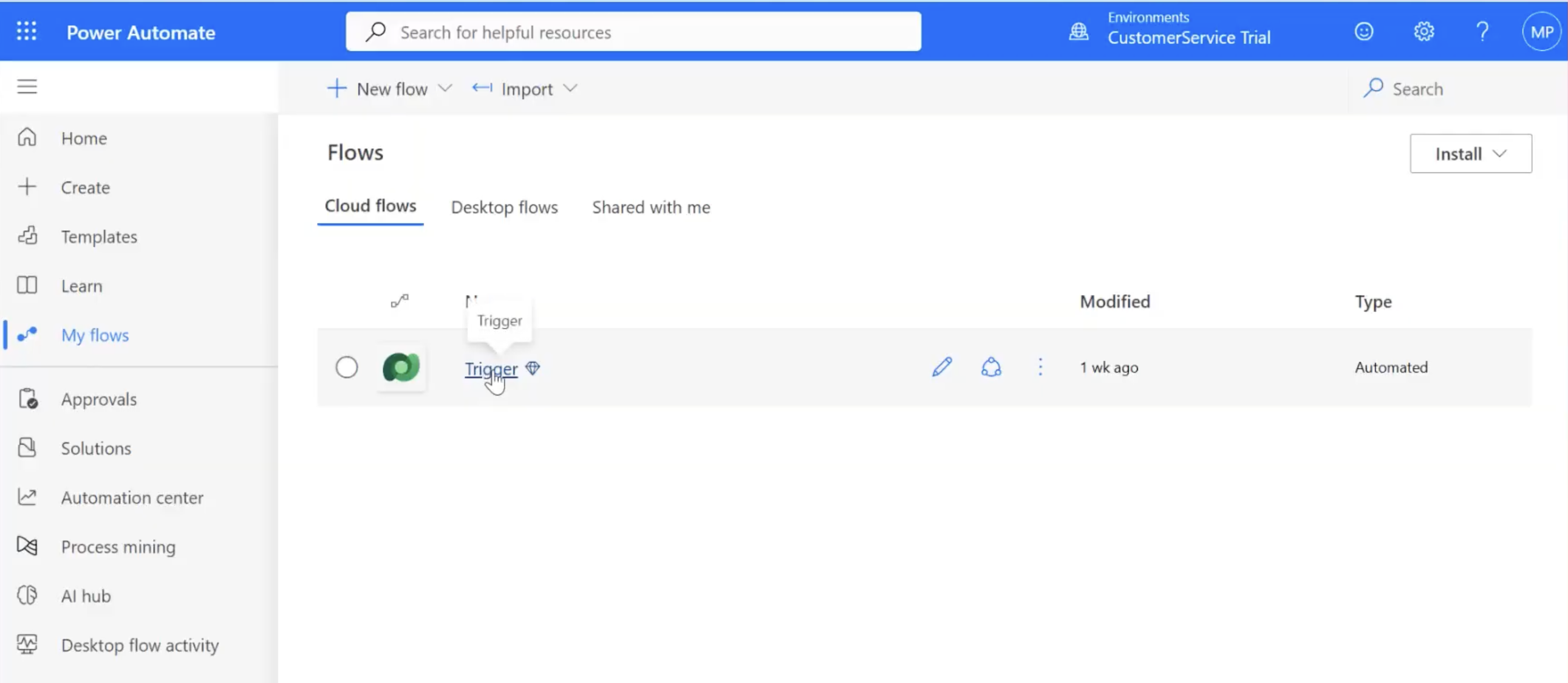
Step 4: In the Flow Details page, click on the Edit button. Create the automation flow on MS Dynamics Power Automate to run the use cases.
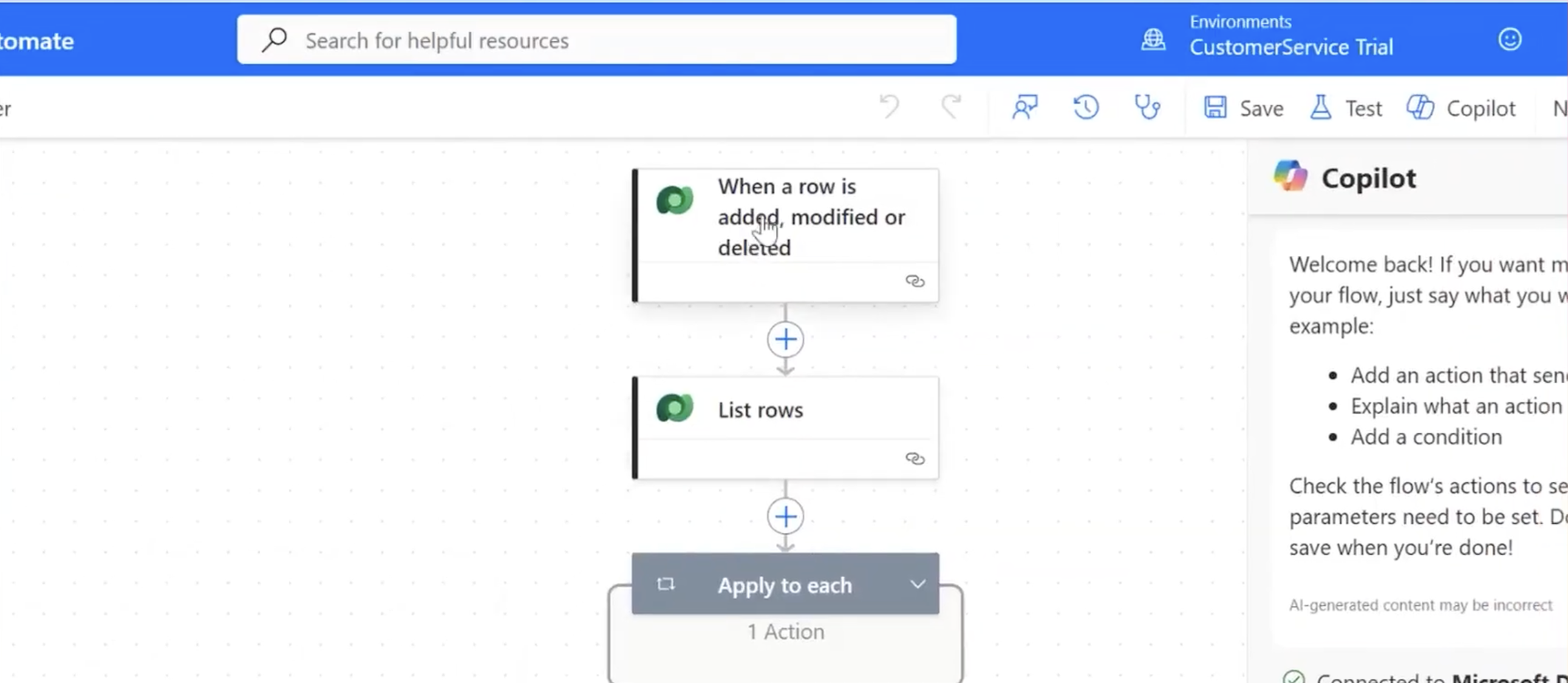
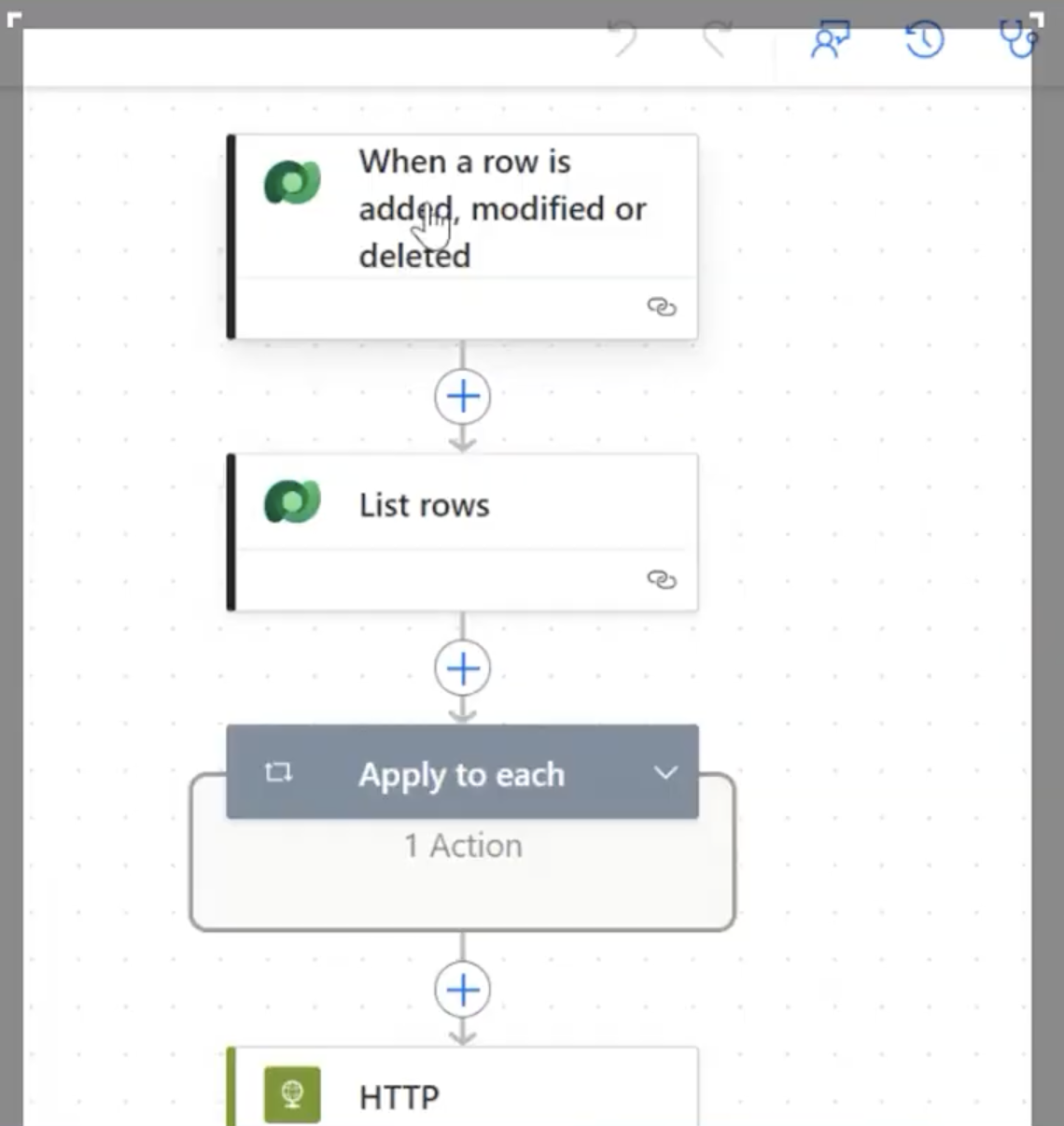
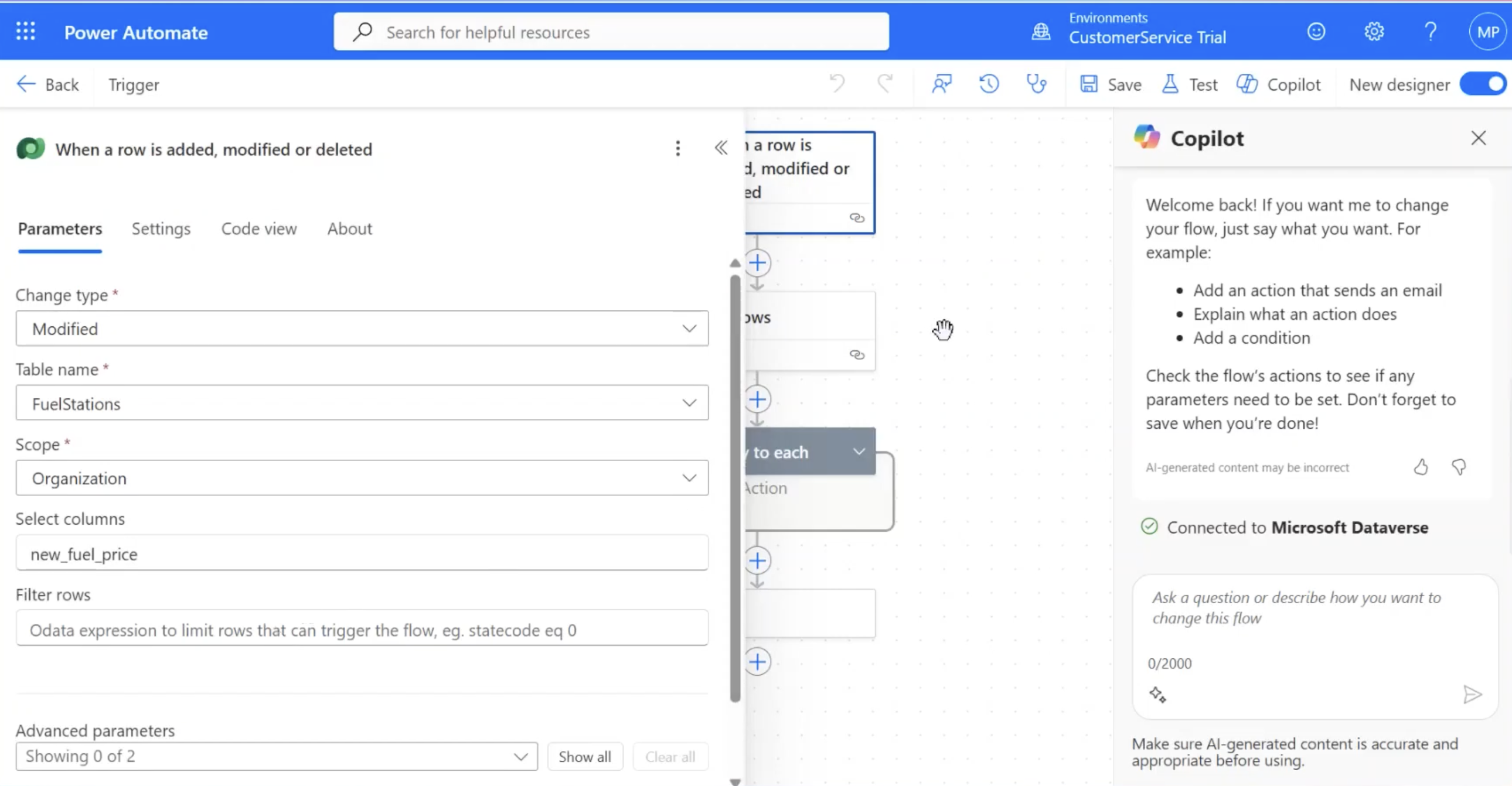
Step 5: In the modal, set the parameters for the trigger action. Click on the highlighted fuel price value in the Dynamics 365 list to edit it to run the use cases.
Step 6: For example, Enter the new fuel price in the fuel underscore price field in the form. Click on Save and Close in the navigation bar to save your changes.
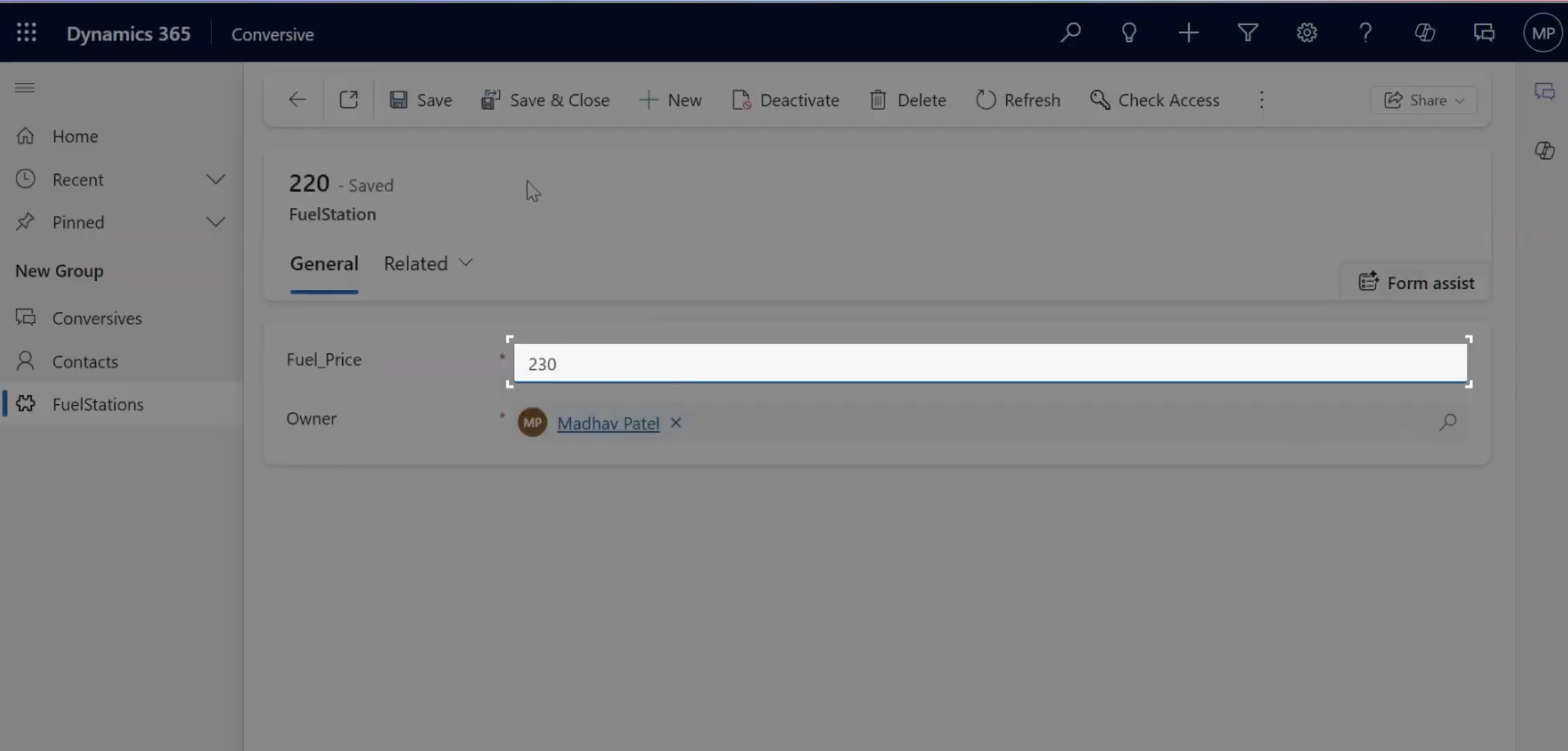
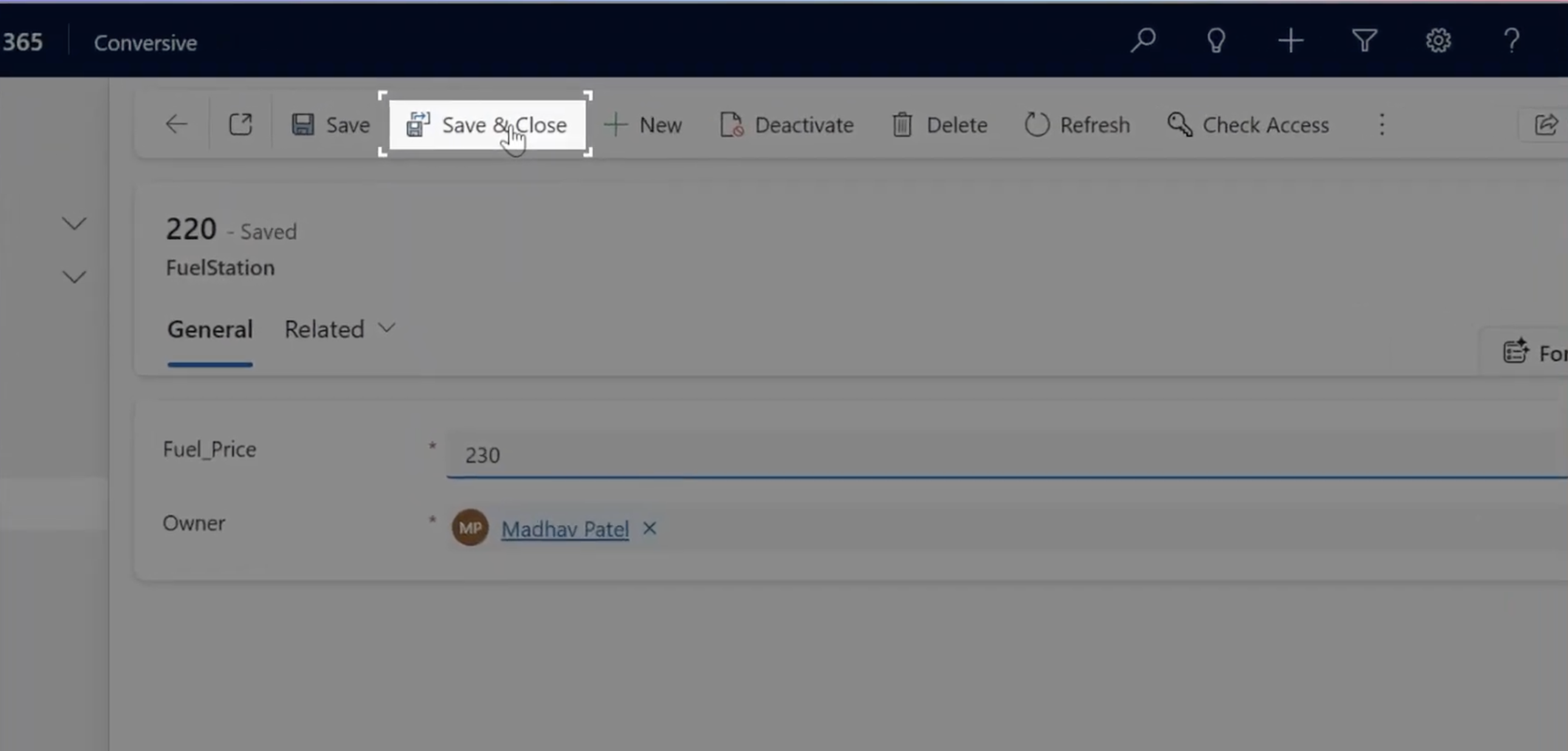
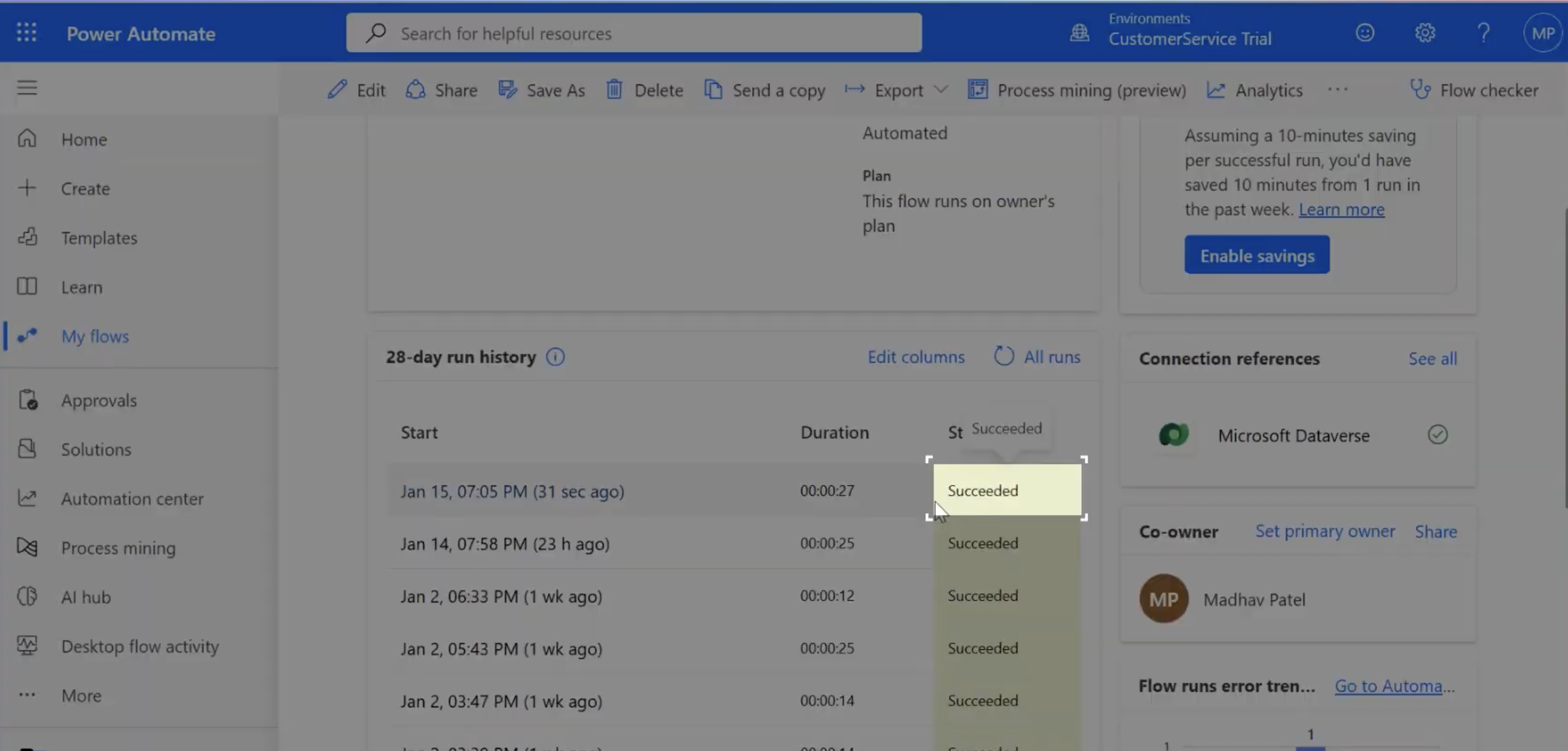
Step 7: Ensure that the use cases have been successfully executed by checking the history section. Check the activity log to confirm the successful execution of the use cases.
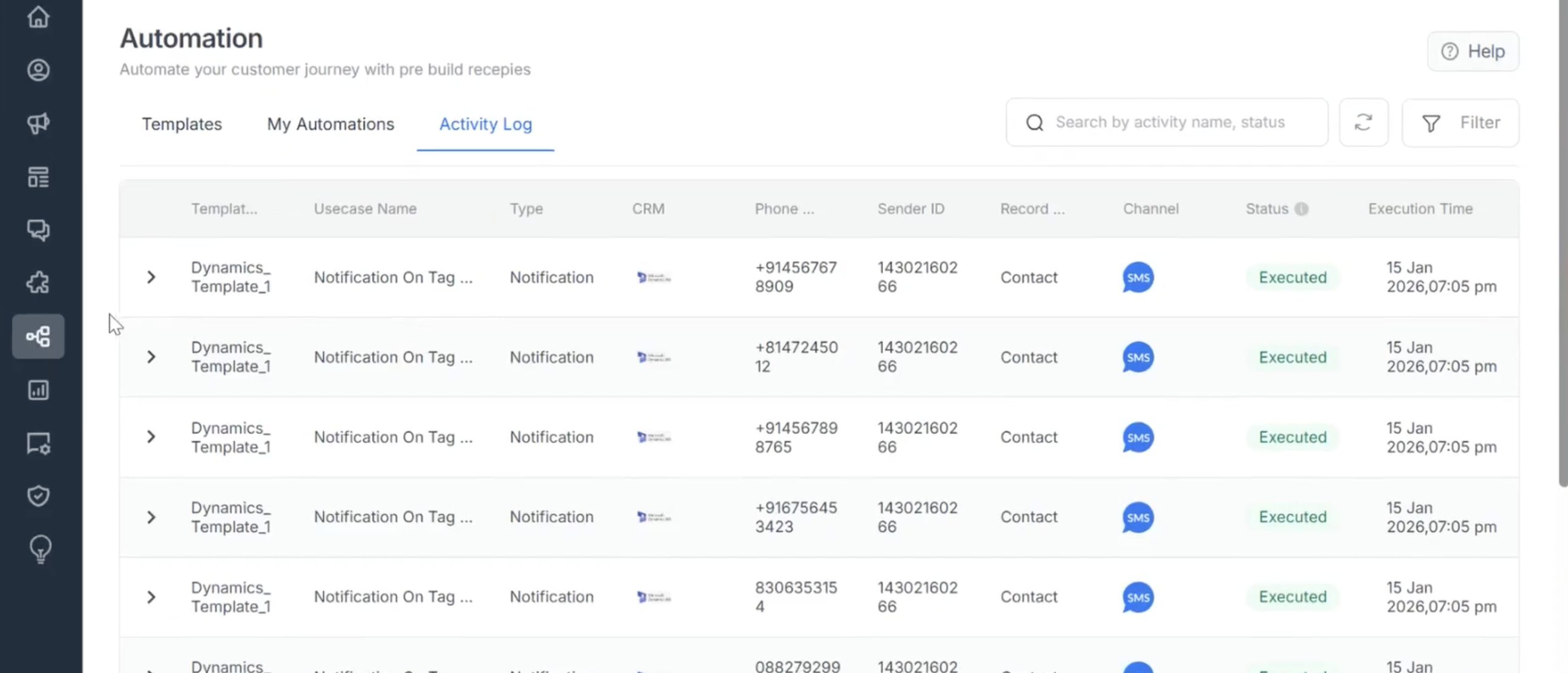
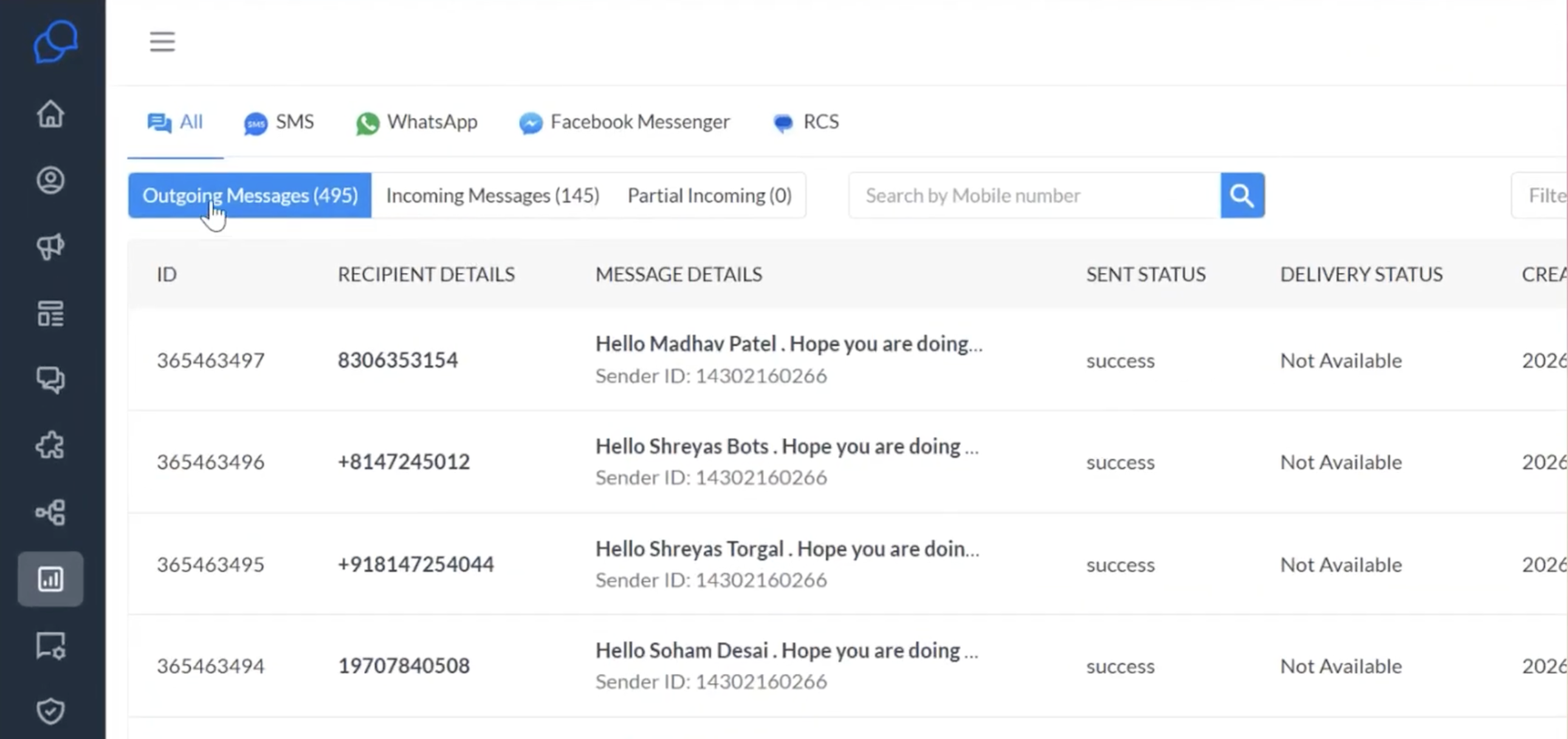
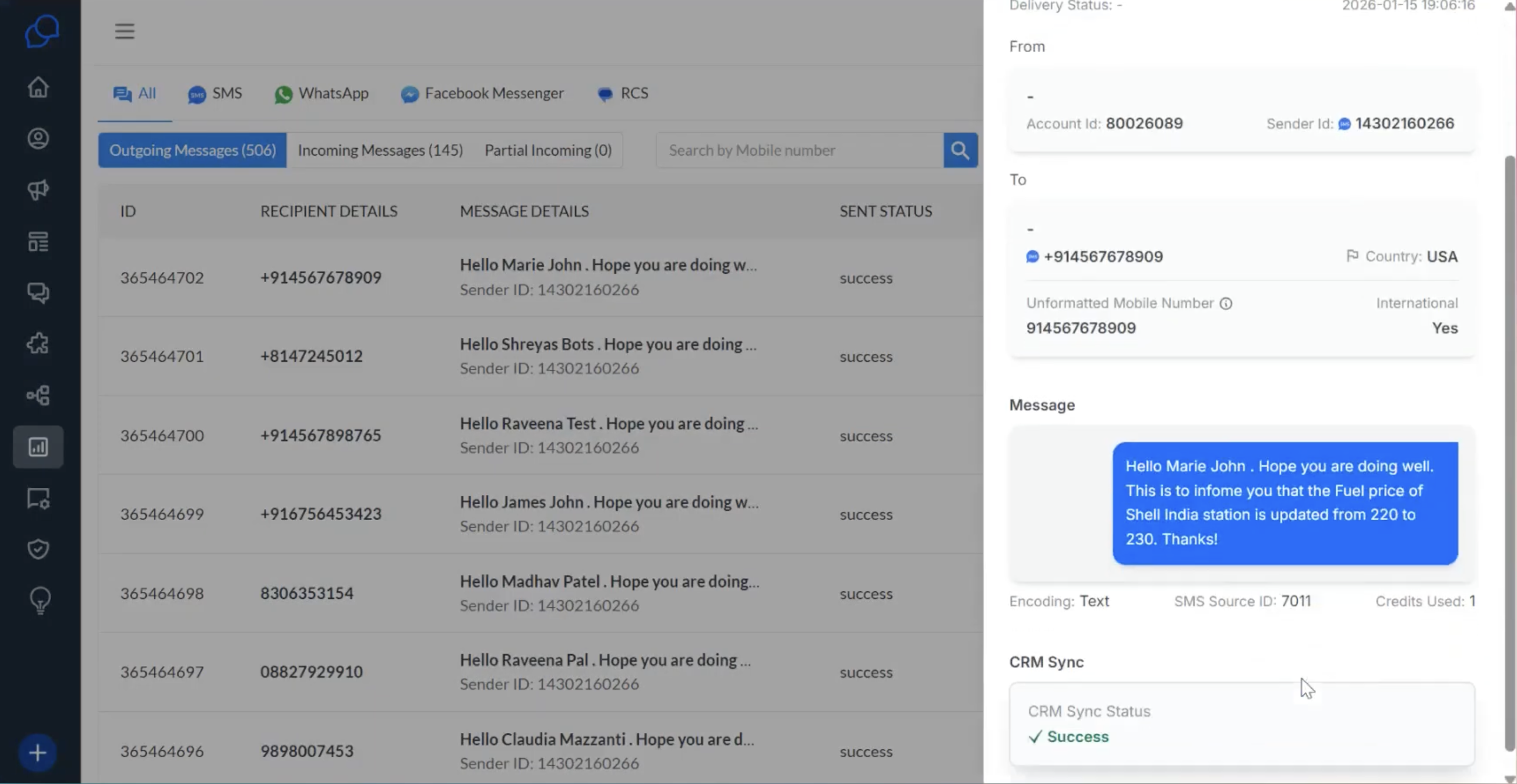
Step 8: On the Conversations page, click Outgoing Messages to check the delivery status of your messages. Check the SMS history to ensure that the merge fields have been correctly resolved in the sent messages.
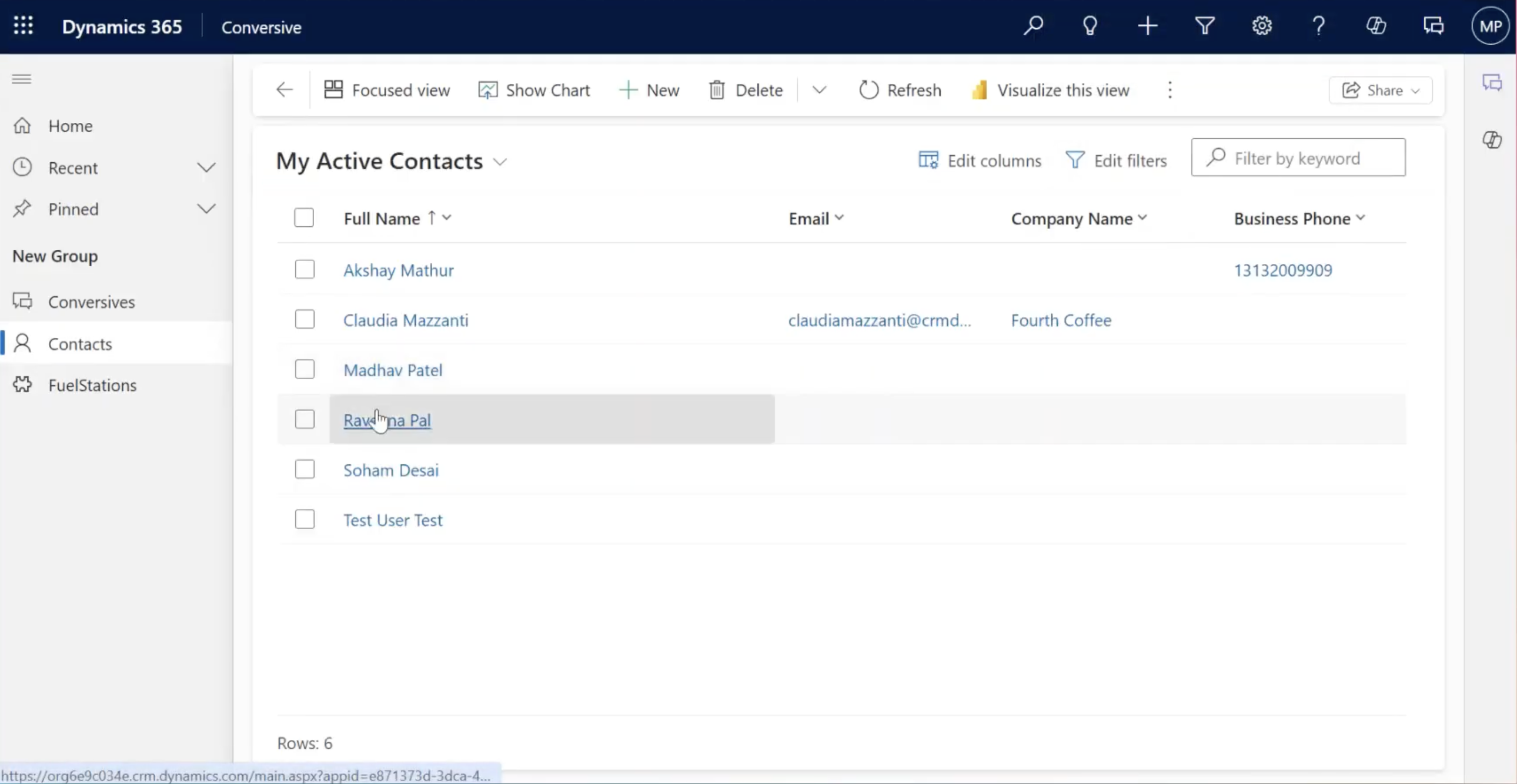
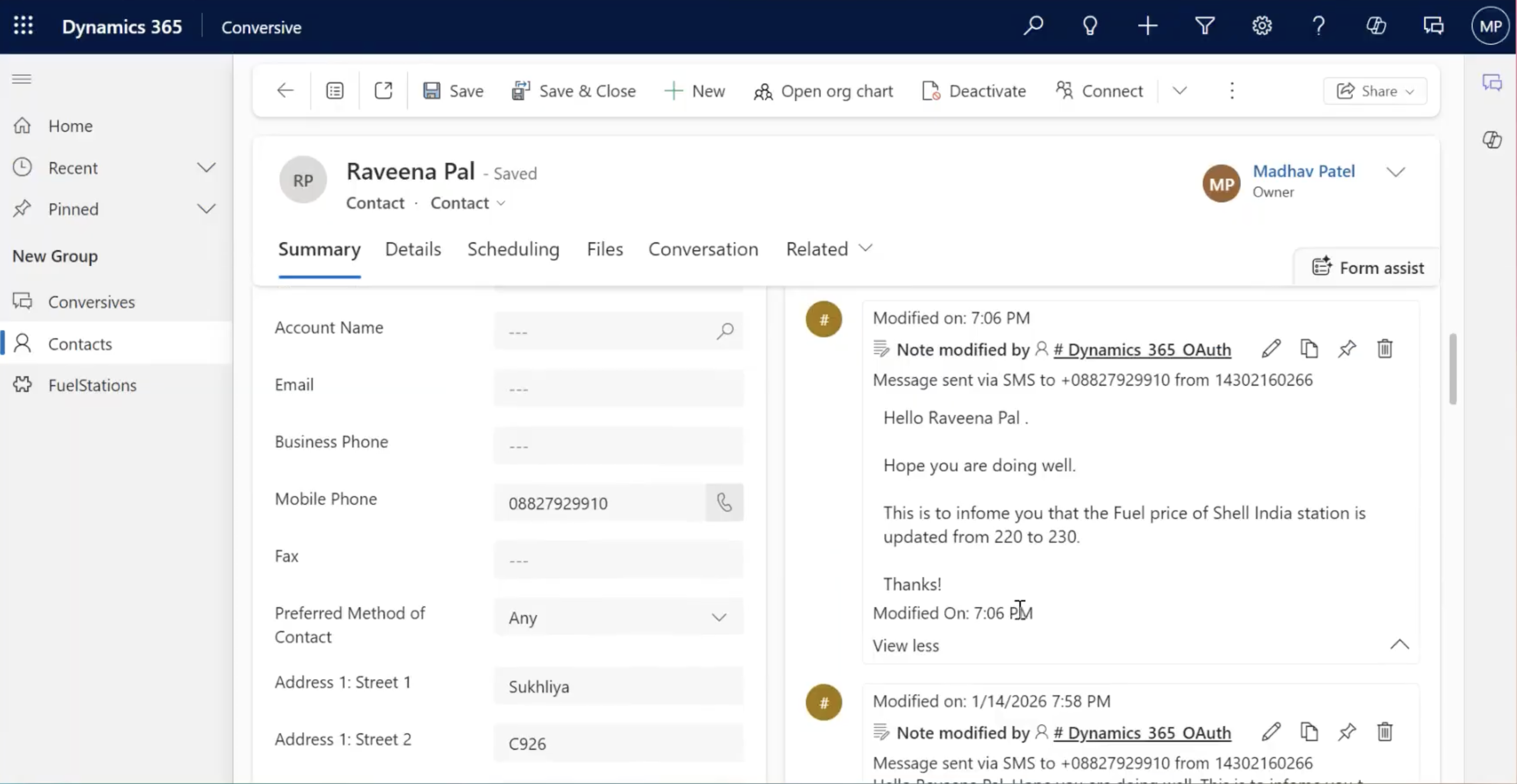
Step 9: Click on Contacts in the navigation menu on the left side. Select the contact name. Select Contact and ensure in the Summary section that the use case template messages are aligned with that contact.
Review and manage your usecases as needed to ensure they continue to meet your evolving business requirements.