
Send Message Campaigns using Zoho CRM
How can I send message campaigns using Zoho CRM?
Sending Campaign: Using Zoho List from Conversive, you can send a message Campaign. Based on your integrated channel you can do that send message campaign.
The conversive campaign feature allows marketers to send bulk marketing messages to leads, contacts, and customers. It enables personalized, large-scale outreach, segmented targeting, and automated scheduling. Marketers can create multi-step campaigns and track real-time performance analytics. The feature also ensures compliance with opt-out regulations, making managing preferences and customer consent easy.
Steps:
Step 1: Navigate to the Campaigns
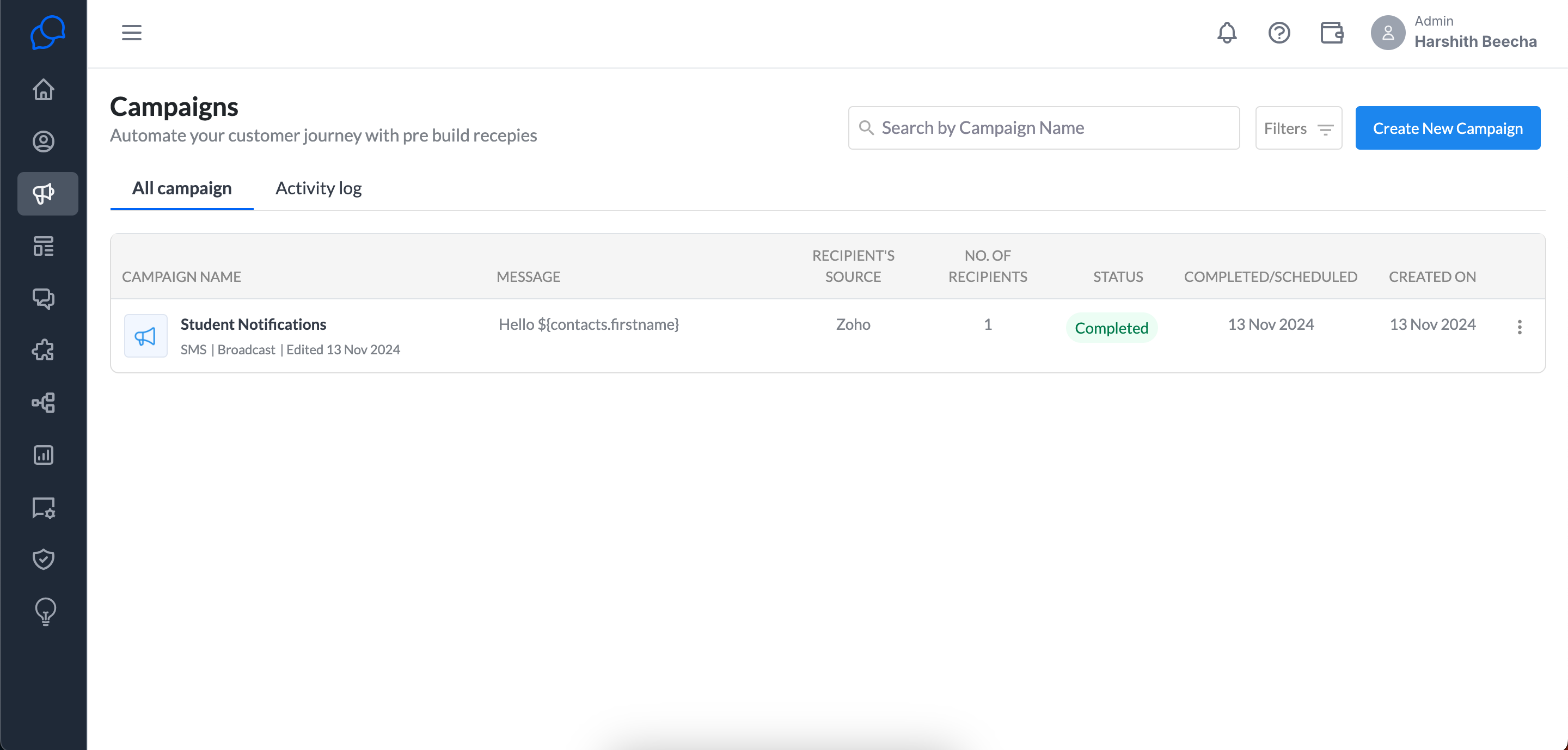
Step 2: Click on Create New Campaign
- Provide a name for your campaign.
- Provide description (Optional)
- Select the channel
- Select the Sender ID
- Select the campaign type.
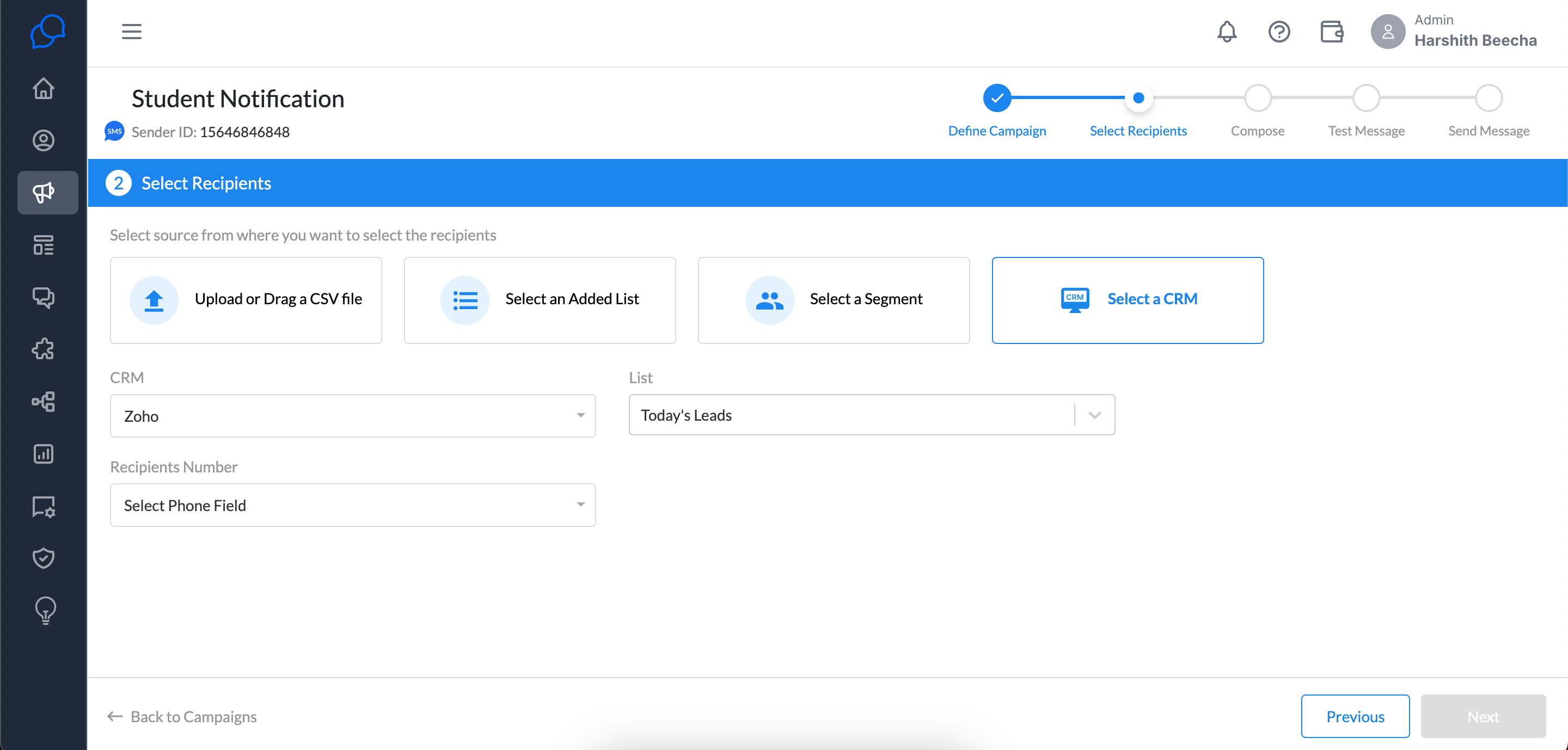
Step 3: Select the Recipients
You can select the recipient from different sources, upload a CSV, and run your campaigns.
Here are the reference documents for using different sources to send a campaign.
Step 4: Select the template
You can view the message preview in the message text box after selecting a template.
Step 5: Test your messages before sending out the campaign
You can send a test message to your own number to see how the template will appear.
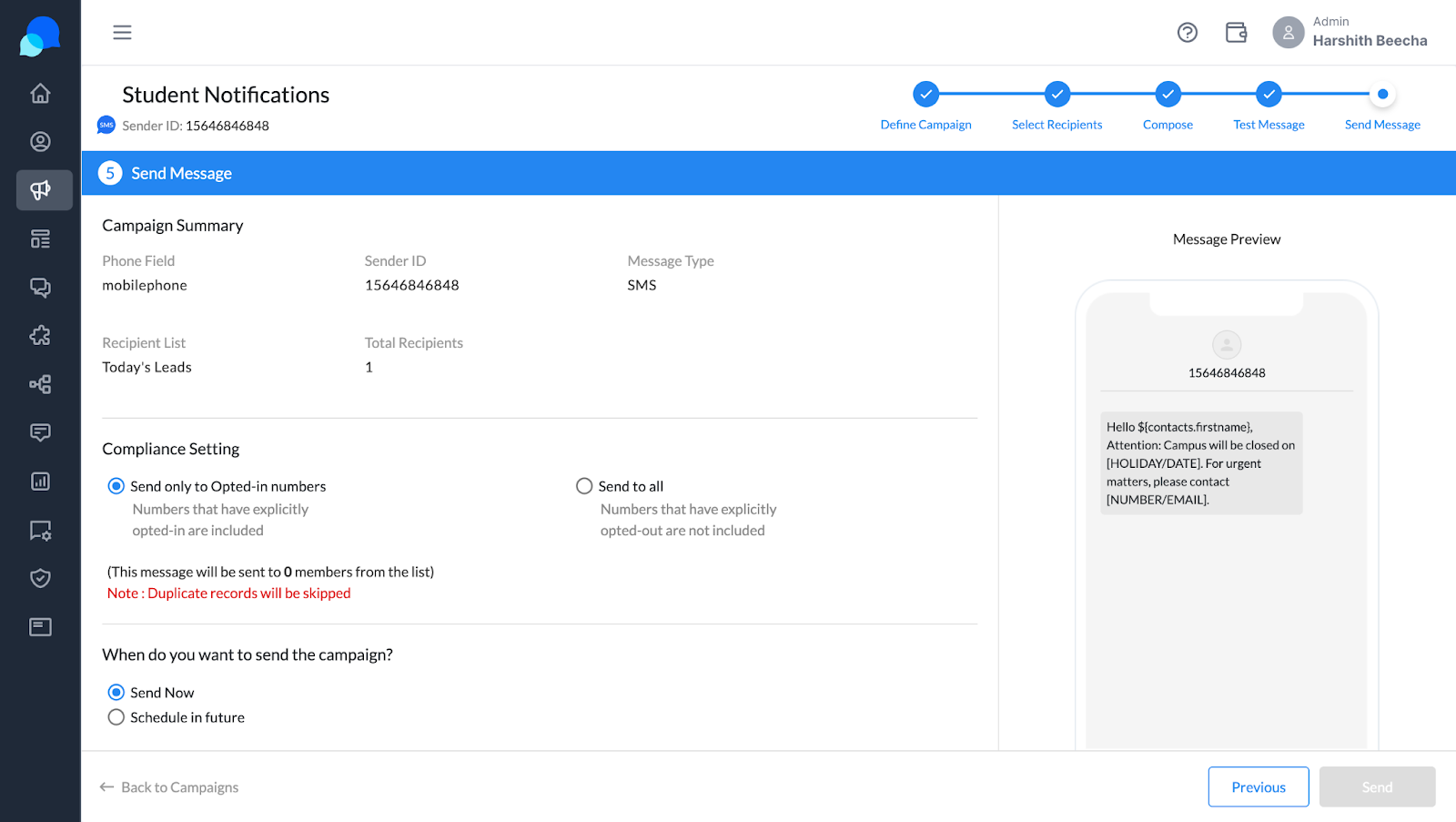
Step 6: Send out the campaign with the required configurations
Select the compliance setting to send to all or opt-in users only.
We have two types of options in the broadcast
- Send Now -> The campaign will shoot the selected recipients immediately.
- Schedule for future -> You can schedule it for a particular date and time in the future.
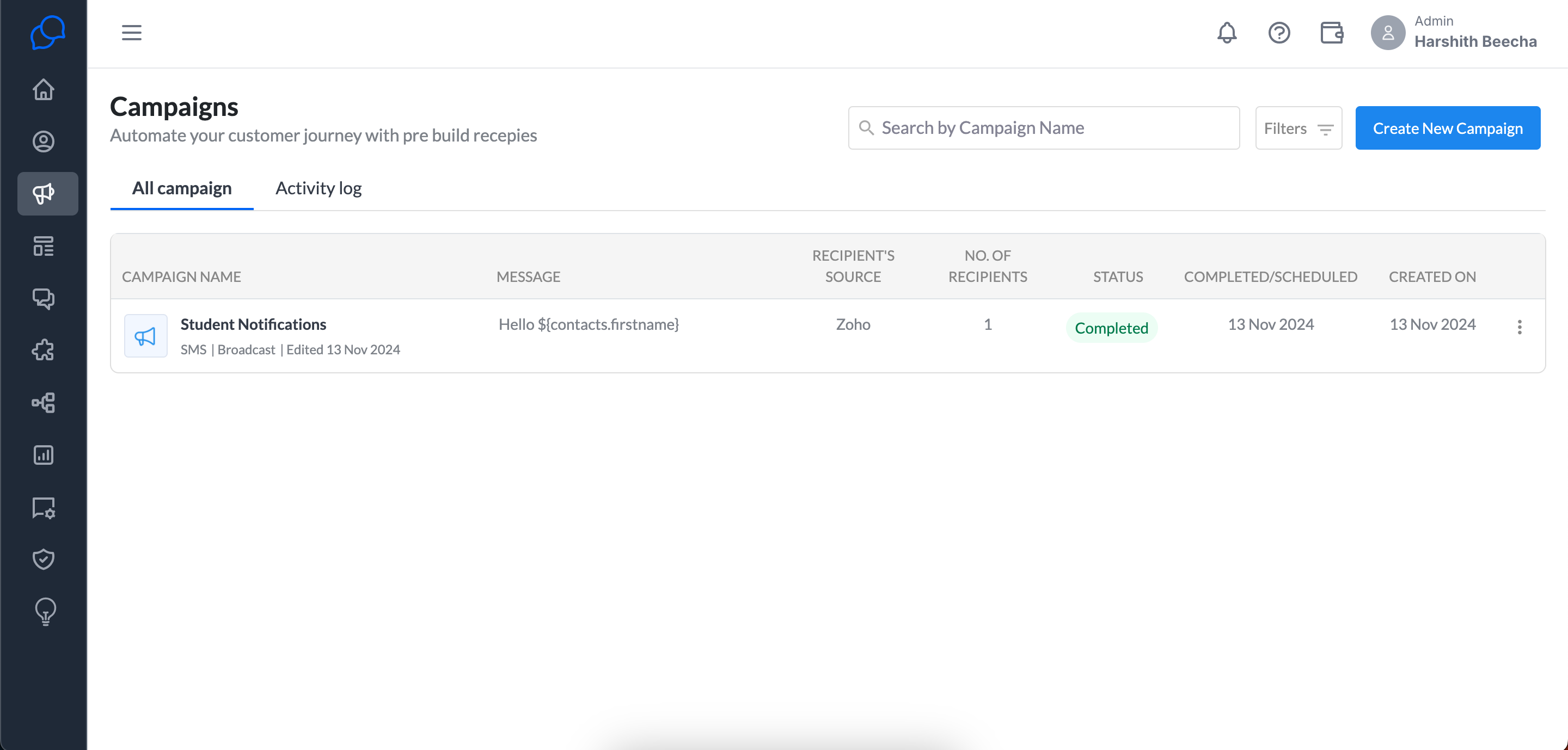
You can send out the campaign.
Best Practices:
- Test out your message template text before sending it to the user.
- Try to send out campaigns to opted-in users for a high delivery success rate.