
Conversive with Zoho Qntrl
How to Integrate the Zoho Qntrl CRM in Conversive?
What to Do: In Conversive, look for the ‘Integrations’ section, pick Zoho Qntrl from the list, and follow the steps to link it up with your Conversive account.
Step 1: Find Zoho Qntrl in Integrations.
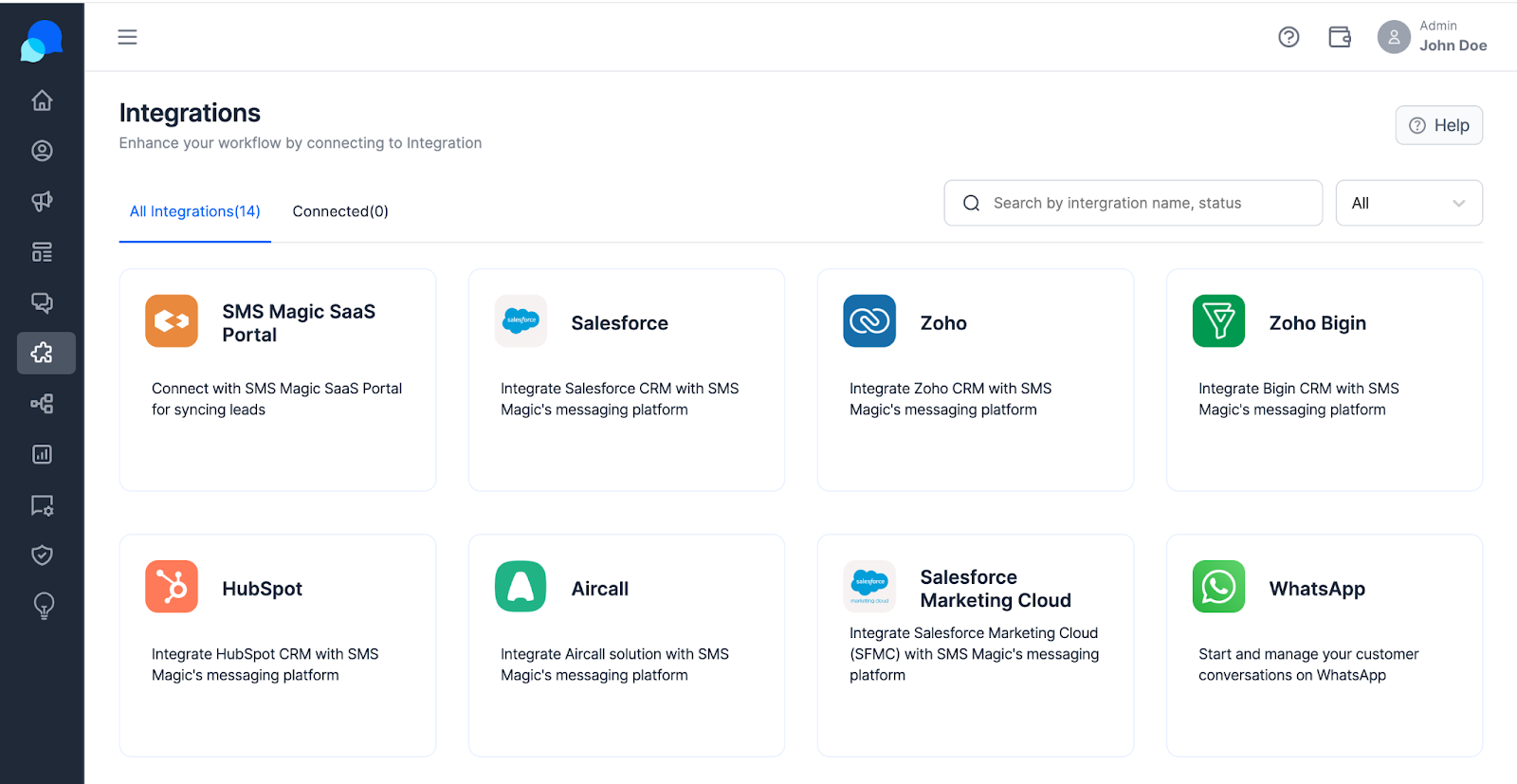
Step 2: Click on Connect to integrate with your Zoho Qntrl account.
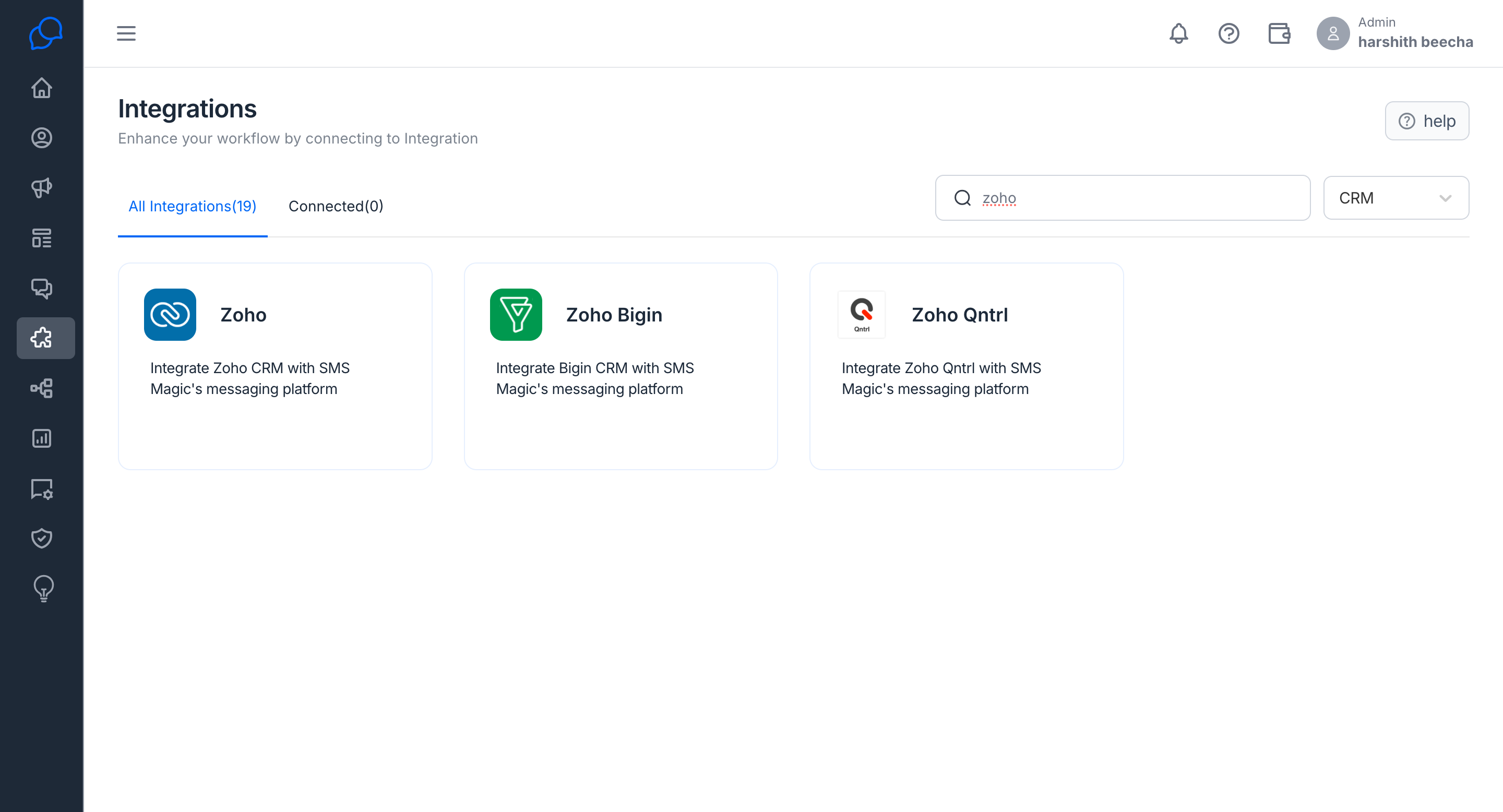
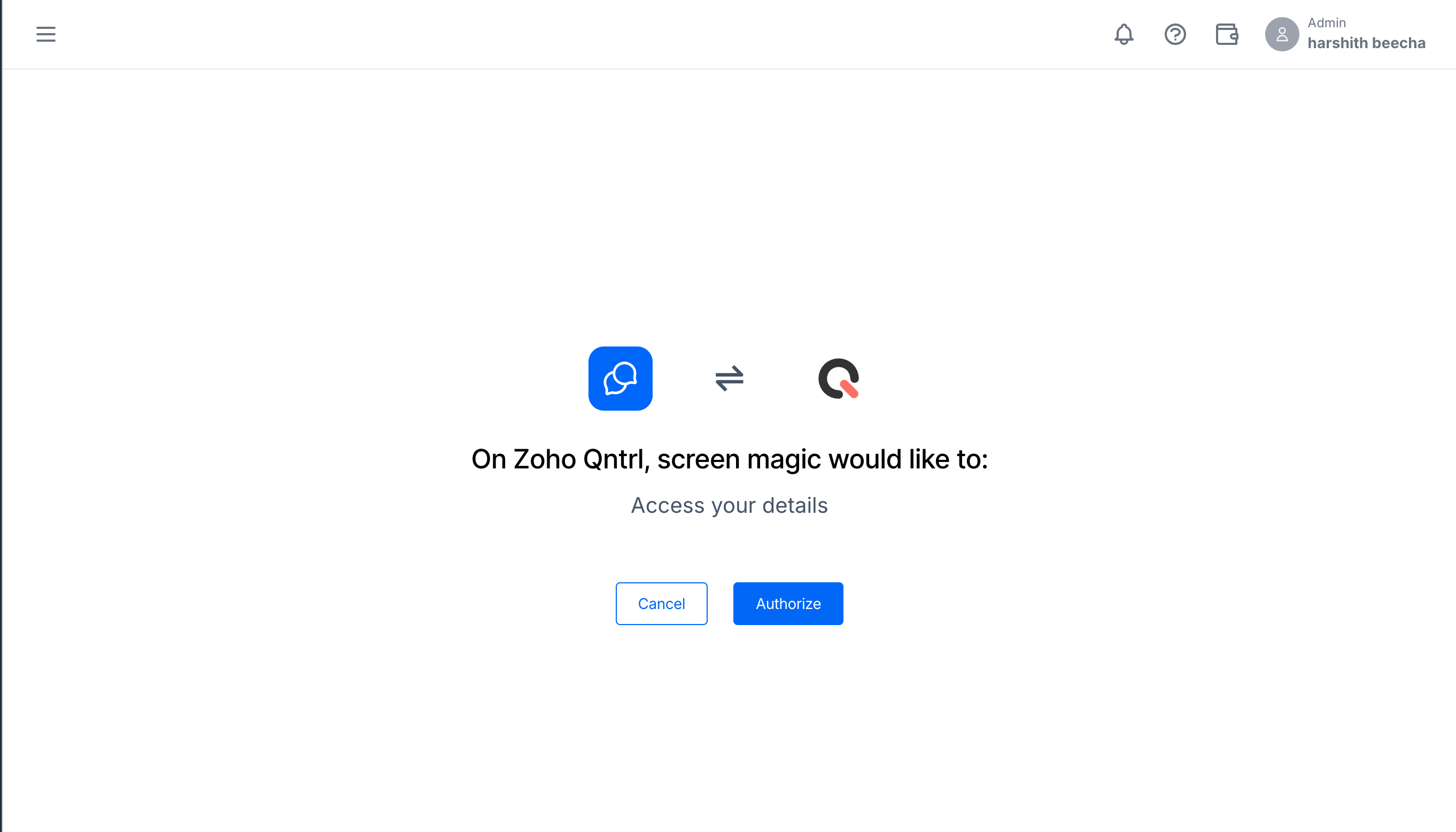
Step 3: Click on ‘Authorize’ to allow Zoho Qntrl integration with Conversive.
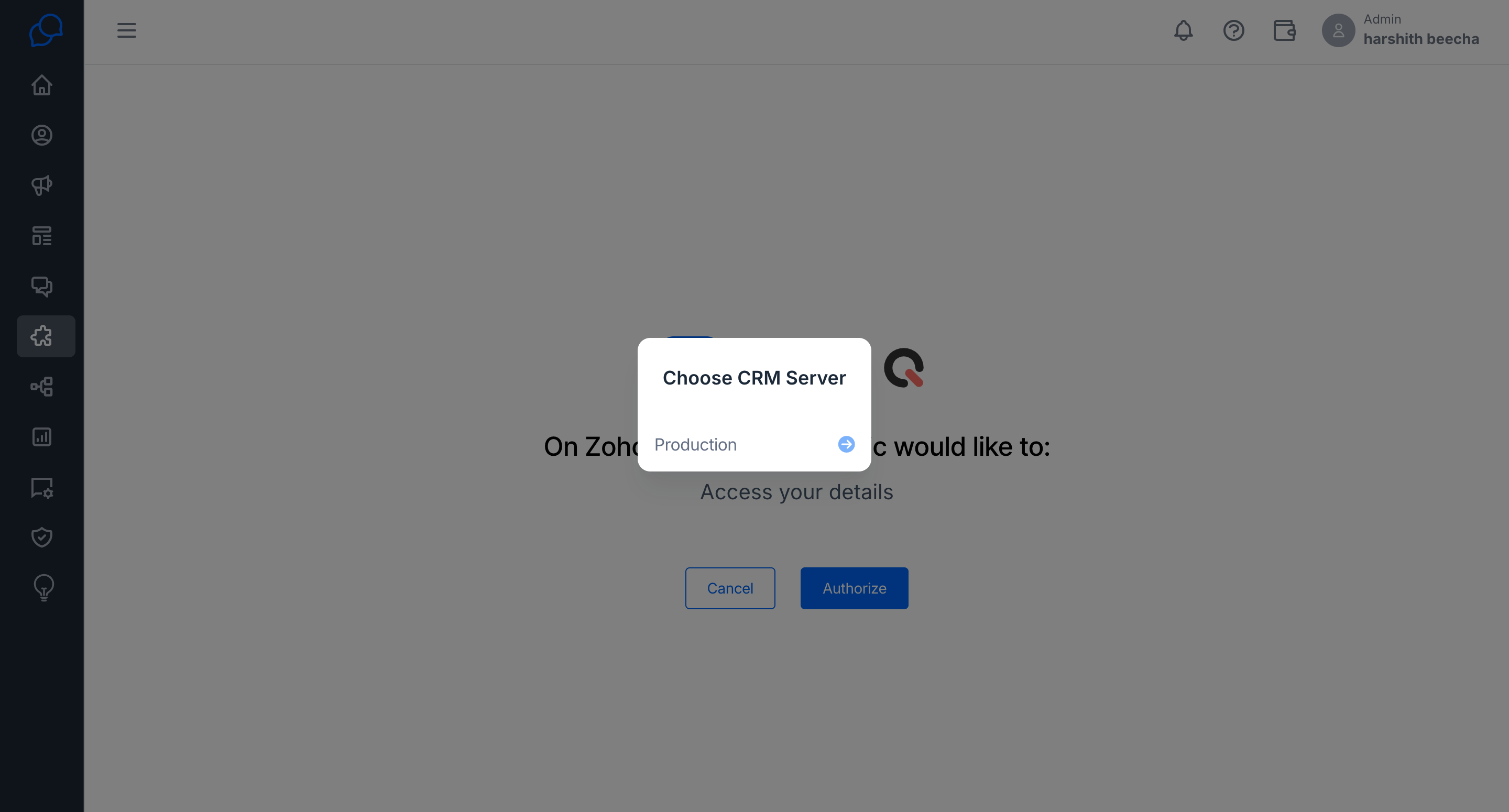
Step 4: Choose your Zoho Qntrl CRM server.
Step 5: Zoho Qntrl is now successfully connected to your conversive account.
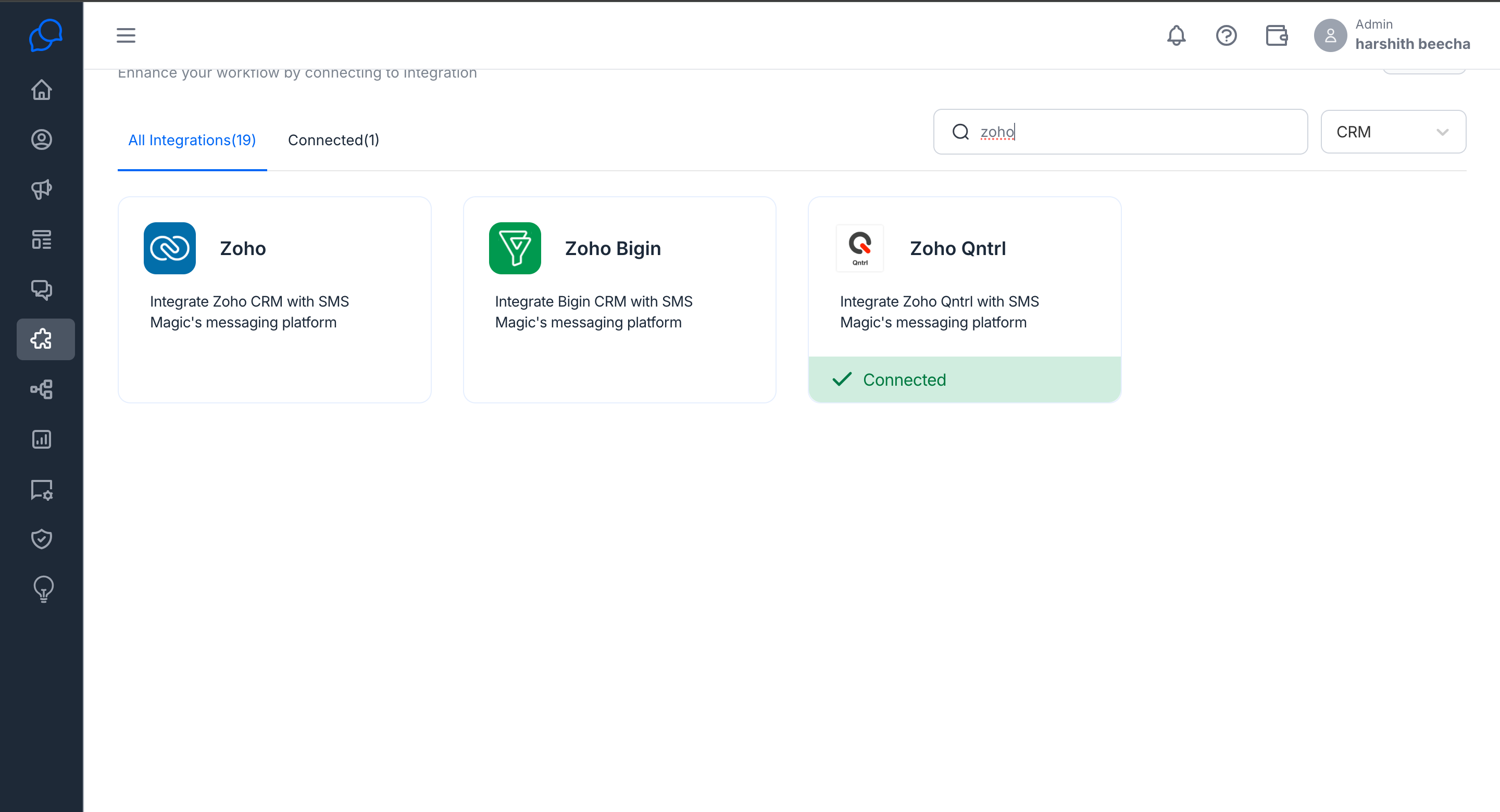
Why It Matters: This is where the magic happens. Connecting Zoho Qntrl with Conversive means the two can work together, letting you manage customer chats, send out smart messages, and keep everything in sync—saving you time and boosting your customer engagement.
How Can I Configure the Zoho Qntrl Objects?
Click on the Modify configurations:
How can I use Zoho Qntrl as a data source to send messages to my customers who are in CRM?
Alright, now that you’ve got Zoho Qntrl and Conversive talking to each other, let’s set up the basics to ensure everything runs like a well-oiled machine.
Making Sure Everything’s in Sync
Connecting the Dots: You’ll want to make sure all the important stuff, like messages and customer activities, are perfectly synced between Zoho Qntrl and Conversive.
How to Do It: In Conversive, you’ll find options to sync messages and activities. Turning these on means you won’t miss a beat when it comes to keeping track of customer interactions.
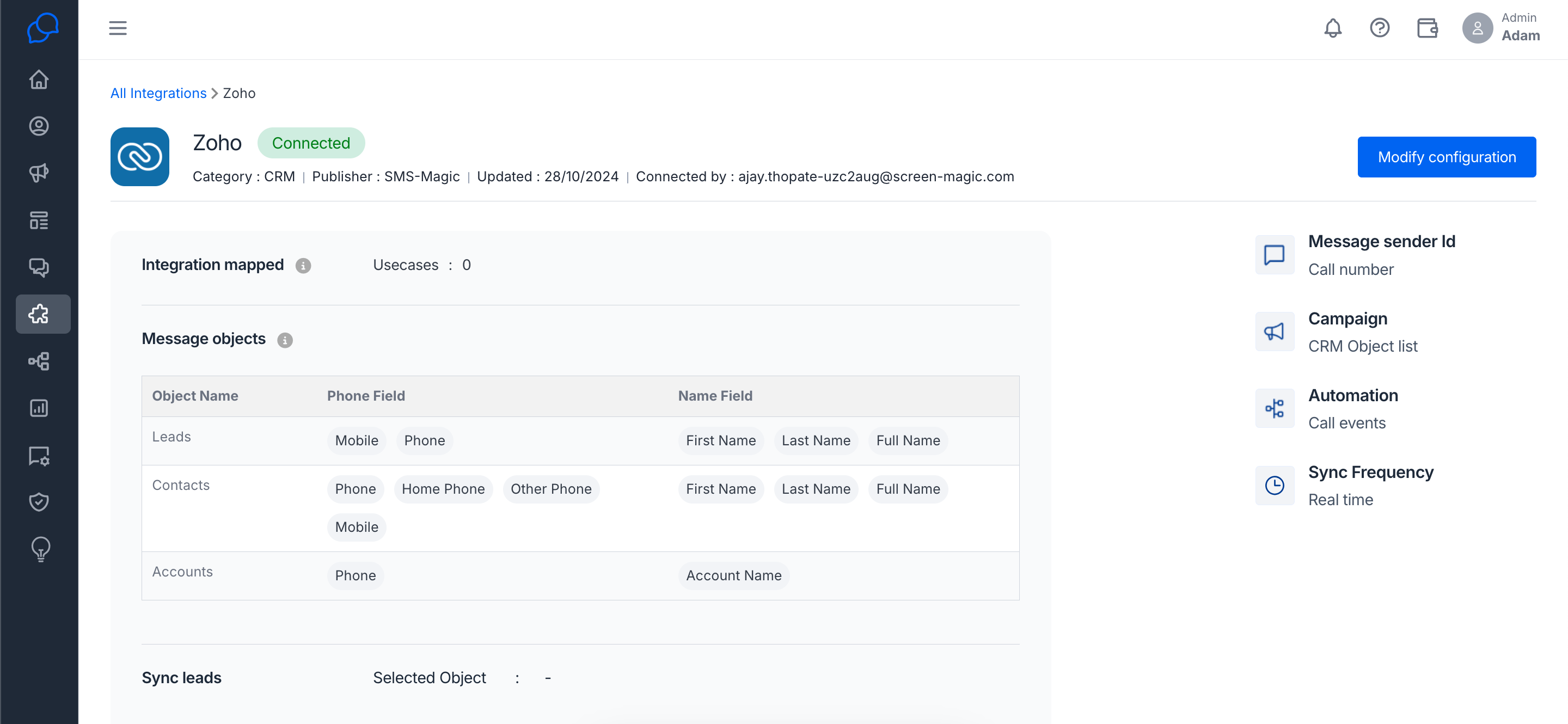
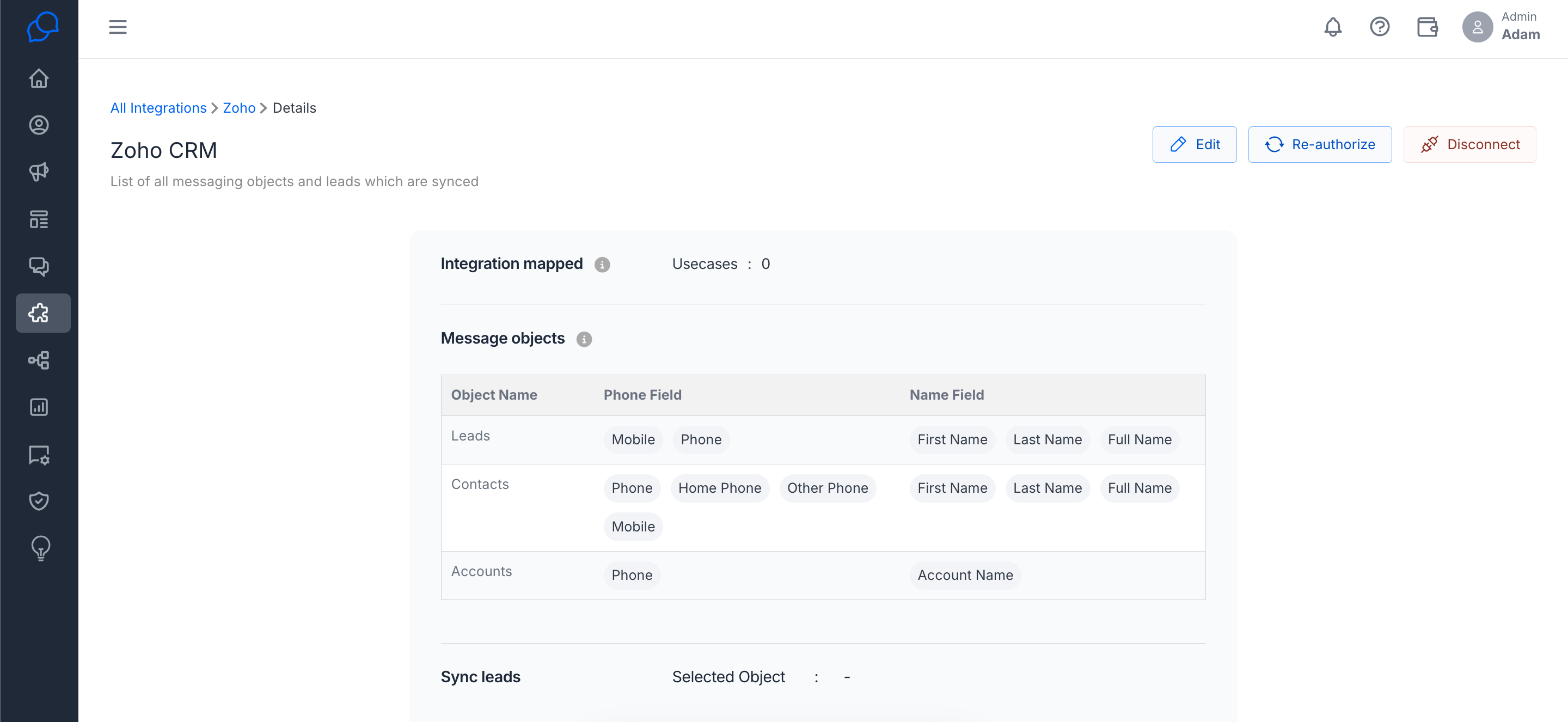
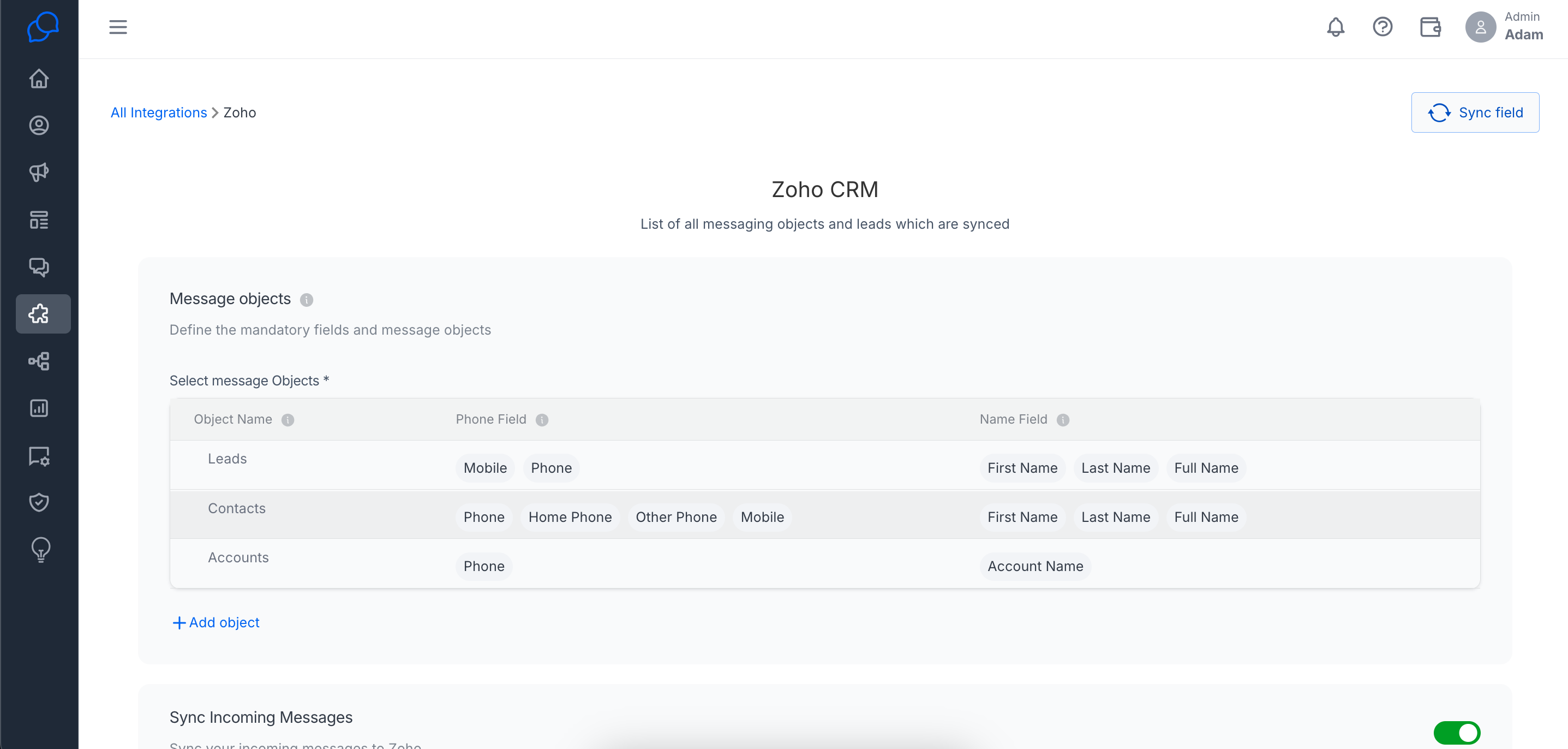
Keeping Everything Together: Syncing makes sure that all your customer chats and activities are up to date in Zoho Qntrl. So, you can always pick up right where you left off, making every customer feel like they’re your number one priority.