
Trigger Usecase from Zoho CRM
User Documentation for Conversive - Use case Automation for Nurture
Overview
This document provides guidance on using the Conversive to send Nurture series messages.
Prerequisites
- Ensure your CRM is connected in Conversive via Integration.
Activate the Nurture UseCase
Step 1: UseCase
- Users need to log in to Conversive
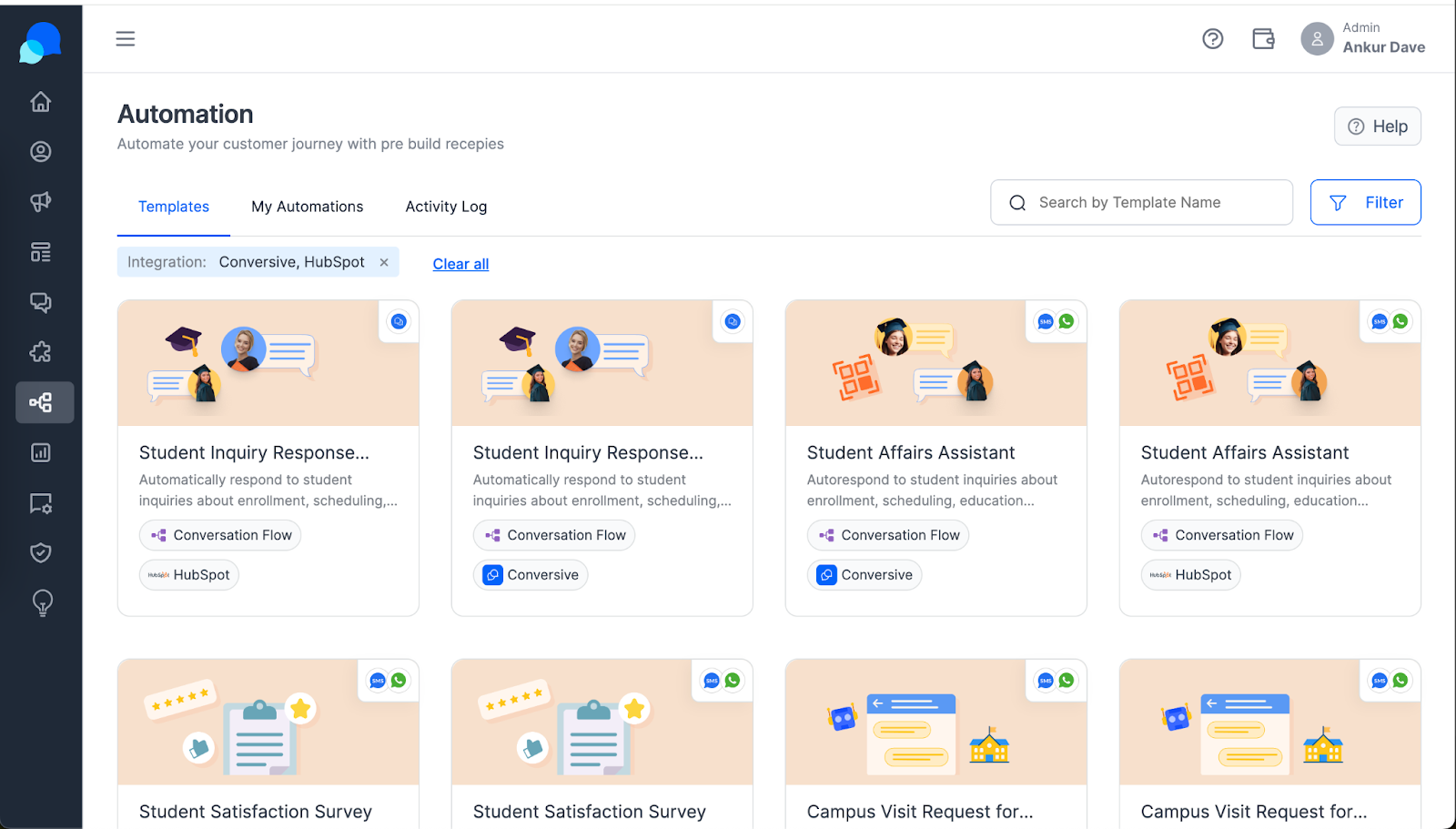
- The User needs to look for the “UseCases” on the Main Menu
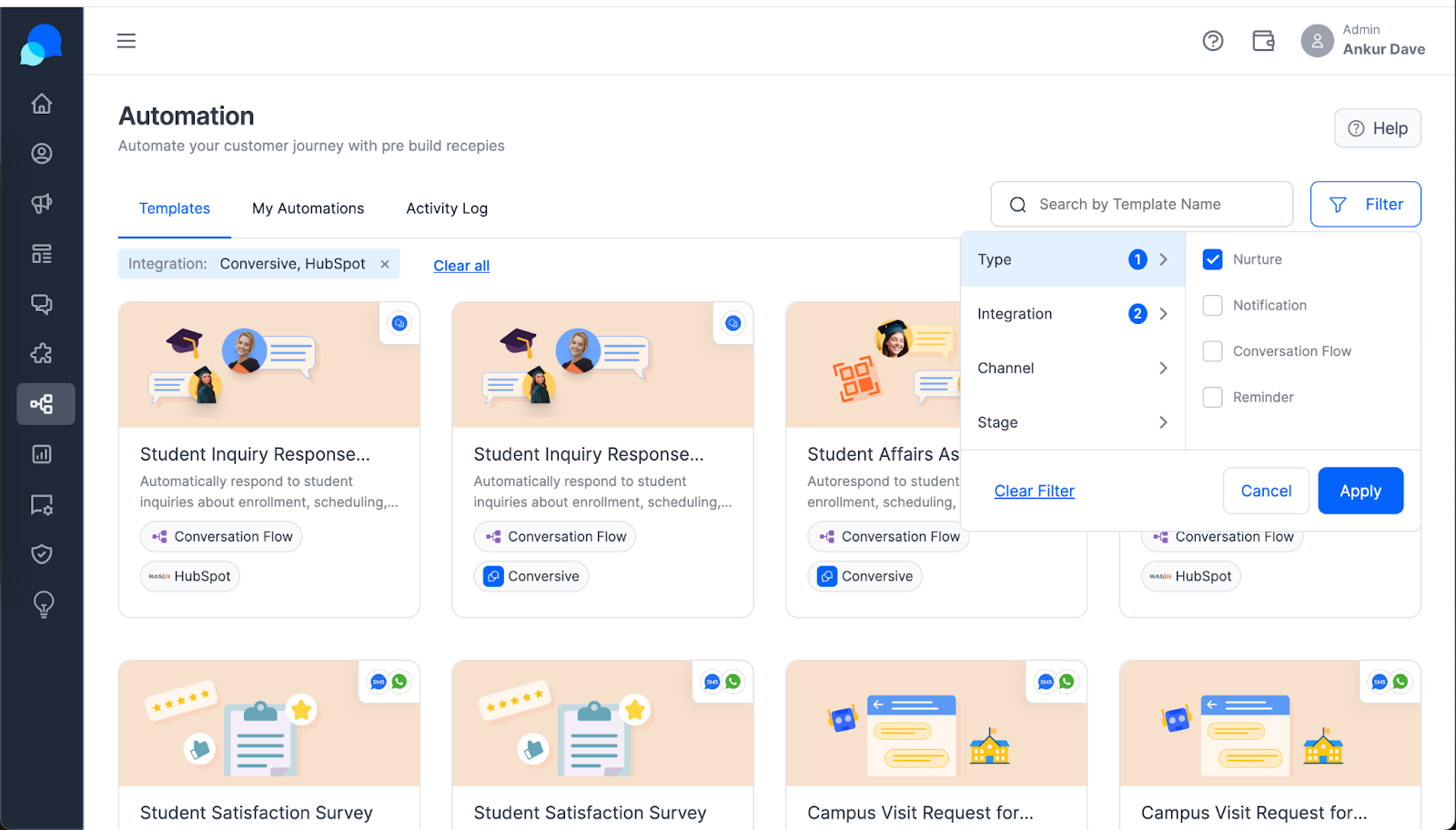
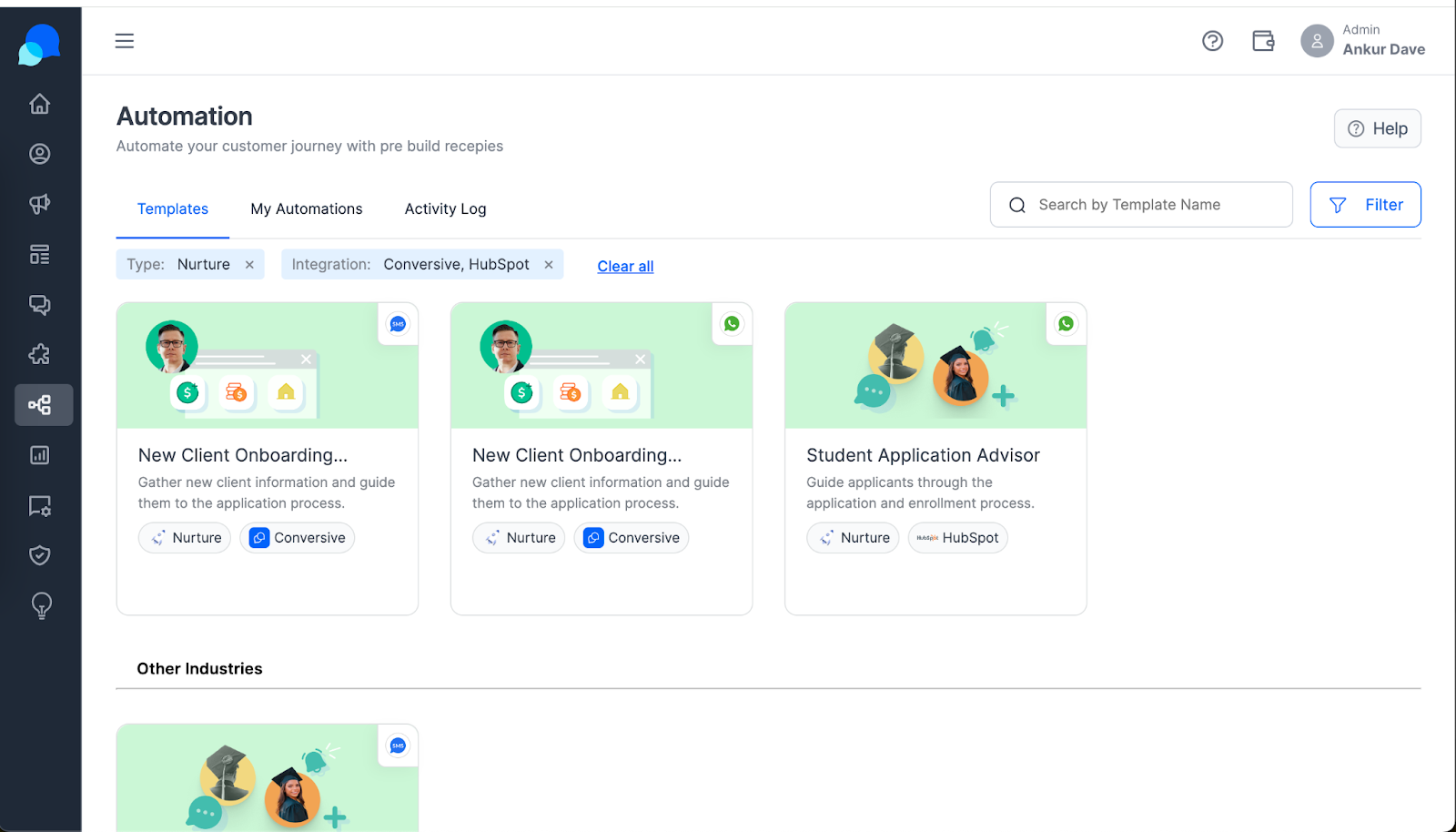
- User needs to select the template of Nurture Usecase.
Step 2: Template Selection
- Once the selection is done, to activate the follow user must click on the template
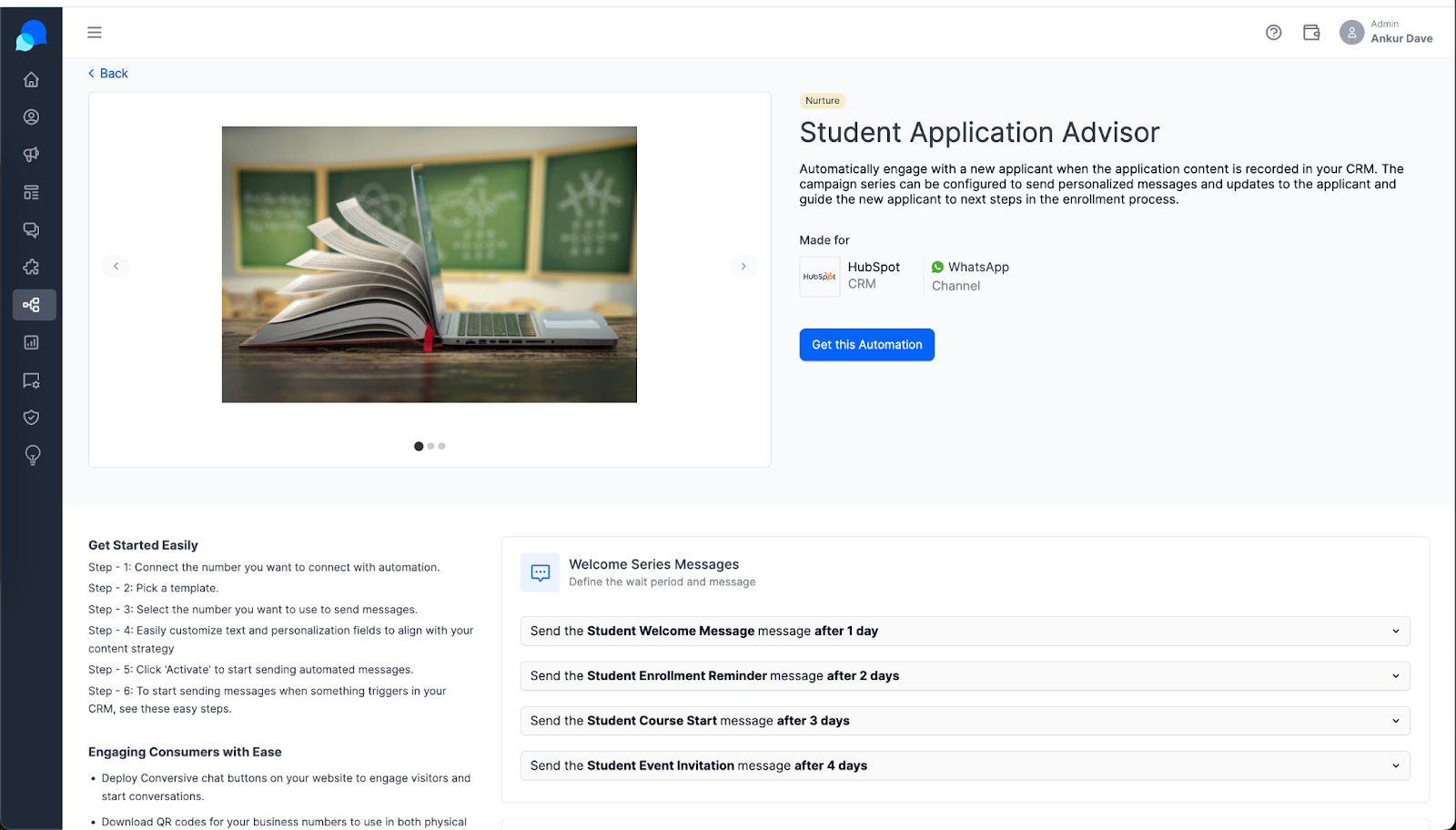
- Once the template has been selected and opened, User/customer needs to activate the automation by clicking on “Get this Automation”
Configure Usecase with CRM Object and Template
Step 1: Selection of Mapping and Setting
- User needs to select the CRM Object type such as “Contact, Companies, deals and tickets” in case of HubSpot
- Then, the User needs to select the Phone field category which can be “Mobile Number, Phone Number”
- Then, the User will select the “SenderID” from which they want to send Message.
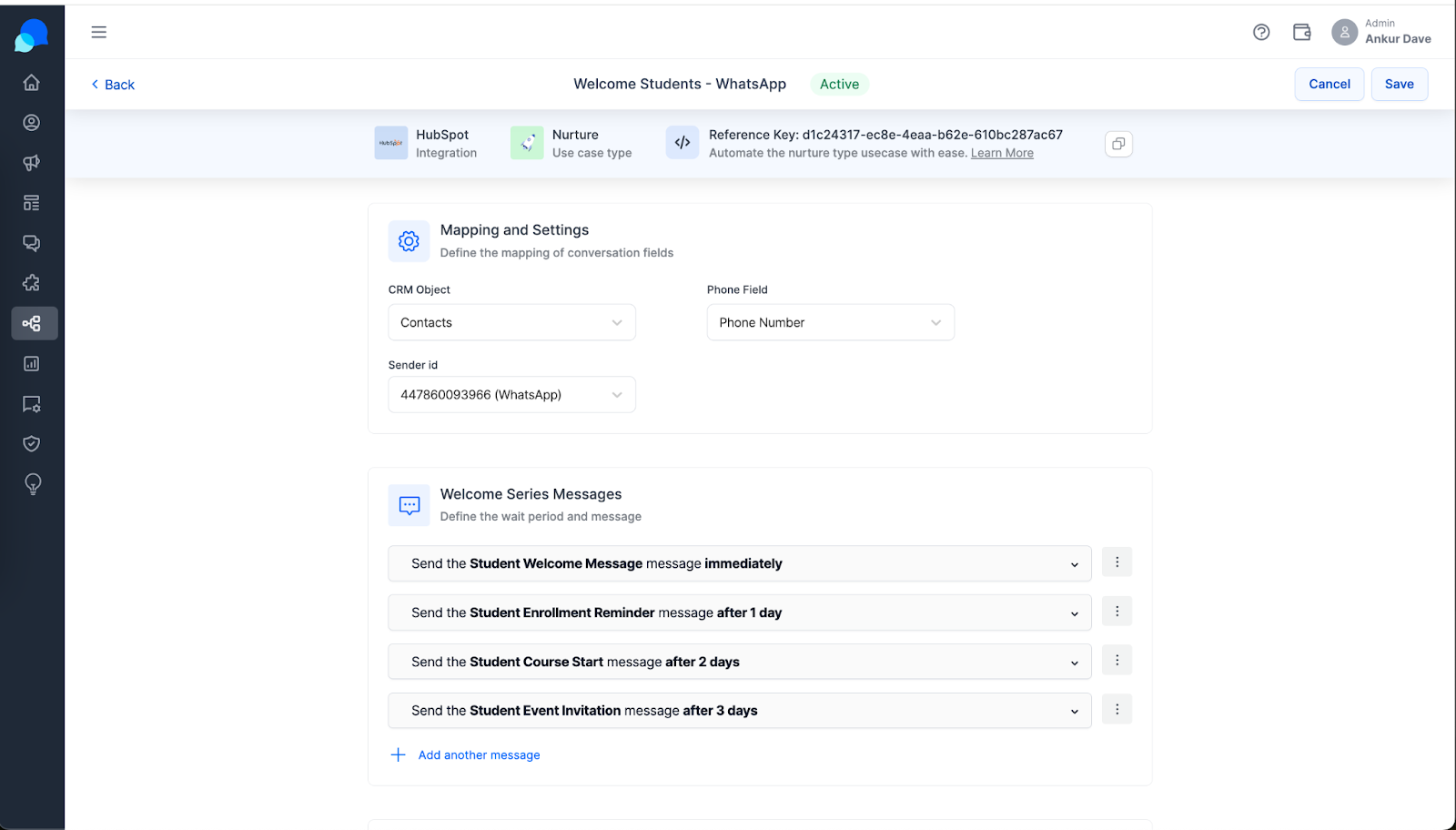
Step 2: Selection of Message template
- Once the Mapping and setting is done, then the user can select the message template and timings when to send the message
- User can modify the message template as per their requirement
- Once the template selection is done. The user can setup the exit criteria
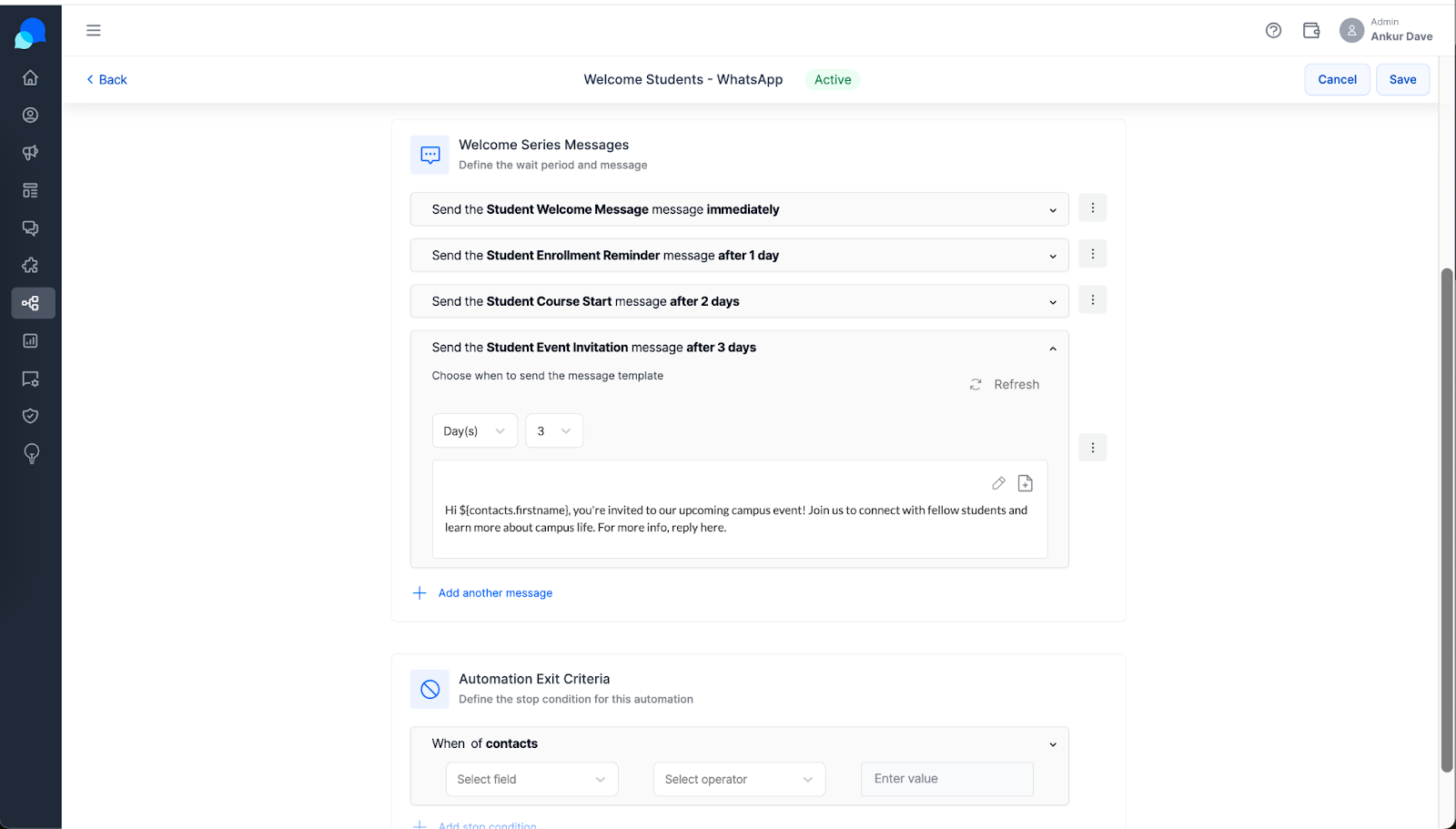
Trigger Nurture Usecase from Zoho
Step 1: Requirements in the ZOHO CRM:
- To use this in any of the Zoho family CRM. The particular CRM should have webhook option available in It
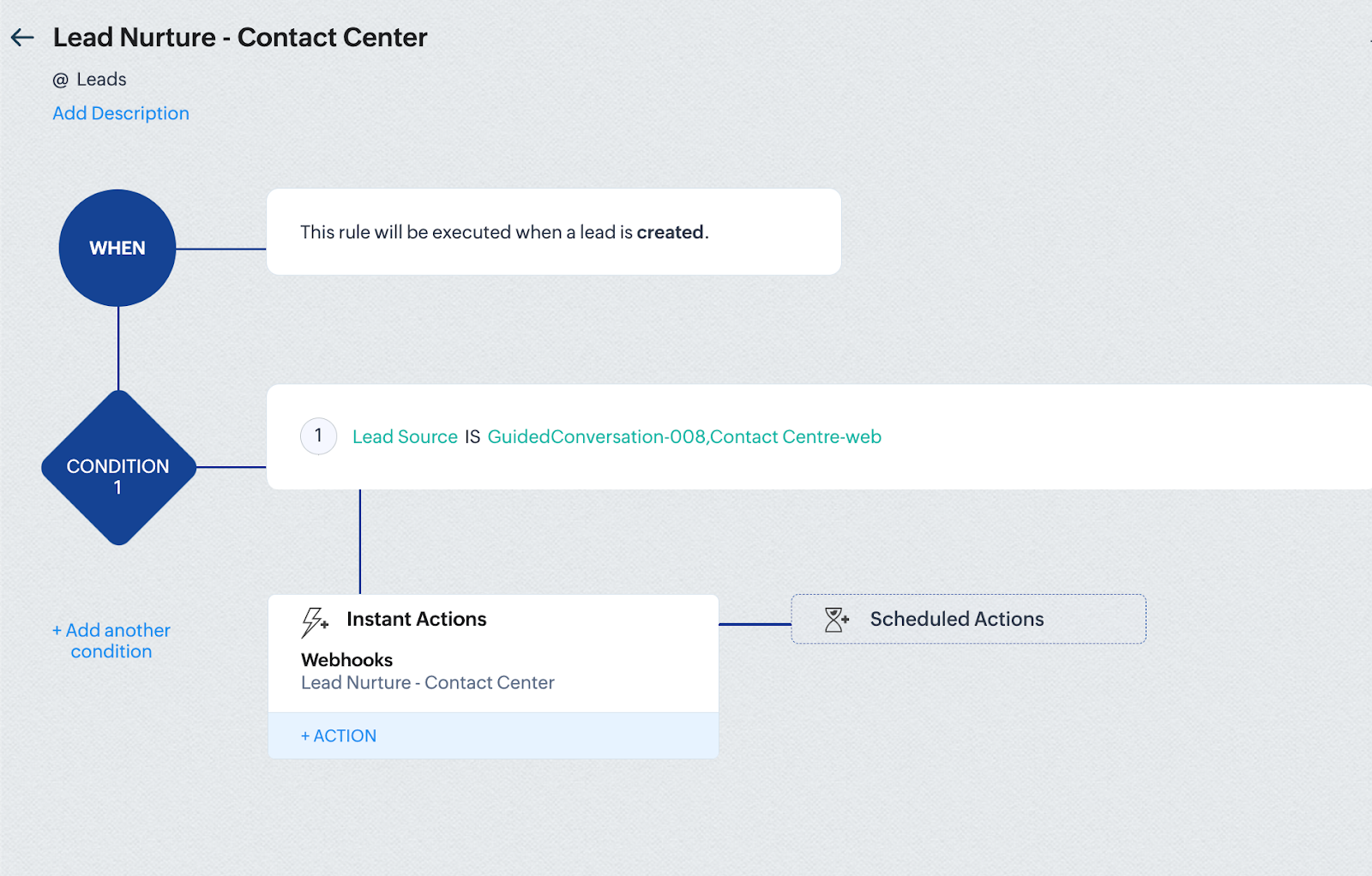
- Example: We will trigger the UseCase when a Lead is Created this condition is created in the Zoho Workflows
- In ZOHO the Workflow will start by asking on which object you are creating the flow. After that there will be a condition of when we should trigger this. Created/updated/deleted
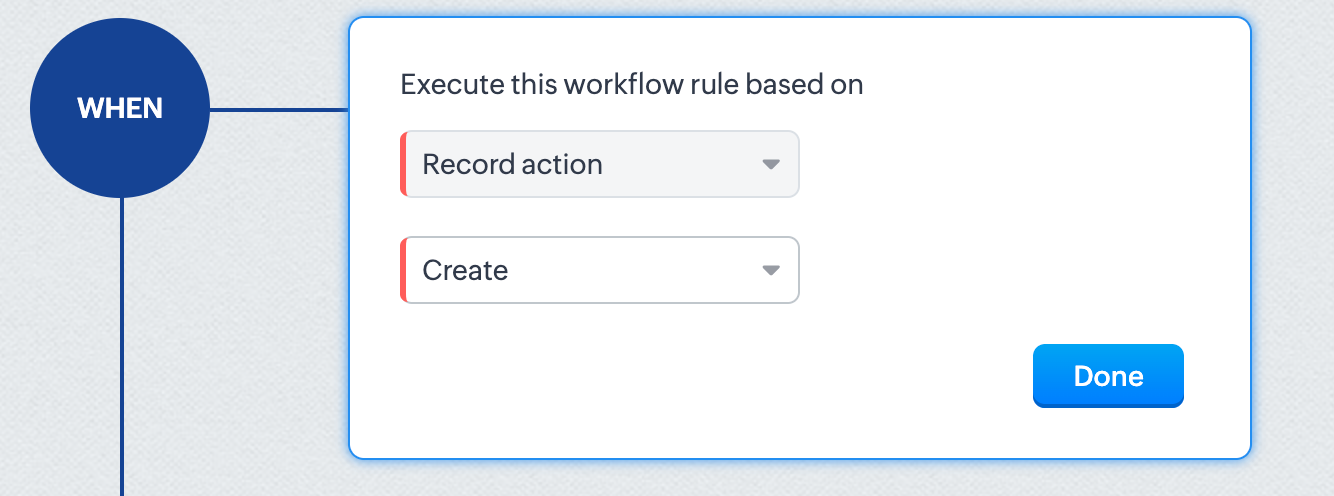
- After the condition Select all leads if it will be applicable to all the leads → Instant Actions → WebHooks → Create a webhook/select an already created webhook.
Step2: Create a WebHook:
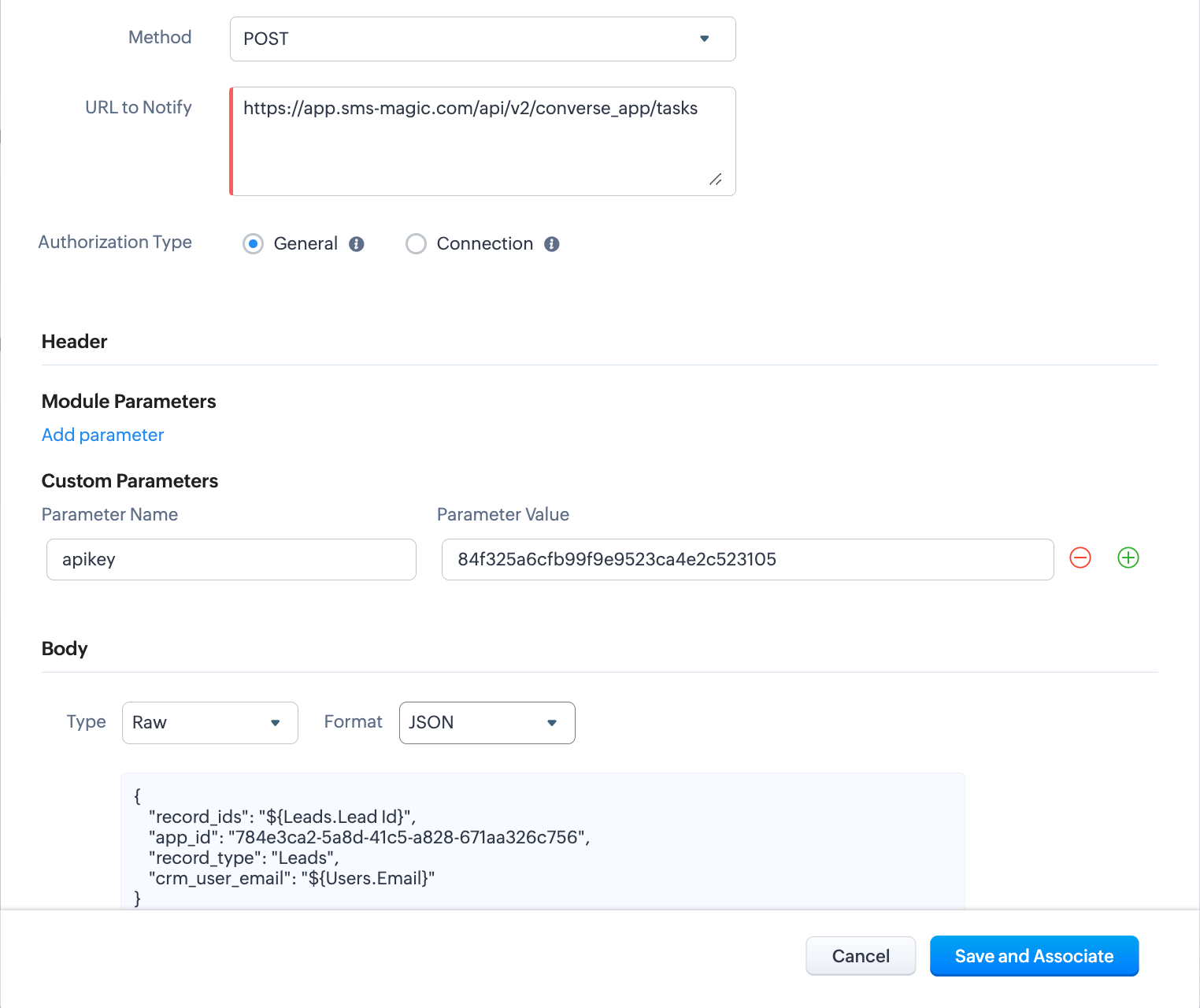
Provide a name to the webhook.
Method : POST
URL: https://app.sms-magic.com/api/v2/converse_app/tasks
Authorization Type: General
Custom Parameters → apikey : provide the SMS-Magic Portal APIKey ( you can find this in Get Started Page)
Body → Type: Raw and Format : JSON
Paste the following Code:
Flow Activation:
Save and Activate the flow to start the flow.
Video Reference for the Automating Your Messages
- Reminder - Conversive Reminder Automation