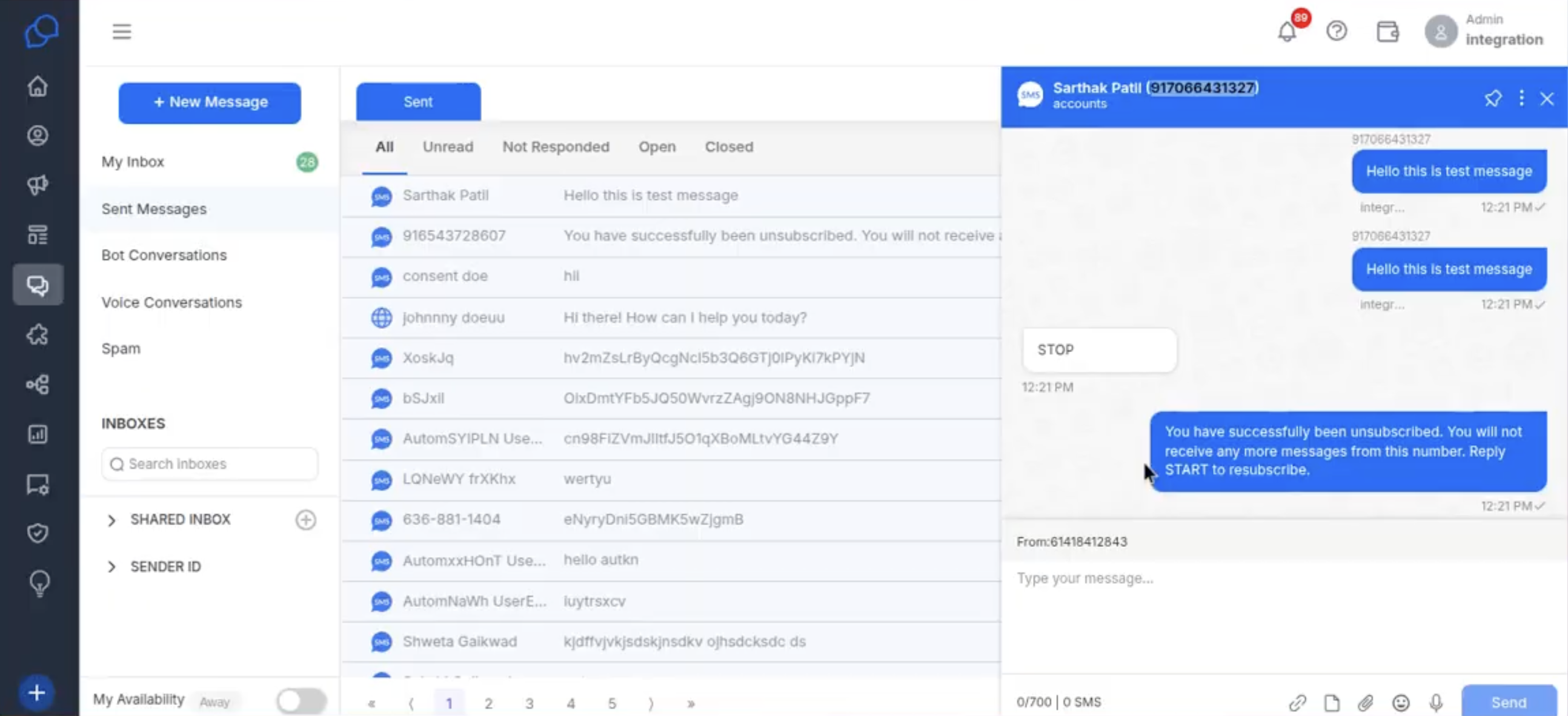
Send Message Campaigns using MS Dynamics 365
How can I use Converse Desk in MS Dynamics 365 as a data source to send messages to my customers who are in CRM?
Alright, now that you’ve got MS Dynamics 365 and Conversive talking to each other, let’s set up the basics to ensure everything runs like a well-oiled machine.
Making Sure Everything’s in Sync
Connecting the Dots: You’ll want to make sure all the important stuff, like messages and customer activities, are perfectly synced between MS Dynamics 365 and Conversive.
How to Do It: In Conversive, you’ll find options to sync messages and activities. Turning these on means you won’t miss a beat when it comes to keeping track of customer interactions.
Step 1: The account needs to be connected to a Microsoft Dynamics integration. Go to Account settings.
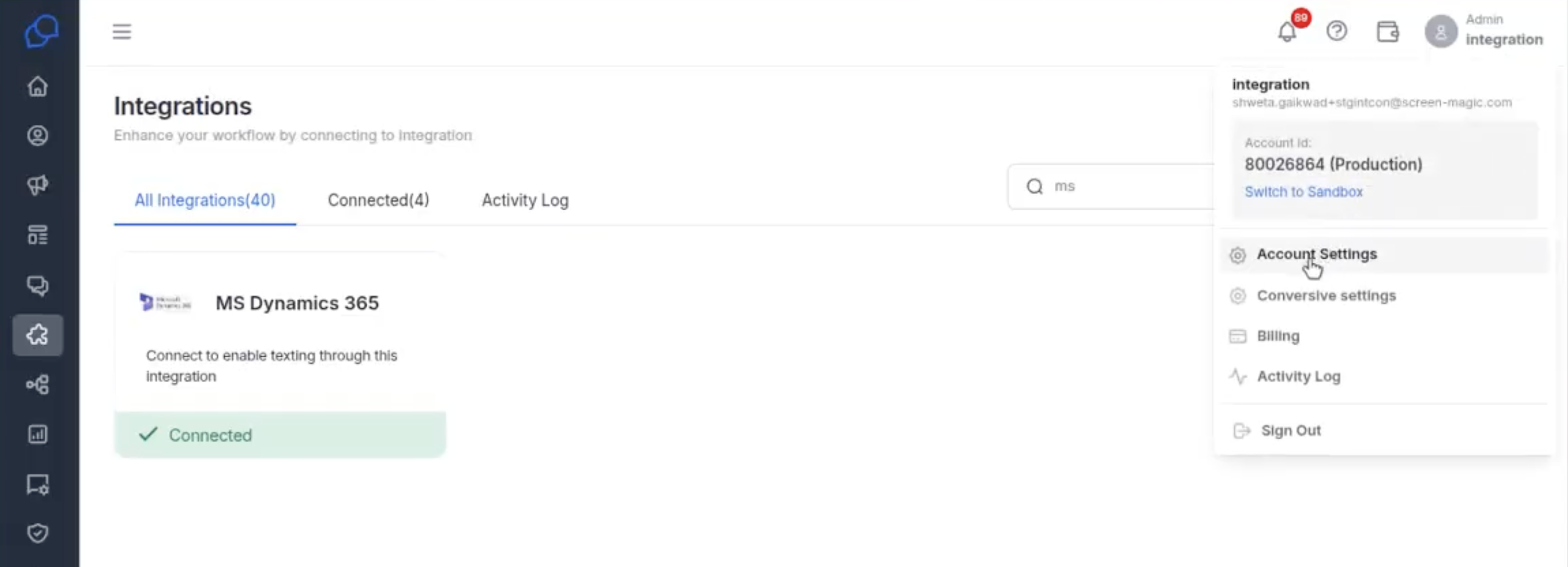
Step 2: Now, Go to Conversives, Click the “New” button to create a new Conversive page.
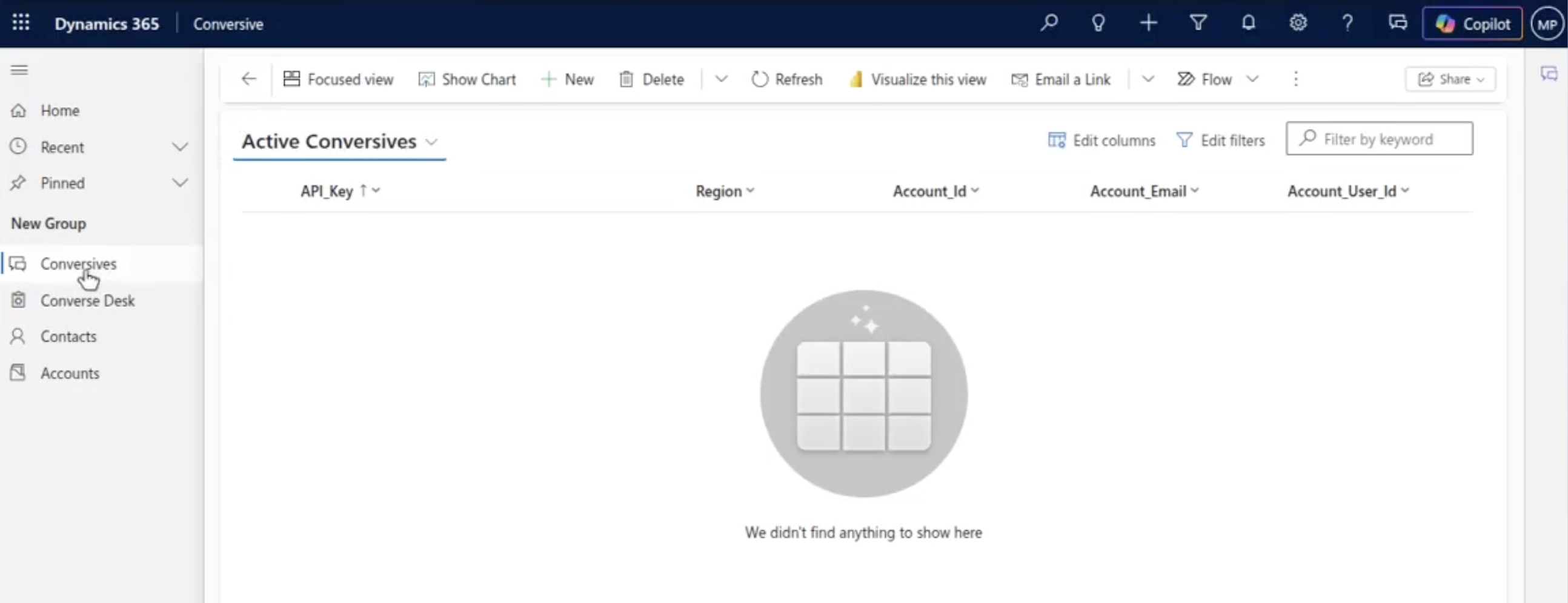
Step 3: Fill all the information like API Key, Region, Account ID, Email & User ID. Then, Click on Save & Close button on top of the page.
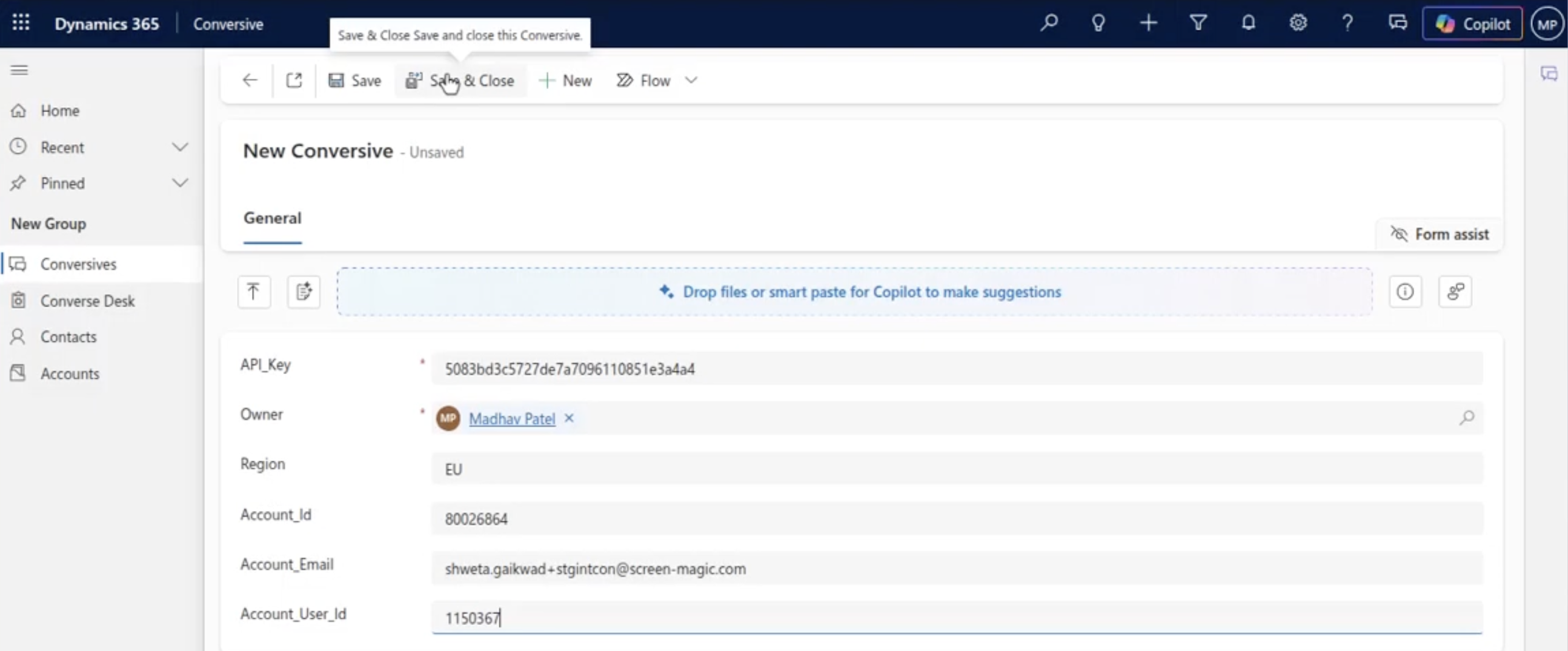
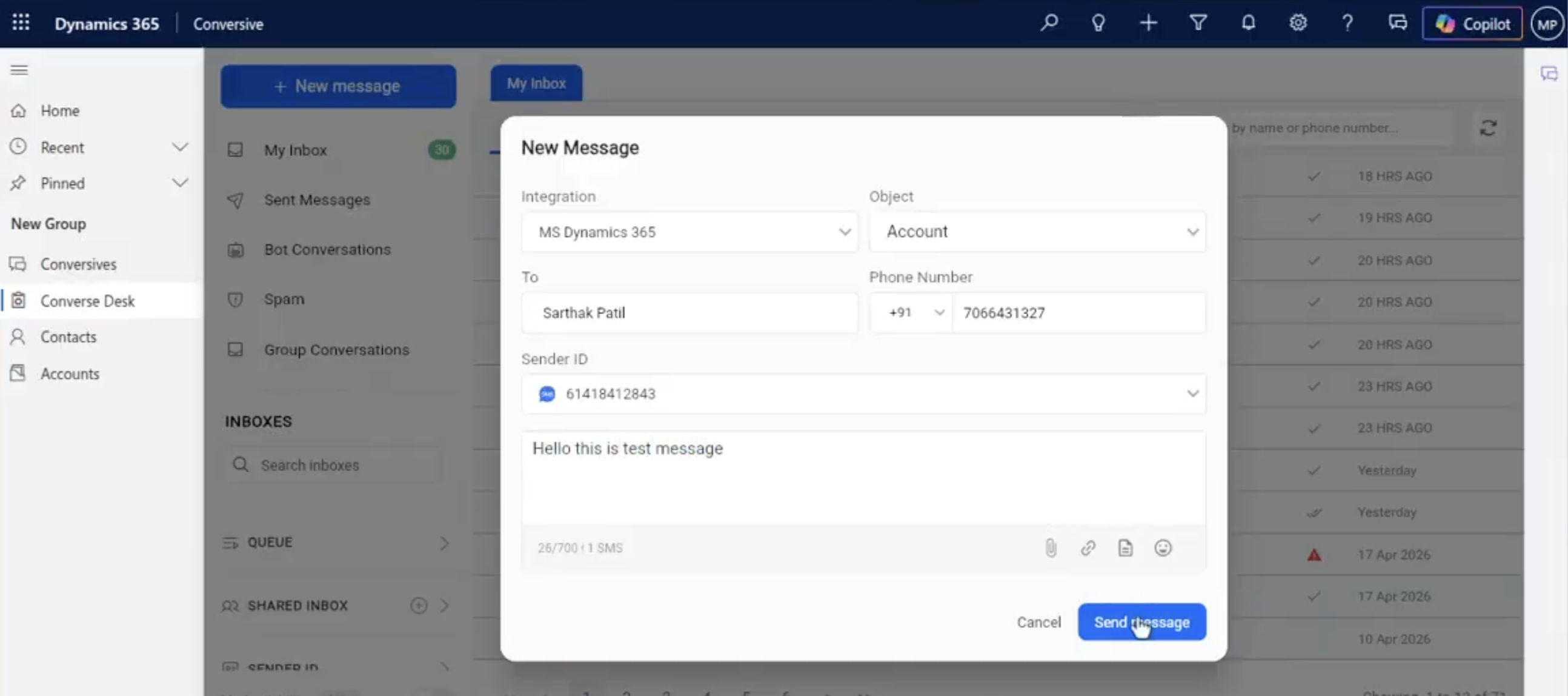
Step 4: Now, Go to Converse Desk, Click the button “New Message”. Fill all the information and then Click on “Send Message”.
Step 5: Now, user can see all conversations on this page of Converse Desk under My Inbox.