
Setup Instagram Channel
Overview
This section guides you through the entire process of connecting your Instagram Business Account with Conversive using Facebook authorization.
Step 1: Go to Instagram Integration
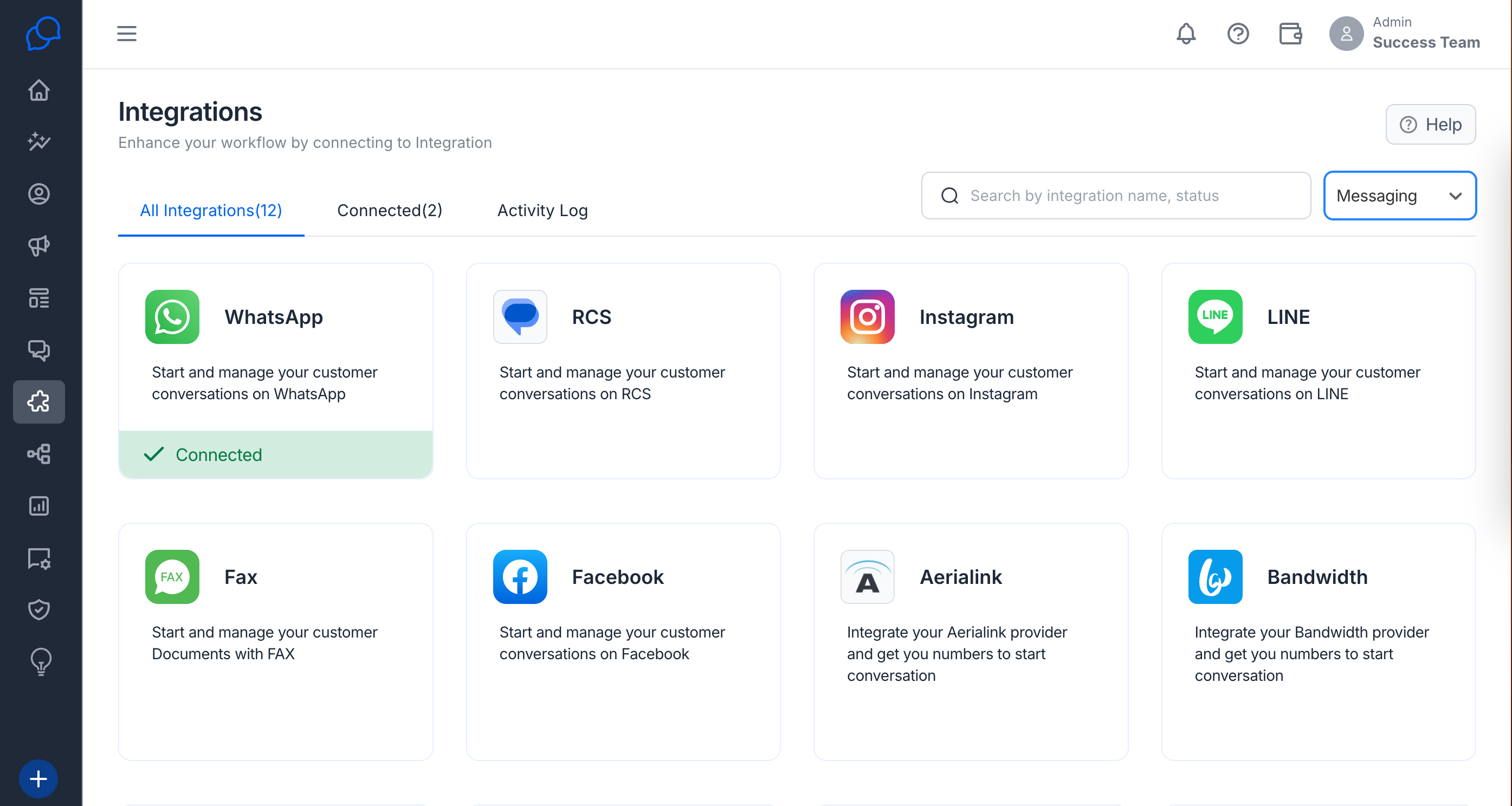
- In Conversive, go to Integrations.
- Locate the Instagram tile and click it.
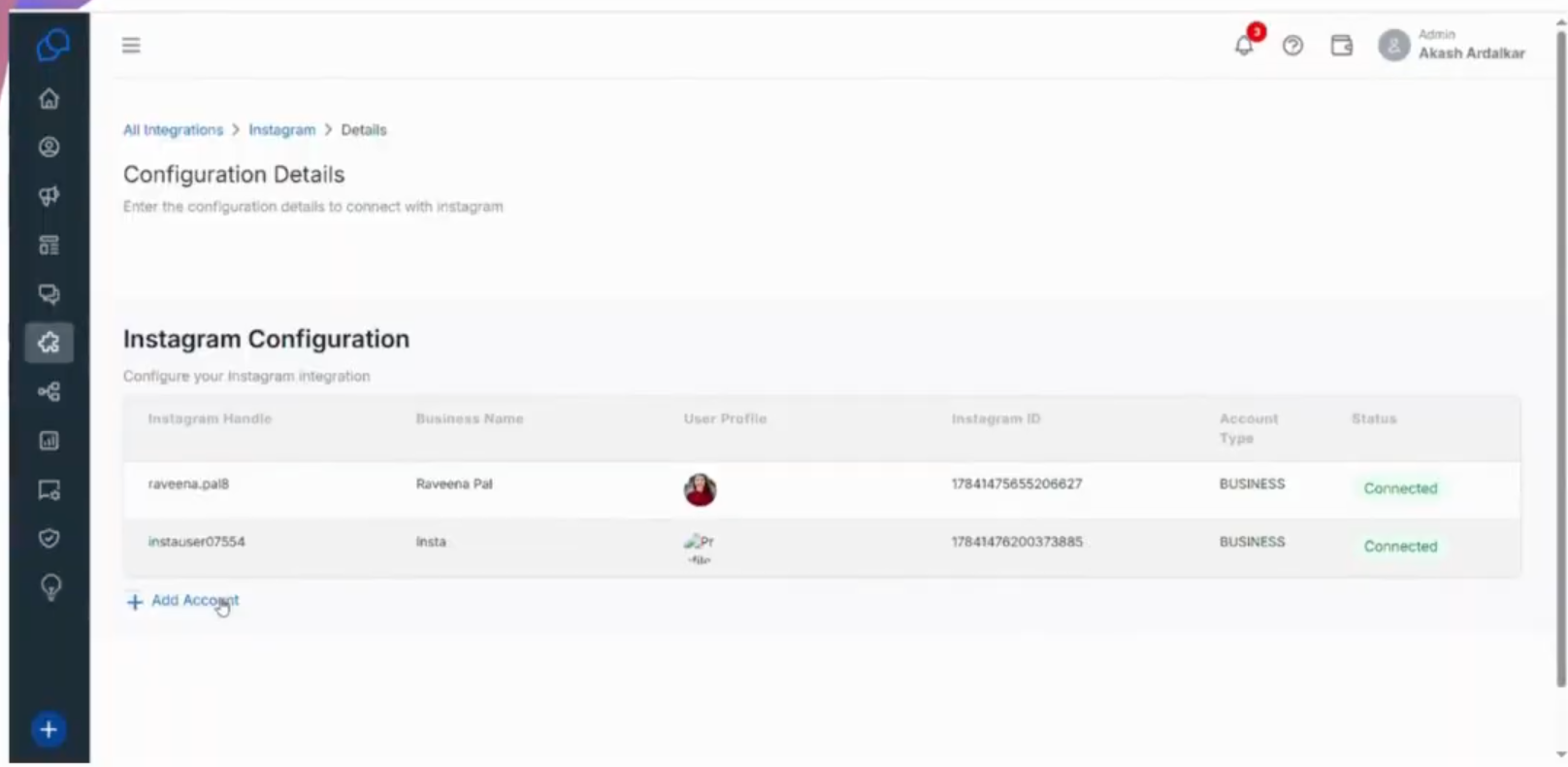
- You’ll see the Configuration Details section showing any existing connections.
Step 2: Click ‘Add Account’
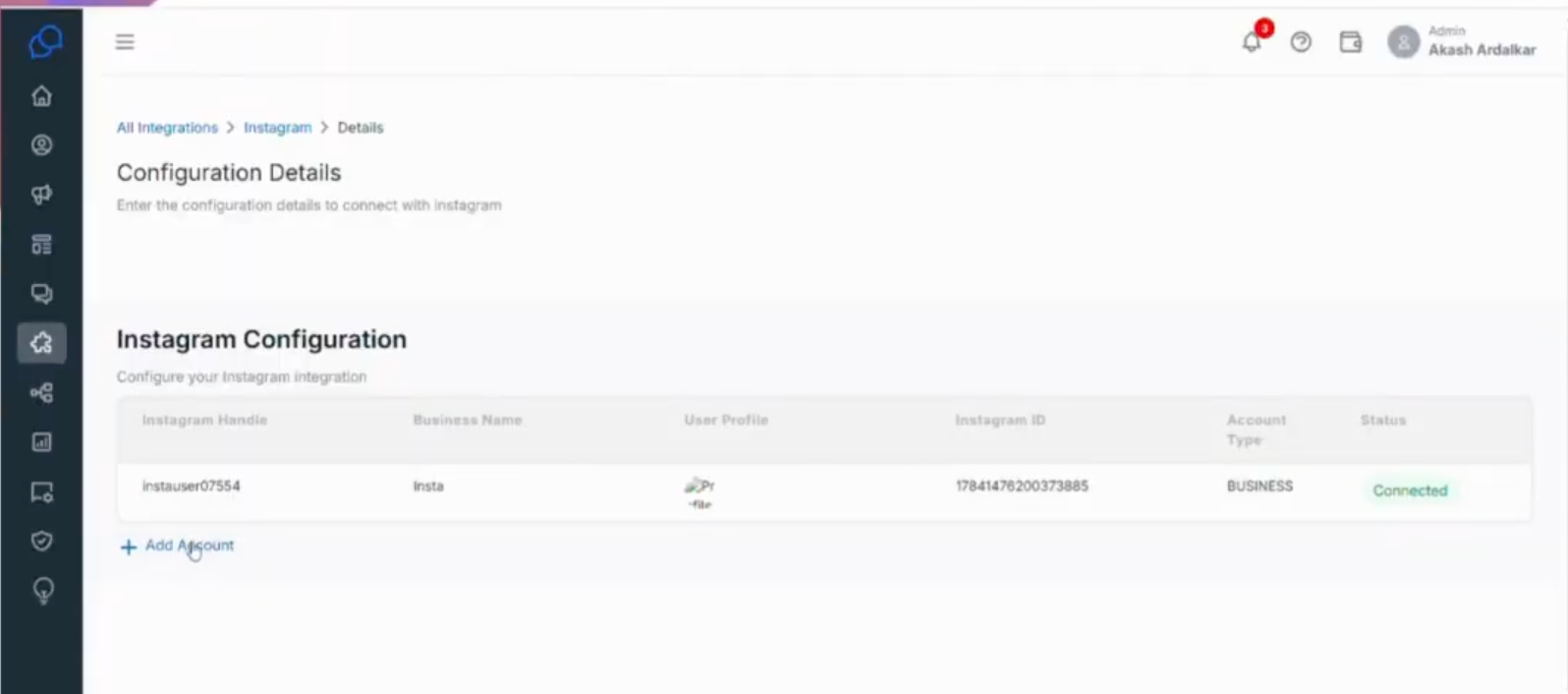
- Click + Add Account.
- You’ll be redirected to a Facebook authorization window that says “Connect your Facebook Business Account.”
Step 3: Authorize Conversive
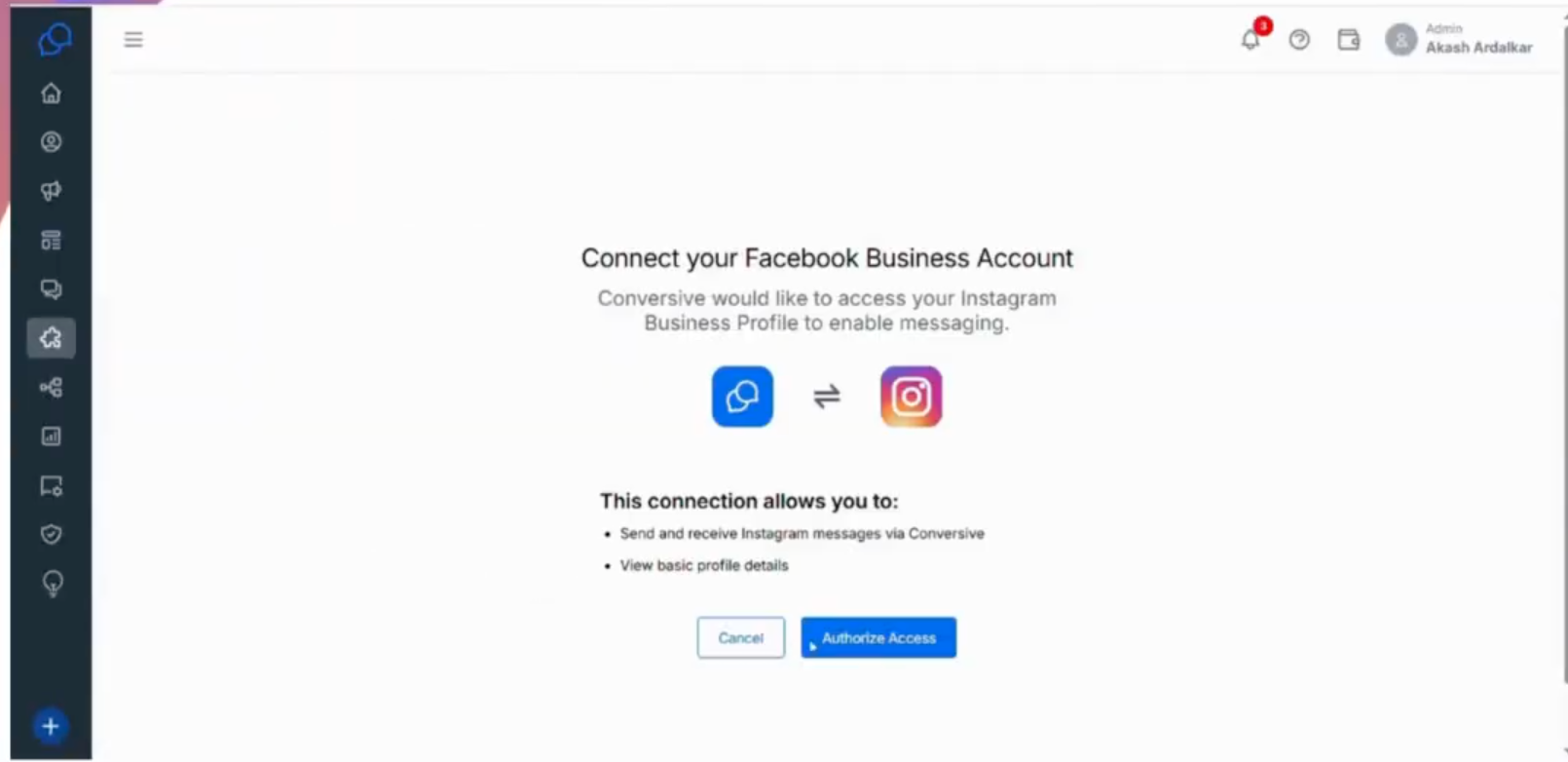
- Click Authorize Access and log in with your Facebook credentials.
- Select the Facebook Page linked to your Instagram account.
- Allow Conversive the required permissions to:
- Send and receive Instagram messages.
- Access profile and Page details.
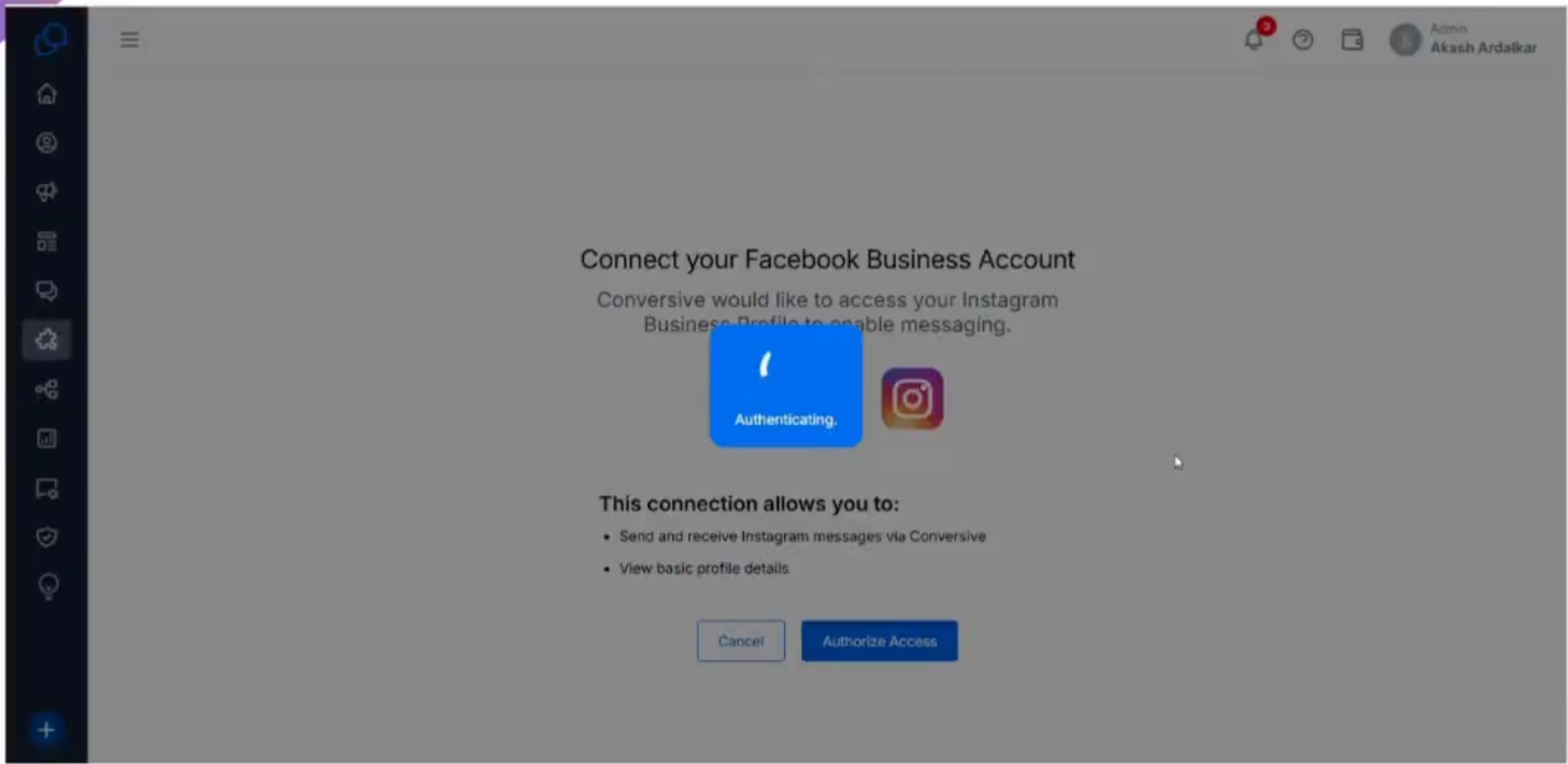
- Wait for the Authenticating screen to complete the setup.
Step 4: Verify Connection
- After successful authorization, you’ll return to Conversive.
- Under Configuration Details, your Instagram handle and business name should appear.
- The Status column will show Connected in green.
Step 5: Test Connection
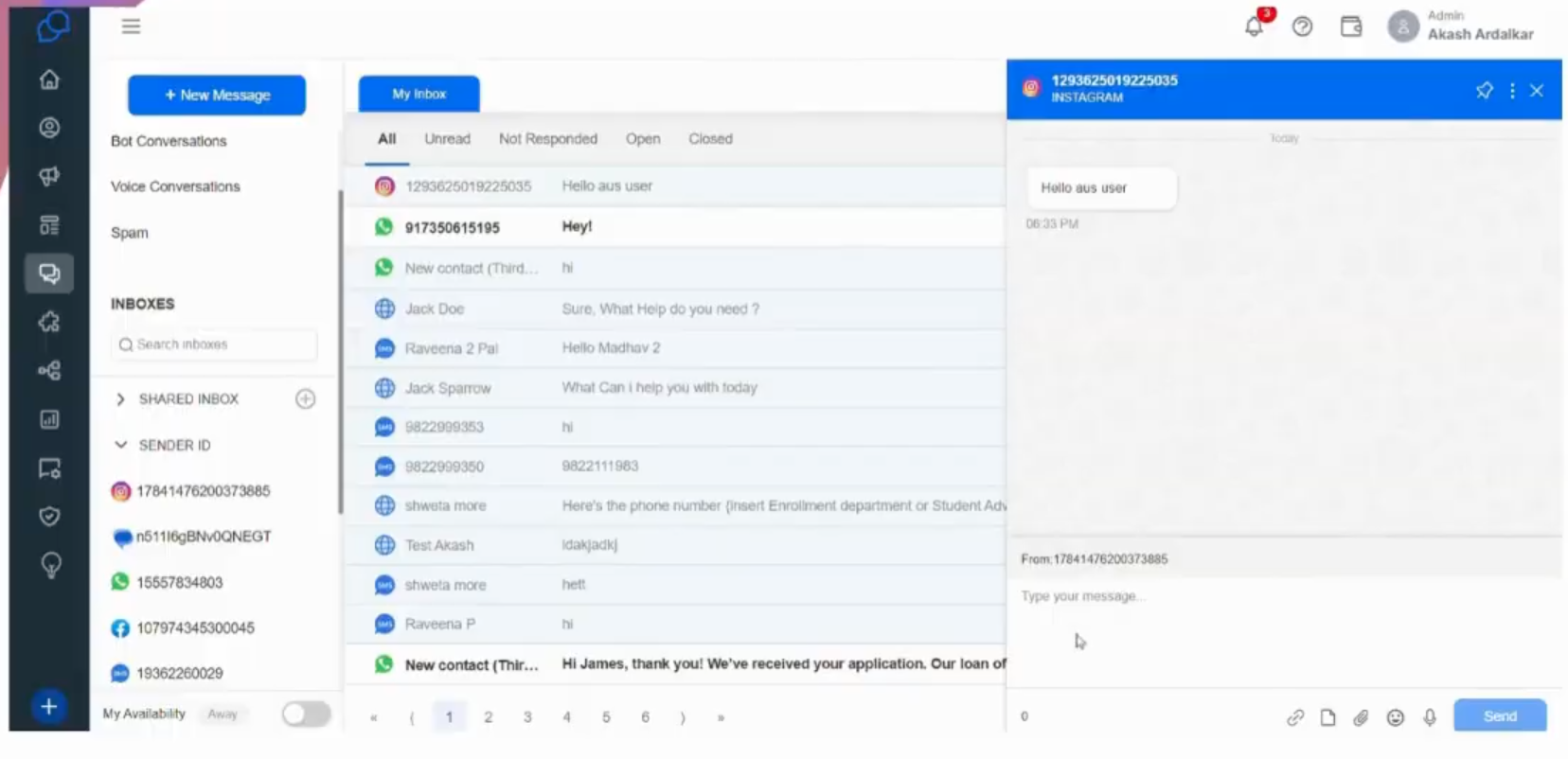
To verify, go to Converse Desk → Inbox and check if your Instagram handle appears under Sender IDs.
Completion Message
✅ Once the connection is complete, Conversive will begin receiving new Instagram messages in real time.